Edge Impulse Gesture Recognition Build a gesture detection system that runs fully offline on your ESP32. This guide uses Edge Impulse to train a model and export it as a ready-to-use Arduino library.
How it Works? (The Simple Version)
Data : You record motion data (gestures) using your smartphone or sensor.Train : Edge Impulse uses that data to teach an AI model to recognize those patterns.Deploy : You export the model as code and upload it to your ESP32. It then runs locally without needing the internet.
What You Need Before starting, make sure you have your hardware and software environment ready.
Hardware Required
ESP32 DevKit (or any ESP32 board).IMU Sensor (e.g., MPU6050 or LSM6DS3).Smartphone (To record initial data).USB Cable (For power and communication).
Software
Arduino IDE : To upload the code.ESP32 Board Package : Installed via Arduino Boards Manager.Edge Impulse Account : To train and export your model.
Software Setup Step 1: Create a Project Go to edgeimpulse.com , log in, and create a new project named something like “Gesture Detection” .
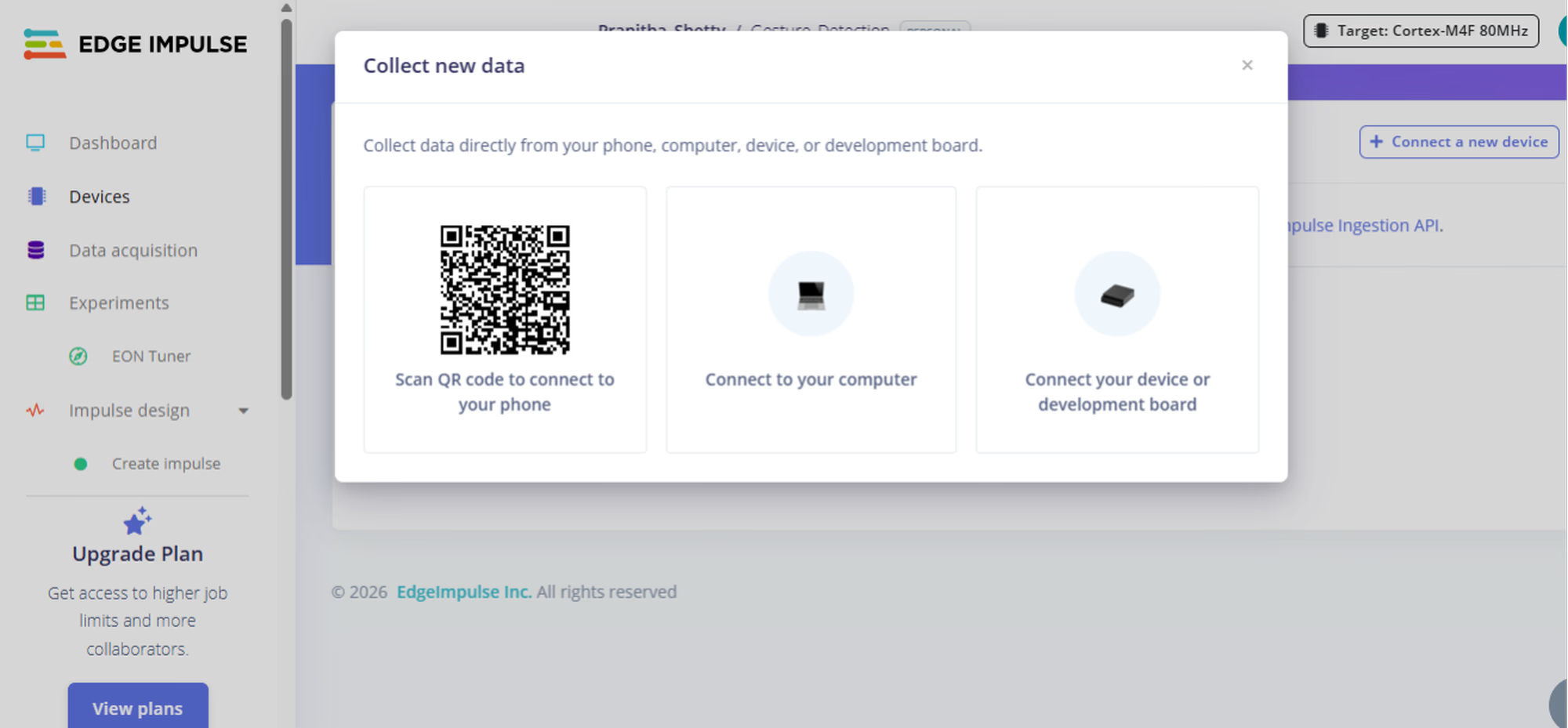
Step 2: Connect Your Phone In the Devices tab, connect your smartphone by scanning the QR code. Your phone now acts as the motion sensor for data collection.
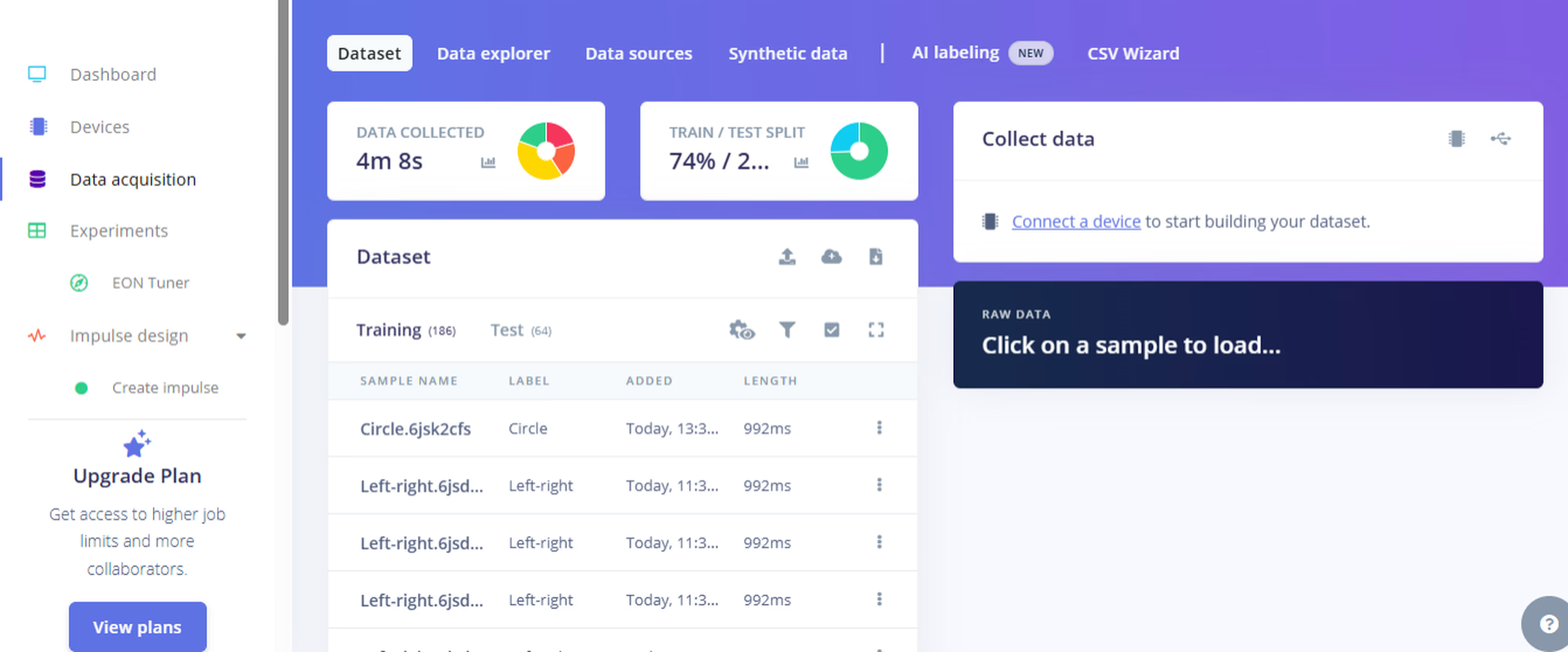
Step 3: Collect Data Go to Data Acquisition , type a label like "up-down", hit Start Sampling , and perform the gesture. Repeat for each gesture you want to teach. Keep the data balanced and save some as Test Data .
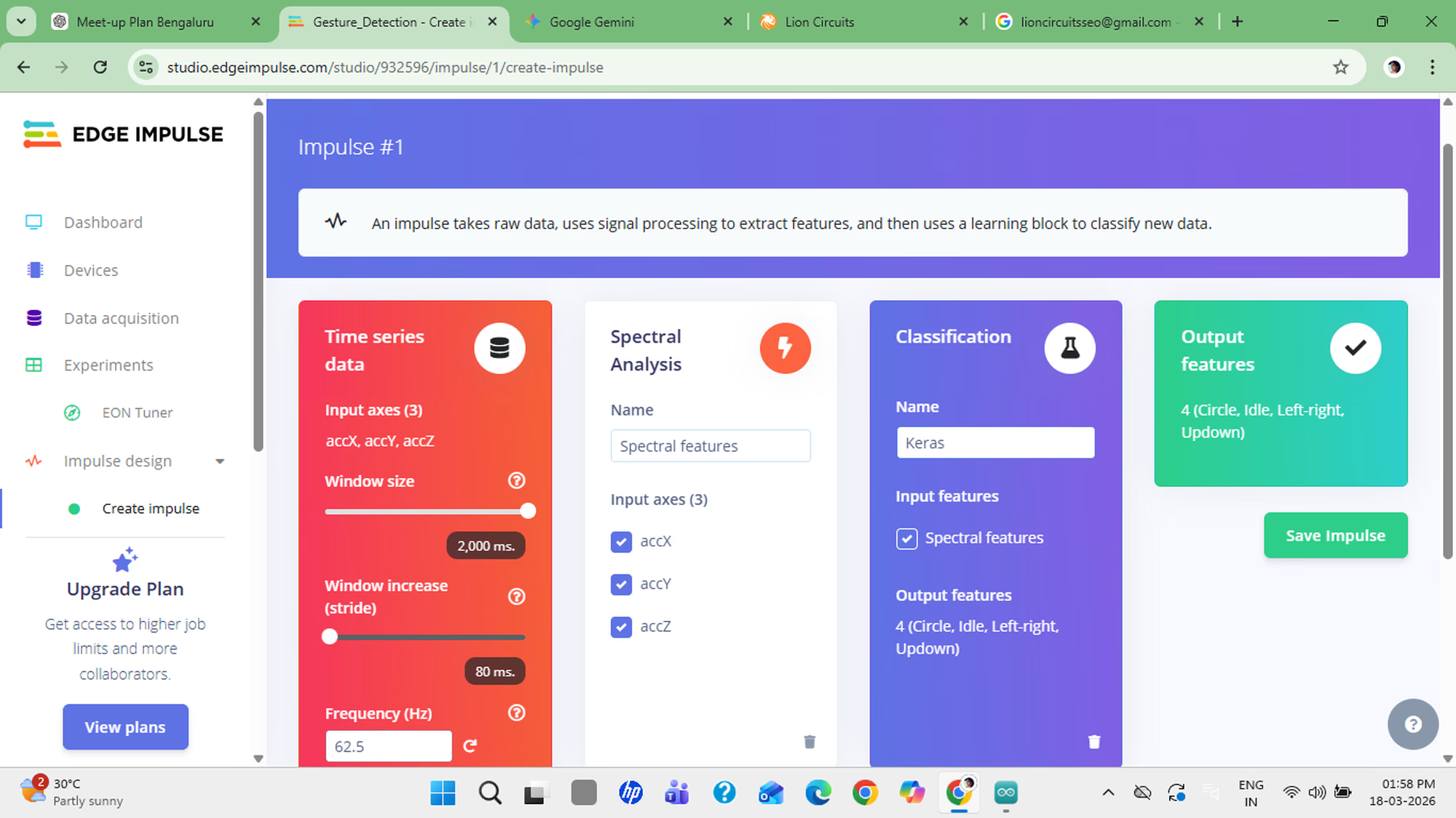
Step 4: Design the Impulse Go to Impulse Design :
Set Window Size to ~2 seconds.
Add Spectral Analysis as the processing block.
Add Neural Network as the learning block.
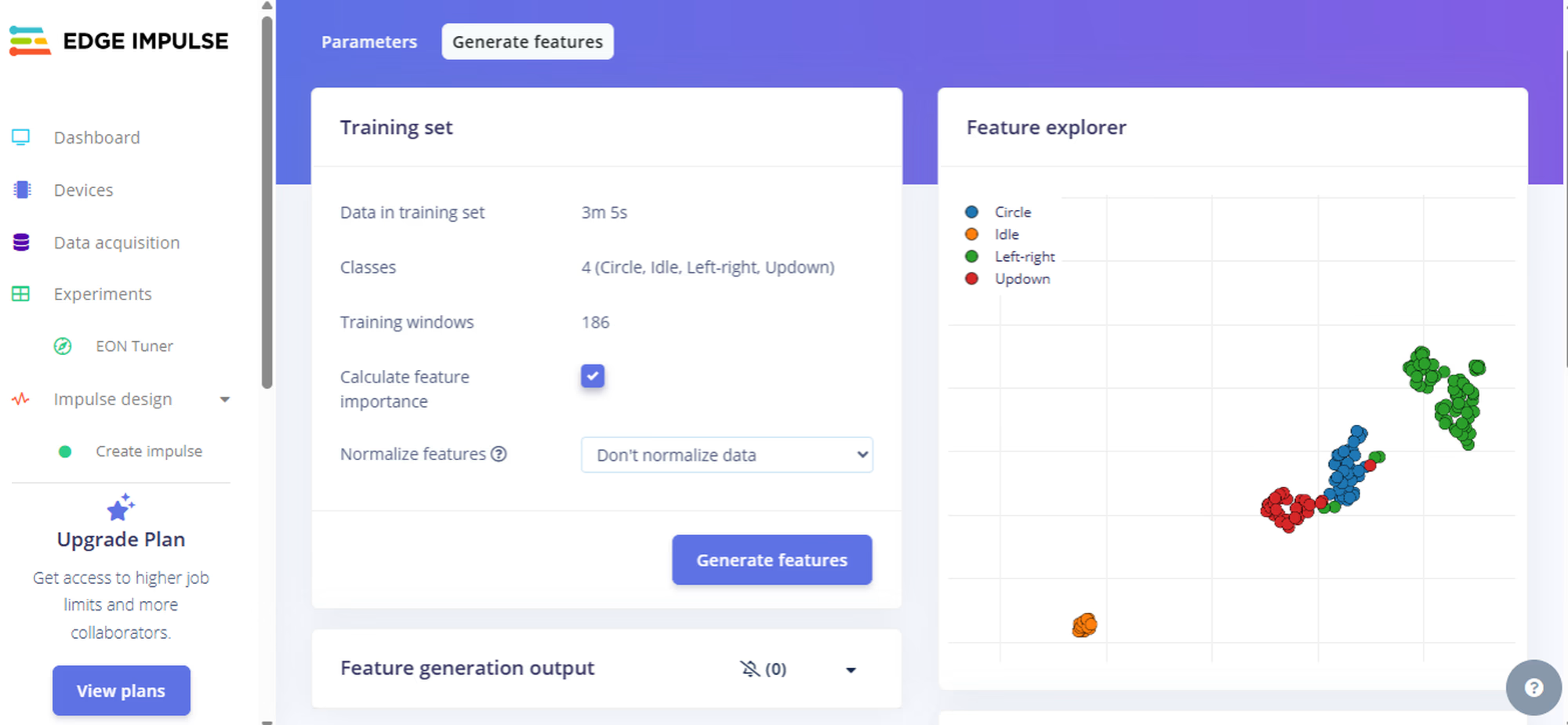
Step 5: Check Accuracy Open Feature Explorer and check that your gestures form separate clusters. The more separated they are, the better your accuracy will be.
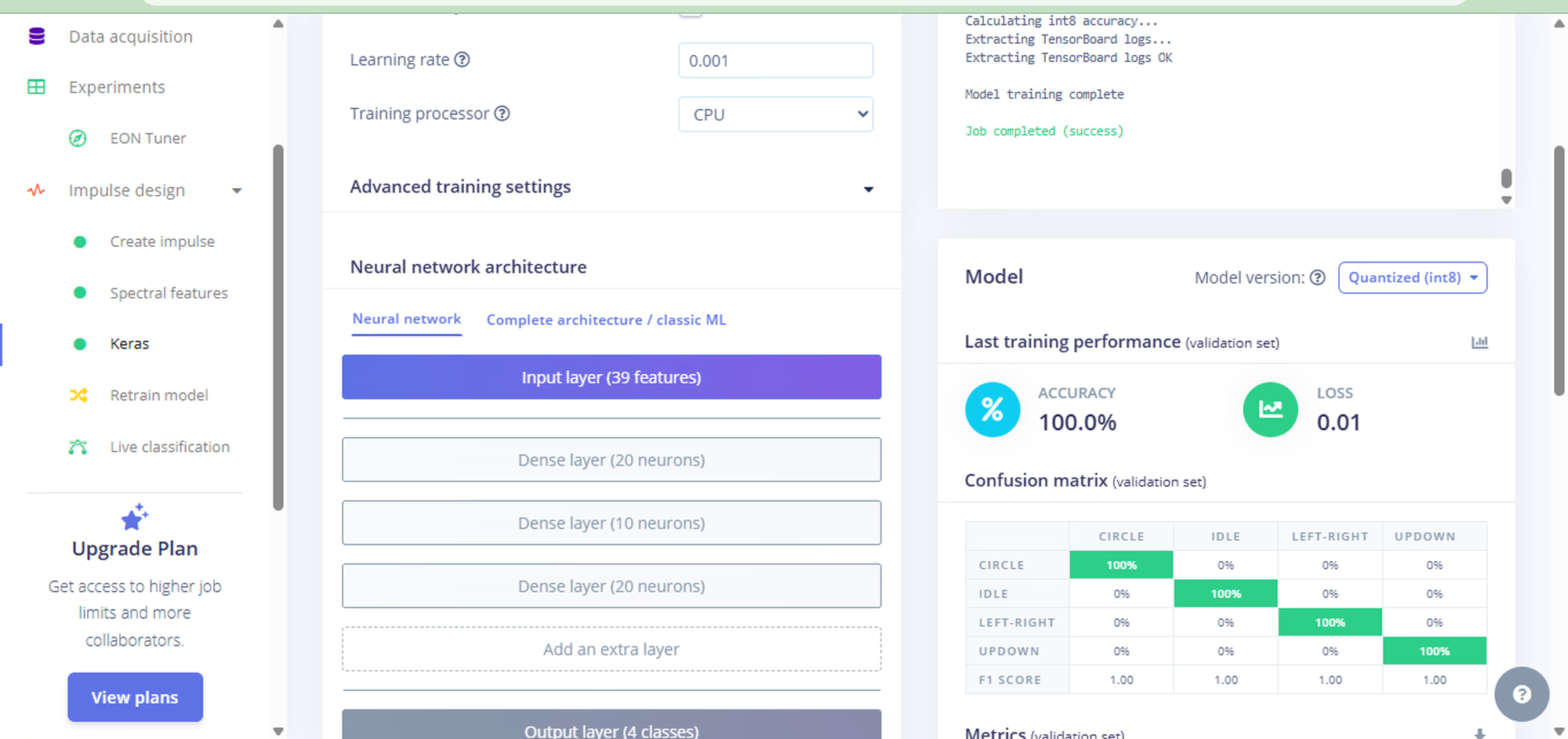
Step 6: Train the Model Go to the Classifier tab and hit Start Training . Expect around 80–90% accuracy.
If accuracy is low, collect more data or be more consistent with your gestures.
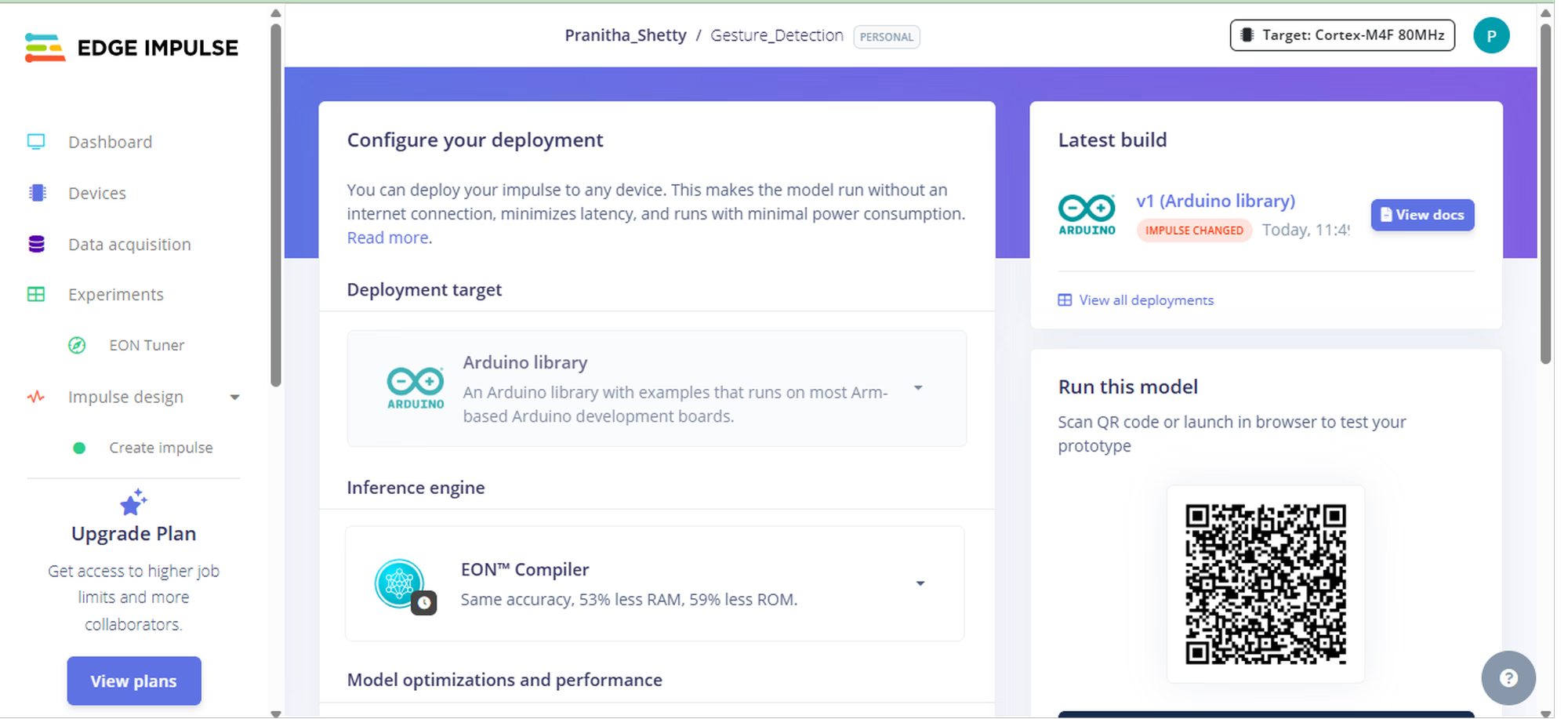
Step 7: Export as Code Go to Deployment , select Arduino Library , and download the ZIP file. This is your AI model exported as standard C++ code.
Step 8: Upload to ESP32
Extract the ZIP file.
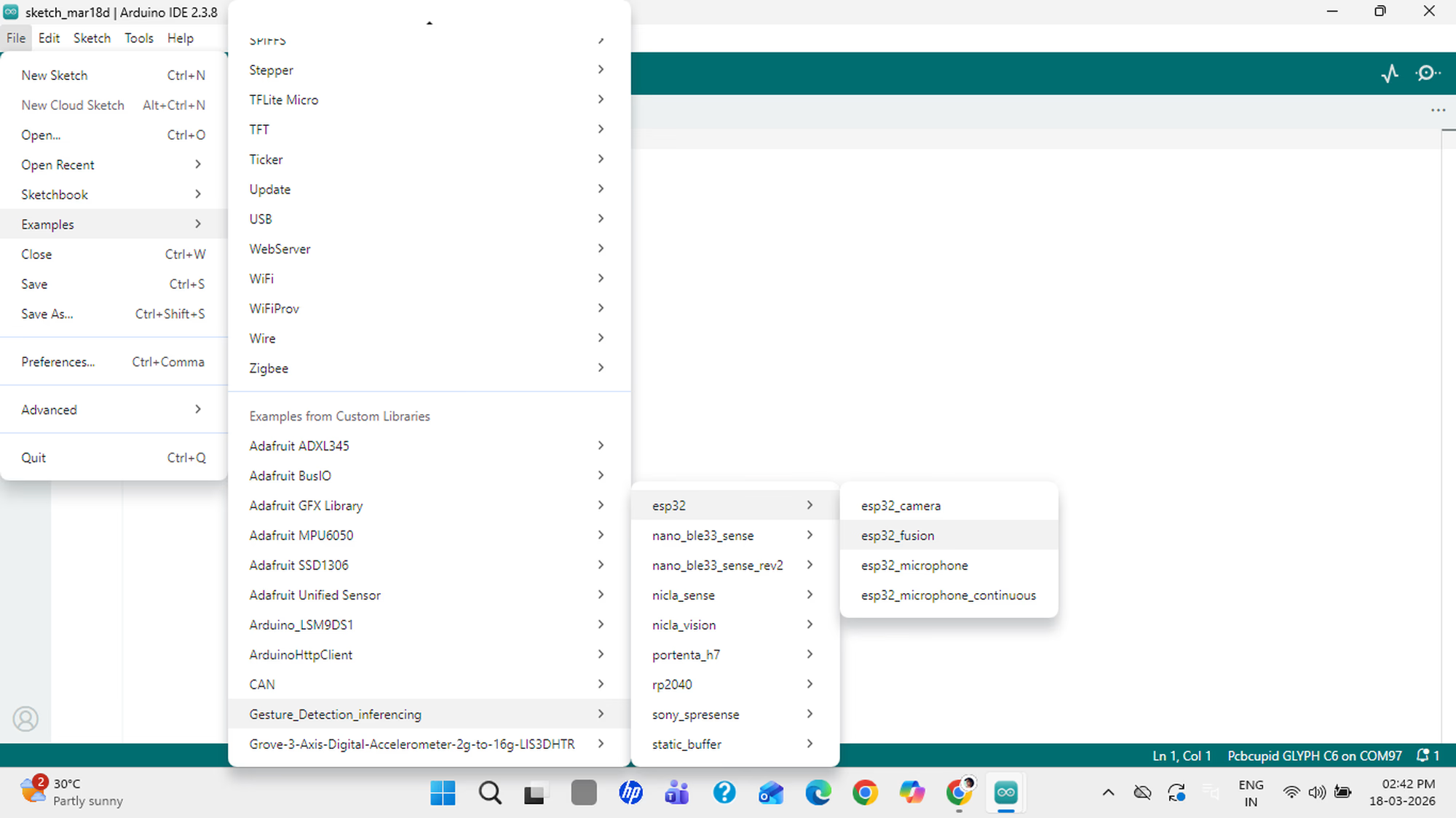
Open Arduino IDE and go to File → Examples → [Your Project Name] → ESP32 → ESP32 Fusion .
Install the ESP32 board package, wire up your ESP32 + IMU sensor, select the right board and COM port, then click Upload .
Step 9: Test Your Gestures Open the Serial Monitor and perform your gestures. You will see real-time predictions like "Gesture: up-down". It runs fully offline on the ESP32!
Have fun with your mini AI Assistant! 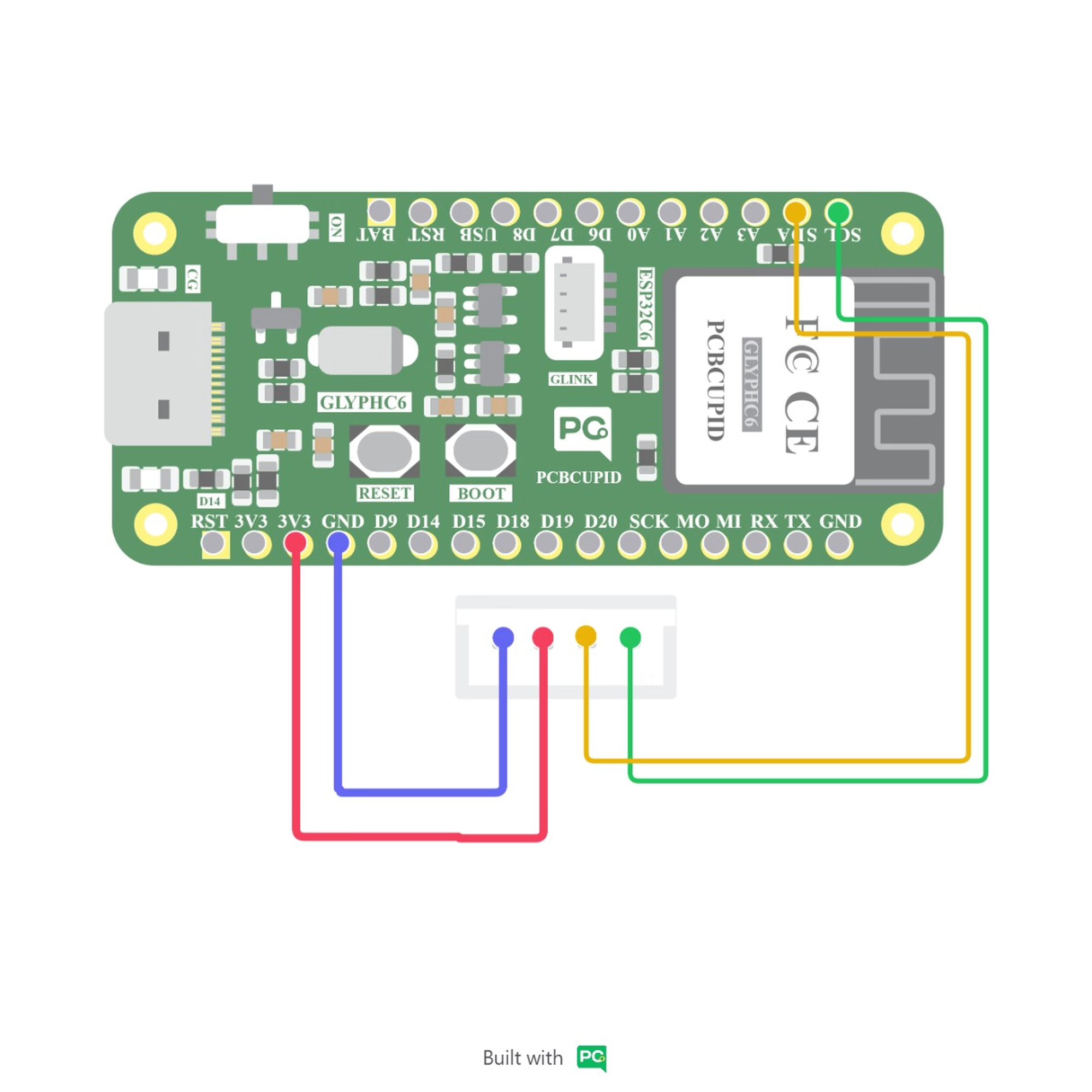

 Have fun with your mini AI Assistant!