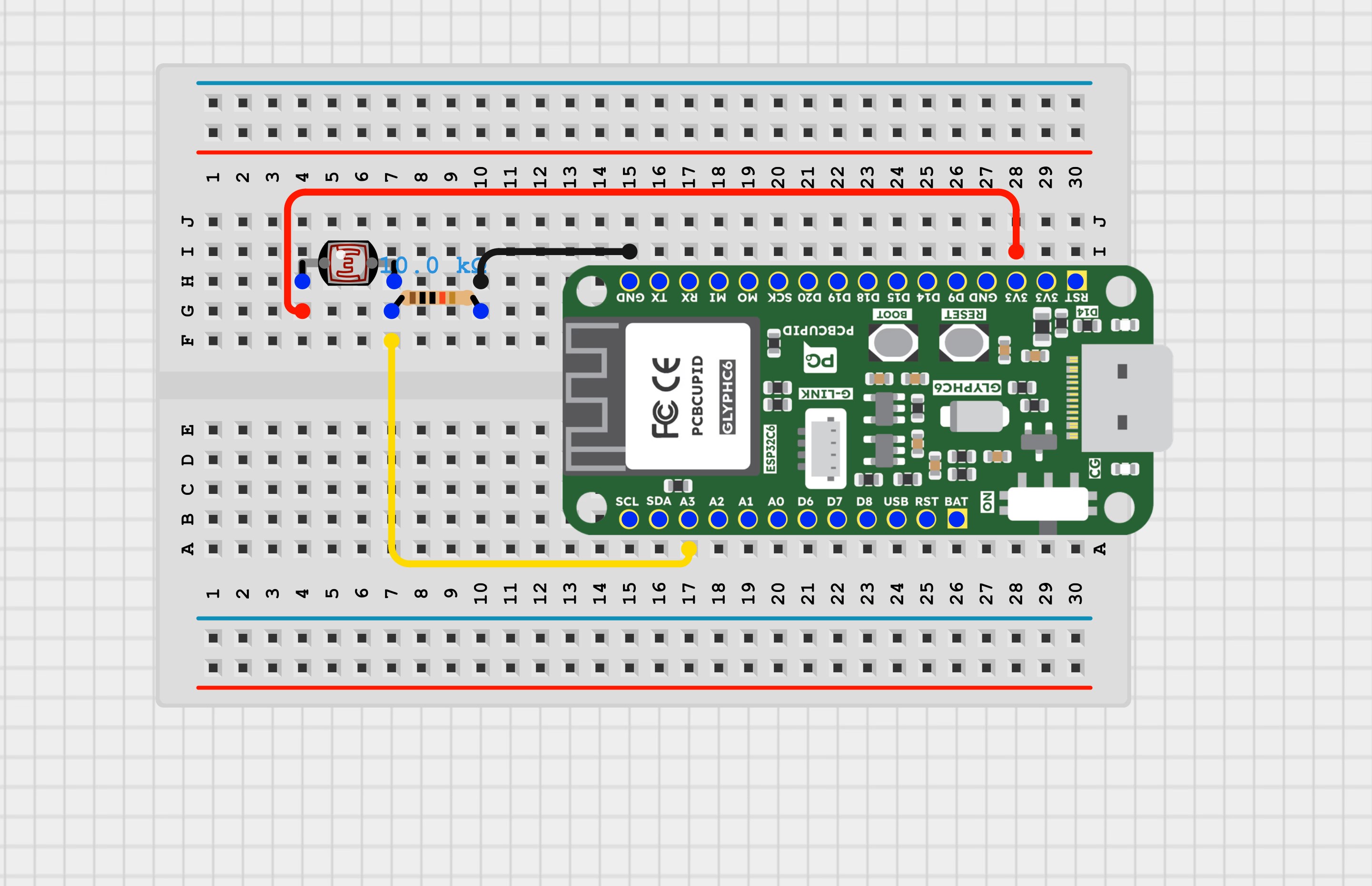
An LDR (Light Dependent Resistor), also known as a photoresistor, is a variable resistor that changes its resistance based on the intensity of light falling on it.How an LDR Works:
Light Intensity vs. Resistance:
In darkness, the resistance of an LDR is very high (in the range of megaohms, MΩ).
In bright light, the resistance drops significantly (to a few hundred ohms, Ω).Material Composition:
LDRs are made of semiconductor materials like cadmium sulfide (CdS), which have high resistance in darkness but become more conductive when exposed to light (due to photon energy freeing electrons).LDR in a Circuit:
Voltage Divider Circuit:
An LDR is often used in a voltage divider with a fixed resistor to convert changes in light intensity into voltage variations.
The voltage across the LDR can be measured using a microcontroller (e.g., ESP32, Arduino).Controlling Devices:
LDRs are used in automatic streetlights, light meters, and solar tracking systems to control relays, LEDs, or other devices based on ambient light levels.
#define LIGHT_SENSOR_PIN 3 // GLYPH-C6 pin GPIO 3 (ADC channel)void setup() { // initialize serial communication at 115200 bits per second: Serial.begin(115200); // set the ADC attenuation to 11 dB (up to ~3.3V input) analogSetAttenuation(ADC_11db);}void loop() { // reads the input on analog pin (value between 0 and 4095) int analogValue = analogRead(LIGHT_SENSOR_PIN); Serial.print("Analog Value = "); Serial.print(analogValue); // the raw analog reading // We'll have a few thresholds, qualitatively determined if (analogValue < 40) { Serial.println(" => Dark"); } else if (analogValue < 800) { Serial.println(" => Dim"); } else if (analogValue < 2000) { Serial.println(" => Light"); } else if (analogValue < 3200) { Serial.println(" => Bright"); } else { Serial.println(" => Very bright"); } delay(100);}
Select the Board and PortDo the following settings in your Arduino IDE,
Tools > Board > esp32 > Pcbcupid GLYPH C6
For the Pcbcupid GLYPH C6 to appear under Tools > Board > esp32, the esp32 board version installed in the Arduino IDE should be greater or equal to 3.1.0.
Tools > Port and select the port connected to your GLYPH.
Tools > USB CDC on Boot > Enabled
If USB CDC on BOOT is not enabled, you won’t see any serial data in the Arduino IDE.
Upload the Code
Upload the corresponding code for your board to the GLYPH board using the Arduino IDE.
Click the upload button (➡ icon) or use the shortcut CTRL + U in Arduino IDE to upload the code to the board.