This guide will walk you through performing an I2C Scan with a GLYPH board, assuming you are using GLYPH-C3 (but any GLYPH development board from the ESP32 Series should work).The I2C (Inter-Integrated Circuit) protocol is a popular communication method for connecting various sensors and modules to Microcontrollers.
Developed by Philips Semiconductor (now NXP Semiconductors) in 1982, I2C was designed to provide a simple and efficient way for chips to communicate within electronic devices.I2C uses just two bidirectional open-drain lines: SCL (Serial Clock Line) and SDA (Serial Data Line), making it a space-efficient and cost-effective solution for short-distance communication. Its multi-master capability and addressable nature allow multiple devices to share the same bus, which has contributed to its widespread adoption in various applications, from consumer electronics to automotive systems and IoT devices. In the I2C protocol, each device on the bus is identified by a unique 7-bit address, allowing multiple devices to share the same SCL and SDA lines as long as each device has a different/distinct address. This way, the microcontroller can communicate with each device individually by addressing them with their specific I2C addresses.There are 4 methods how you can connect your GLYPH board via I2C:
// Wire.h is part of the core Arduino libraries and comes pre-installed with the Arduino IDE. #include <Wire.h> // Include the Wire library for I2C communicationvoid setup() { Serial.begin(115200); // Initialize serial communication at a baud rate of 115200 Wire.begin(); // Start the I2C bus //Wire.begin(4,5); //Use this if you have custom pins for I2C SDA,SCL Serial.println("\nI2C Scanner"); // Print a header message in Serial Monitor indicating the scanner's start}void loop() { byte error, address; // Variable 'error' stores the status of I2C transmission; 'address' is the I2C address of the device int nDevices = 0; // Variable to count the number of detected I2C devices Serial.println("Scanning..."); // Print message indicating that scanning has started // Loop through all possible I2C addresses (1 to 126) for (address = 1; address < 127; address++) { Wire.beginTransmission(address); // Start communication with the device at the specified I2C address error = Wire.endTransmission(); // Send I2C message to the device, see whether it responds and check for errors in the response // If no error, an I2C device responded at this address if (error == 0) { Serial.print("I2C device found at address 0x"); // Print message indicating a device is found // If address is a single-digit hex (0x00 to 0x0F), print a leading zero for formatting if (address < 16) { Serial.print("0"); // Print a leading zero for single-digit hexadecimal addresses } Serial.print(address, HEX); // Print the device address in hexadecimal format Serial.println(" !"); // Indicate a successful connection with an exclamation mark at the end for emphasis nDevices++; // Increment the device count } // If an error code 4 is returned, it indicates an unknown error else if (error == 4) { Serial.print("Unknown error at address 0x"); // Print message indicating unknown error at a specific address // Print leading zero for single-digit hexadecimal addresses if (address < 16) { Serial.print("0"); } Serial.println(address, HEX); // Print the address with the unknown error in hexadecimal } } // If no devices were detected, print a message; otherwise, print "Done." if (nDevices == 0) { Serial.println("No I2C devices found\n"); // Print a message indicating no devices were found } else { Serial.println("Done.\n"); // Scanning completed with at least one device found } delay(5000); // Wait 5 seconds before starting the next scan}
Select the Board and PortDo the following settings in your Arduino IDE,
Do the following settings in your Arduino IDE,
Tools > Board > esp32 > Pcbcupid GLYPH C3
For the Pcbcupid GLYPH C3 to appear under Tools > Board > esp32, the esp32 board version installed in the Arduino IDE should be greater than or equal to 3.1.0.
Tools > Port and select the port connected to your GLYPH.
Tools > USB CDC on Boot >Enabled
If USB CDC on BOOT not enabled, you won’t be seeing any serial data on Arduino IDE.
Upload the Code
Click the upload button (➡️ icon) or use the shortcut CTRL + U in Arduino IDE to upload the code to the board.
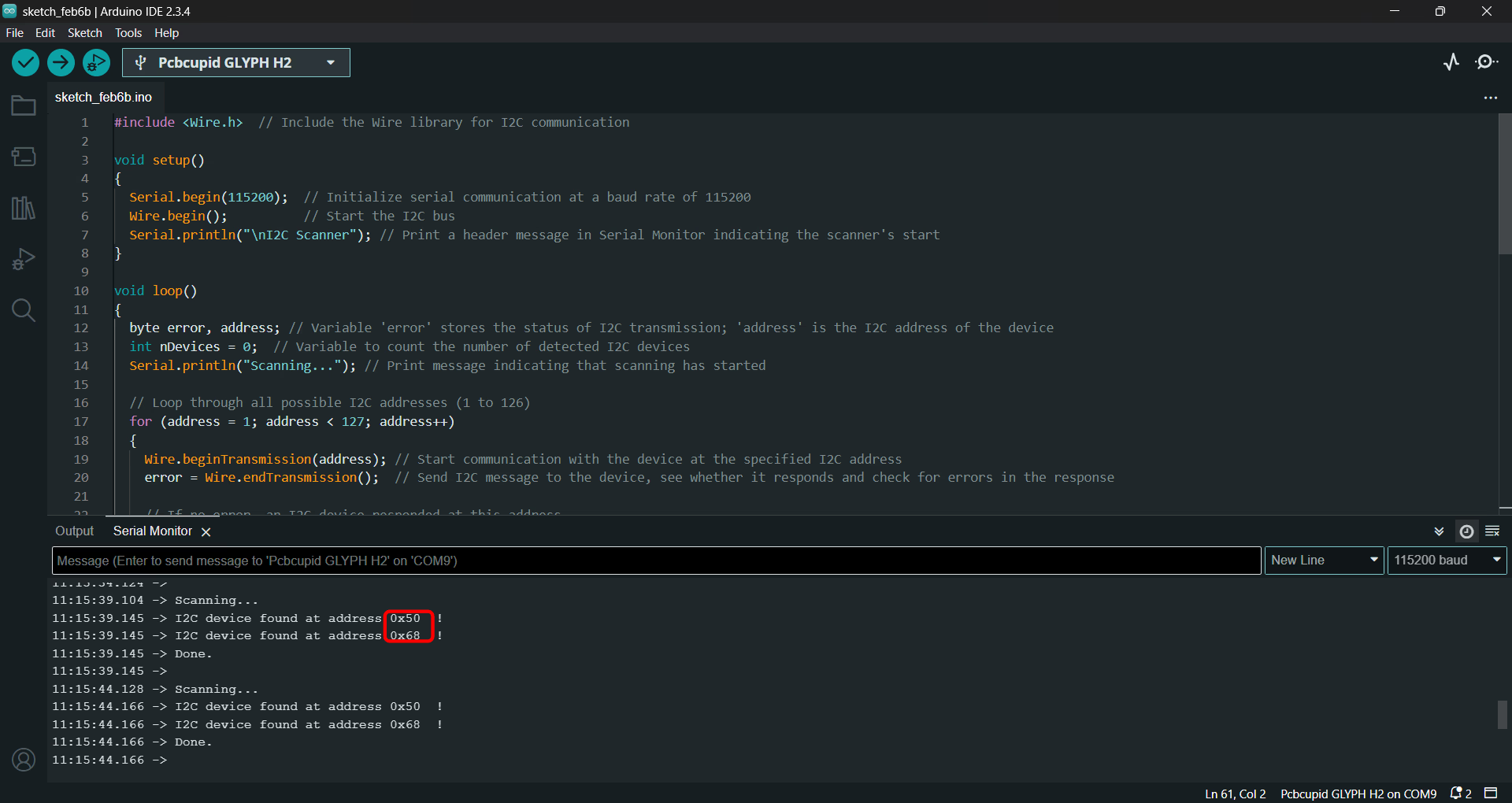
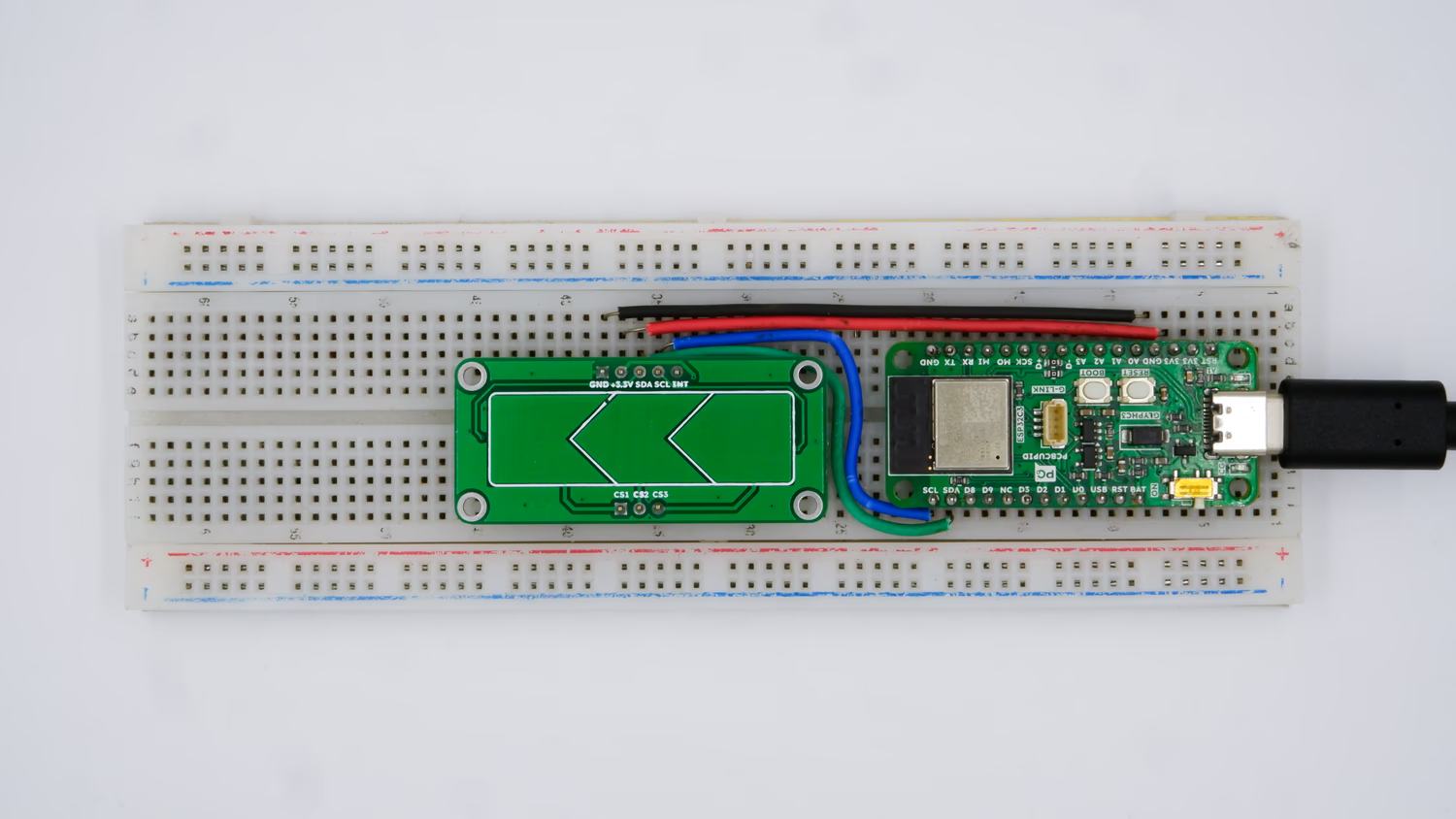
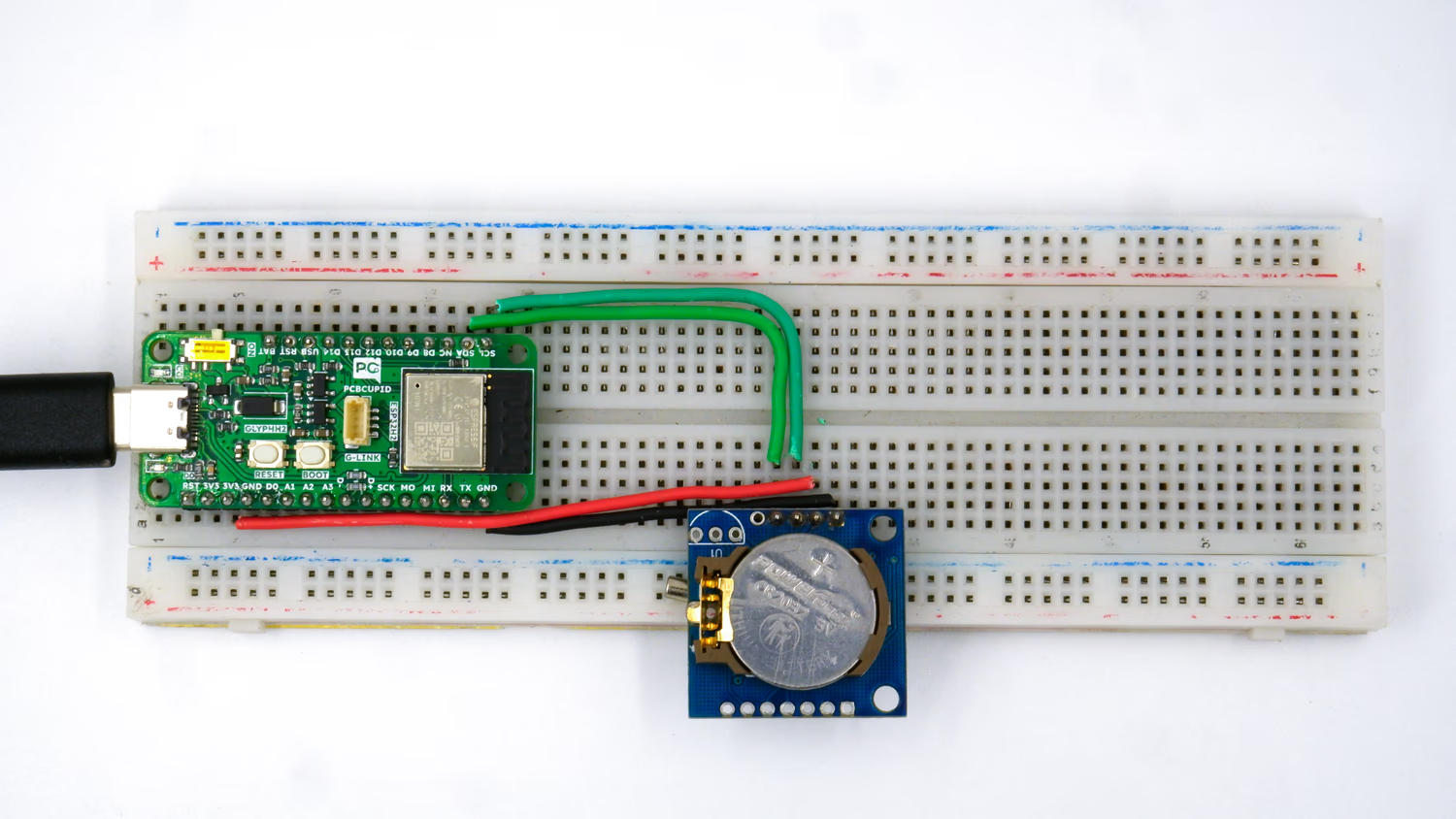
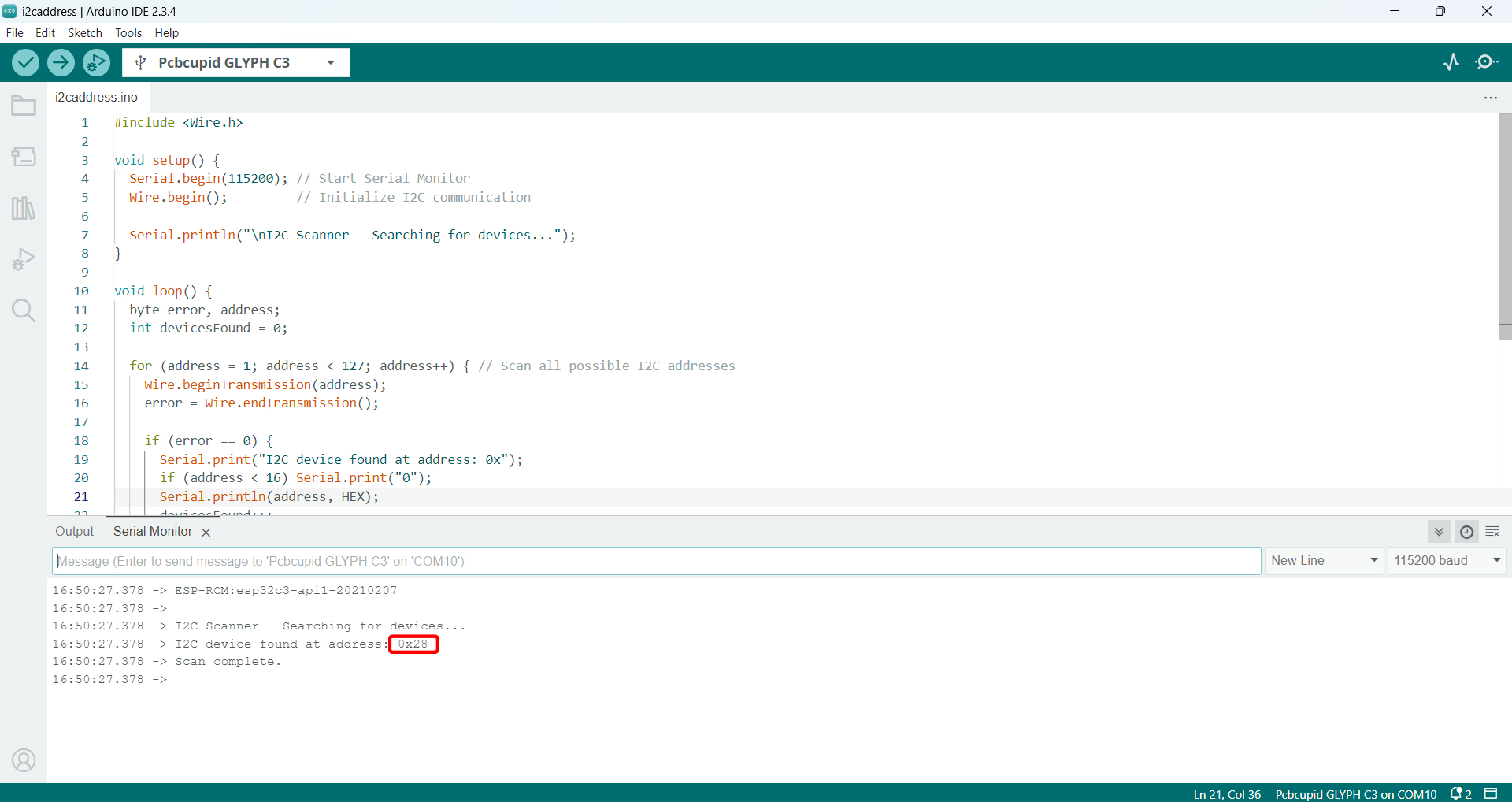
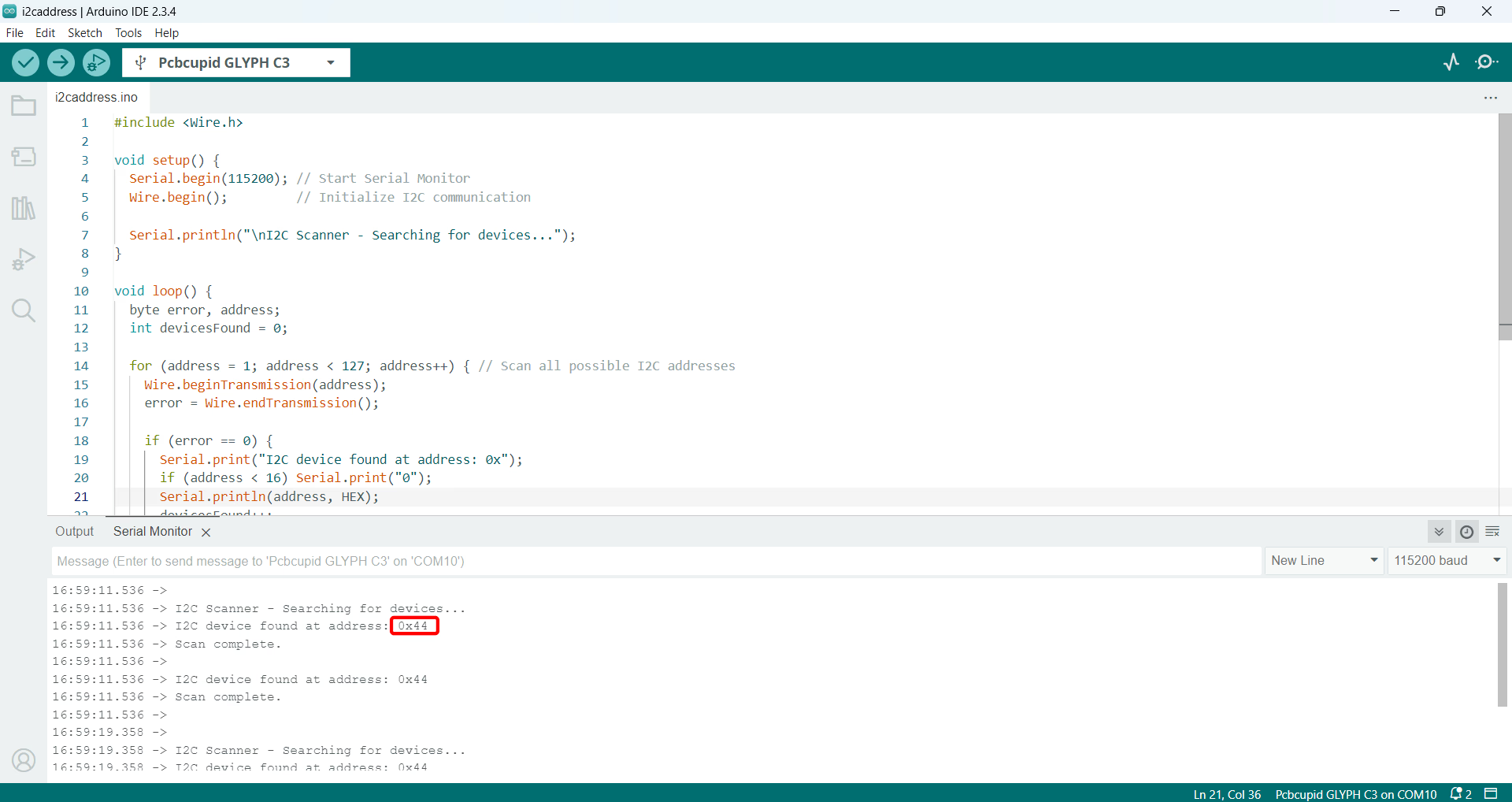
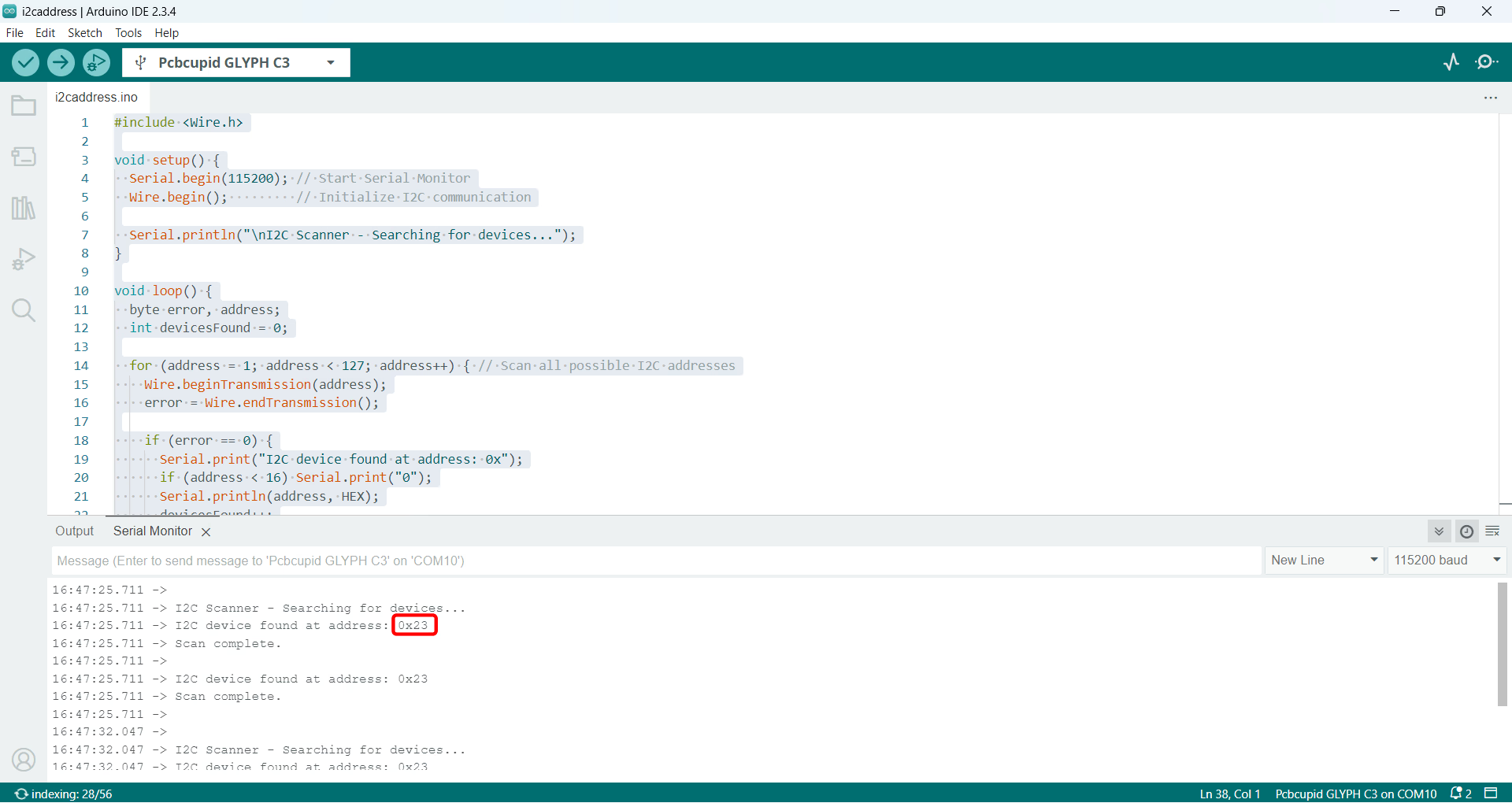
The Serial Monitor should display the I2C Addresses if a device connected on the I2C bus:GSense Capacitive Touch Slider Sensor I2C AddressSHT 35 I2C AddressSHT 45 I2C AddressBH1750 Adafruit Light Sensor I2C AddressThe DS1307 Module has an Onboard AT24C32 EEPROM so you would likely see 2 different I2C address.DS1307 Real Time Clock (RTC) module I2C Address
 This guide will walk you through performing an I2C Scan with a GLYPH board, assuming you are using GLYPH-C3 (but any GLYPH development board from the ESP32 Series should work).
The I2C (Inter-Integrated Circuit) protocol is a popular communication method for connecting various sensors and modules to Microcontrollers.
Developed by Philips Semiconductor (now NXP Semiconductors) in 1982, I2C was designed to provide a simple and efficient way for chips to communicate within electronic devices.
I2C uses just two bidirectional open-drain lines: SCL (Serial Clock Line) and SDA (Serial Data Line), making it a space-efficient and cost-effective solution for short-distance communication. Its multi-master capability and addressable nature allow multiple devices to share the same bus, which has contributed to its widespread adoption in various applications, from consumer electronics to automotive systems and IoT devices. In the I2C protocol, each device on the bus is identified by a unique 7-bit address, allowing multiple devices to share the same SCL and SDA lines as long as each device has a different/distinct address. This way, the microcontroller can communicate with each device individually by addressing them with their specific I2C addresses.
There are 4 methods how you can connect your GLYPH board via I2C:
This guide will walk you through performing an I2C Scan with a GLYPH board, assuming you are using GLYPH-C3 (but any GLYPH development board from the ESP32 Series should work).
The I2C (Inter-Integrated Circuit) protocol is a popular communication method for connecting various sensors and modules to Microcontrollers.
Developed by Philips Semiconductor (now NXP Semiconductors) in 1982, I2C was designed to provide a simple and efficient way for chips to communicate within electronic devices.
I2C uses just two bidirectional open-drain lines: SCL (Serial Clock Line) and SDA (Serial Data Line), making it a space-efficient and cost-effective solution for short-distance communication. Its multi-master capability and addressable nature allow multiple devices to share the same bus, which has contributed to its widespread adoption in various applications, from consumer electronics to automotive systems and IoT devices. In the I2C protocol, each device on the bus is identified by a unique 7-bit address, allowing multiple devices to share the same SCL and SDA lines as long as each device has a different/distinct address. This way, the microcontroller can communicate with each device individually by addressing them with their specific I2C addresses.
There are 4 methods how you can connect your GLYPH board via I2C:
 SHT 35 I2C Address
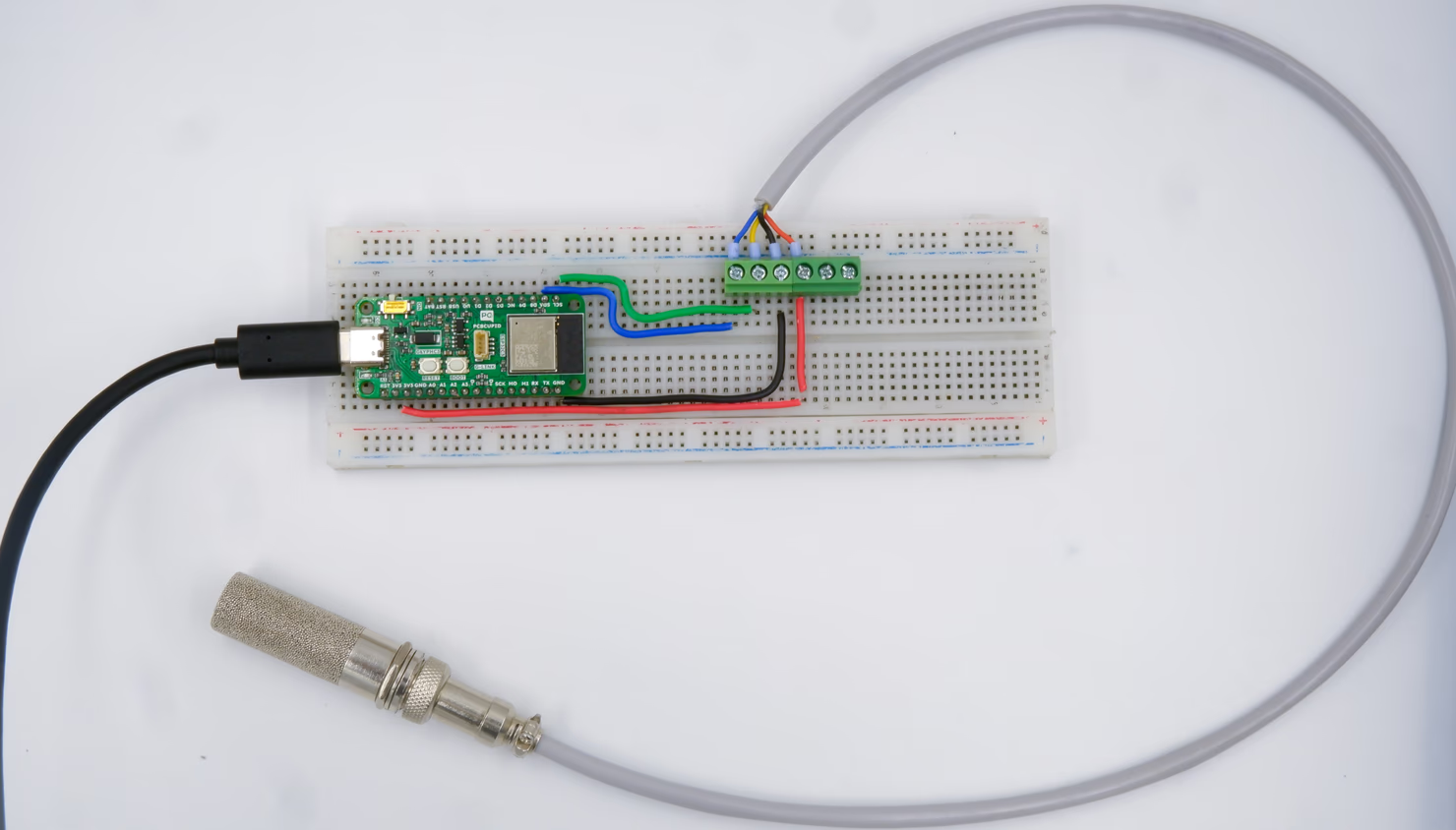
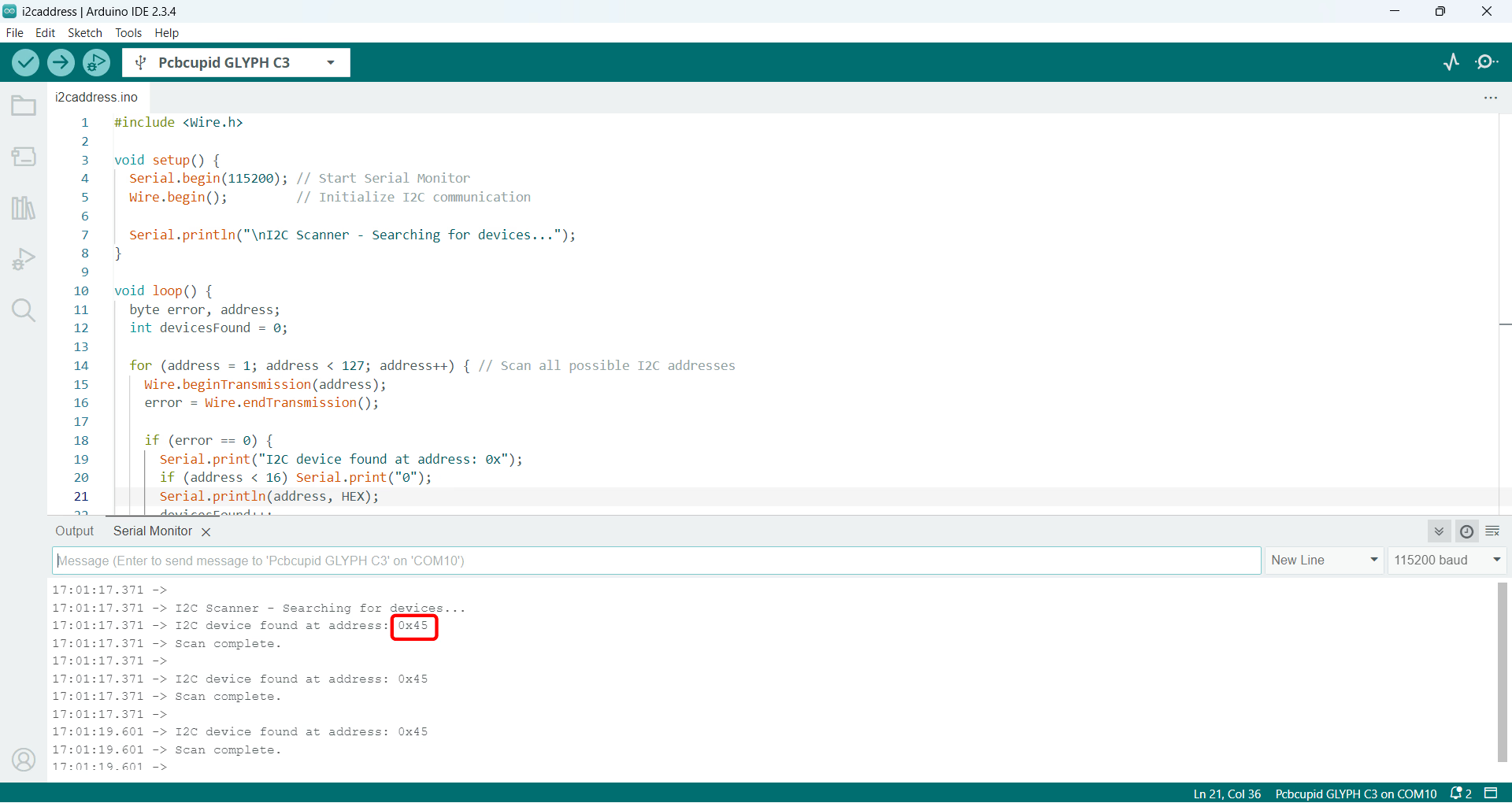 SHT 45 I2C Address
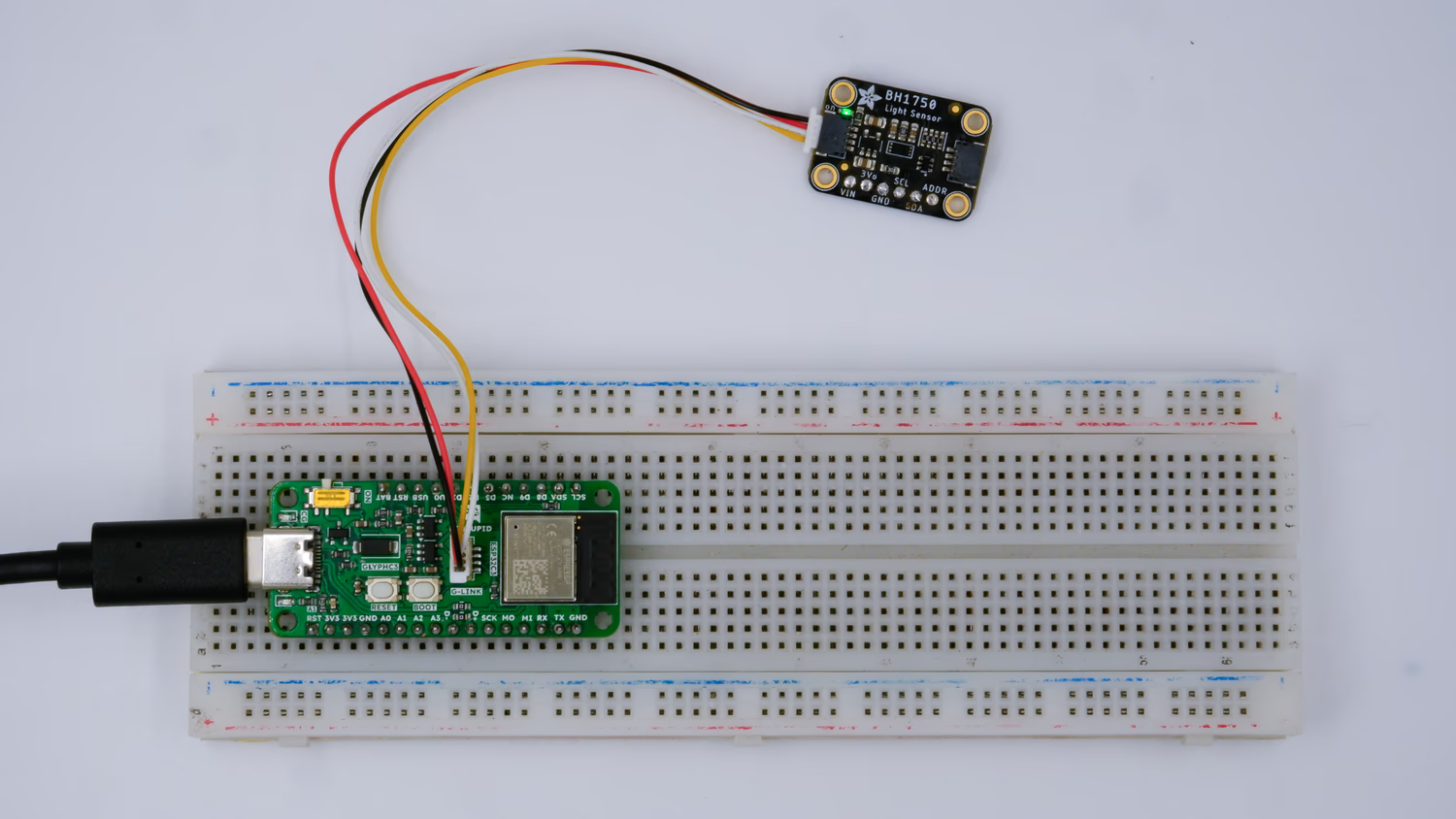
 BH1750 Adafruit Light Sensor I2C Address
 The DS1307 Module has an Onboard AT24C32 EEPROM so you would likely see 2 different I2C address.
DS1307 Real Time Clock (RTC) module I2C Address
The DS1307 Module has an Onboard AT24C32 EEPROM so you would likely see 2 different I2C address.
DS1307 Real Time Clock (RTC) module I2C Address