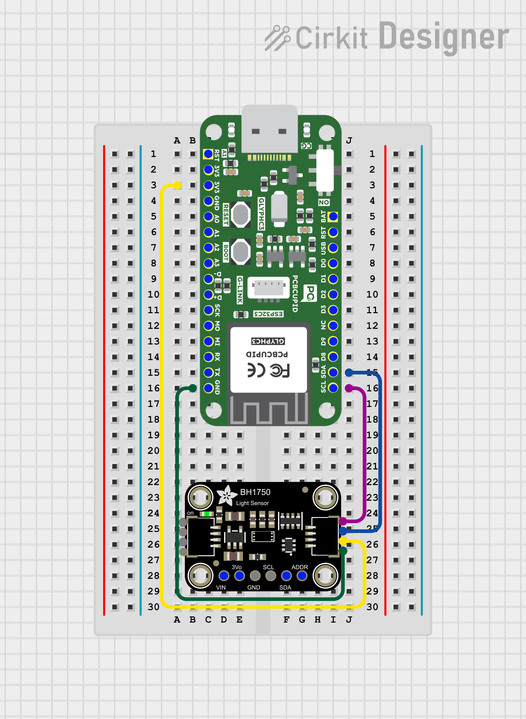
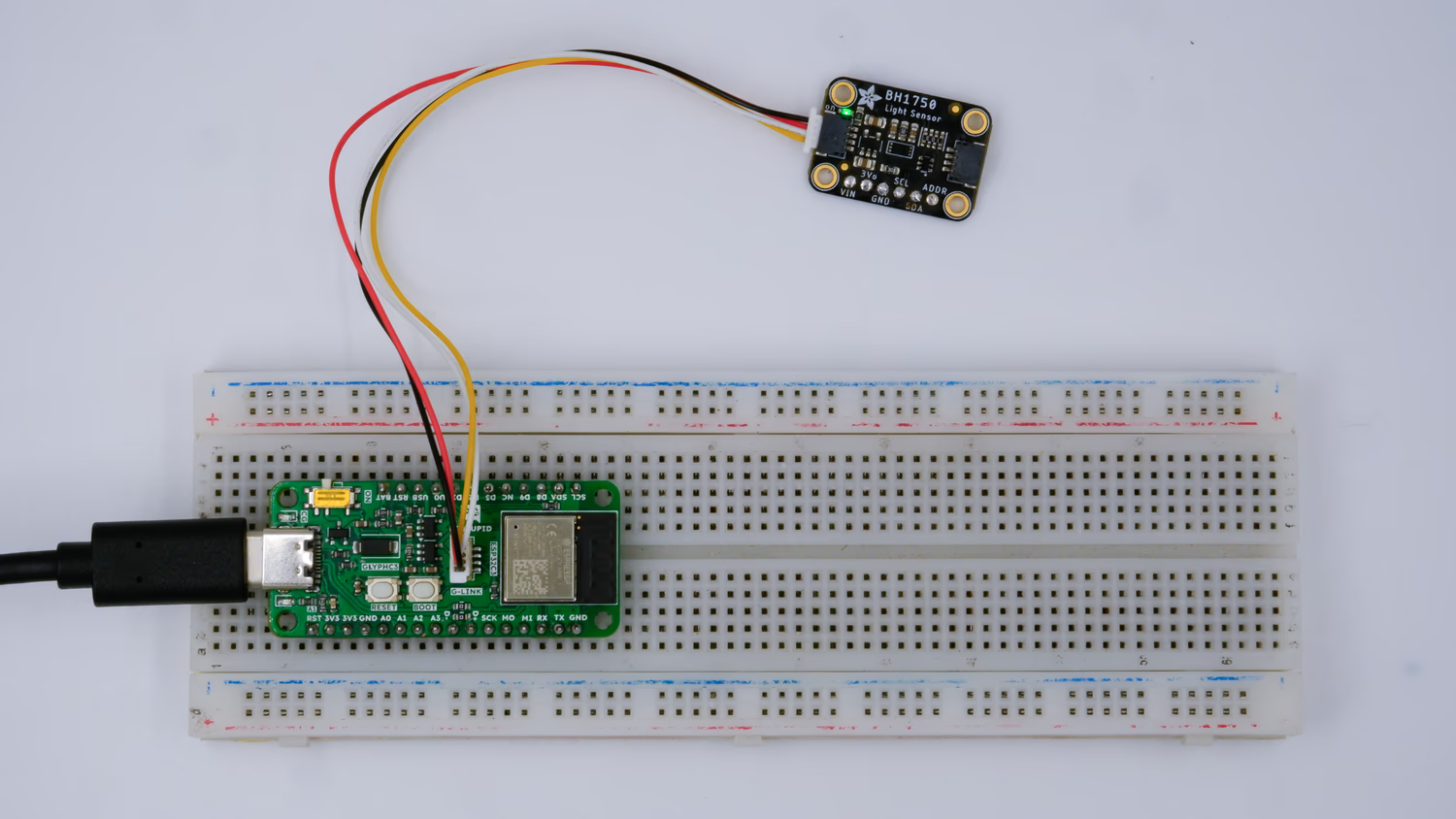
This guide helps you integrate the BH1750 light sensor with GLYPH Boards assuming you are using GLYPH-C3 (but any GLYPH development board from the ESP32 Series should work). Along with that it should prove to be a good example for using G-LINK that comes as a part of GLYPH board and also shows cross compatibility between G-LINK and QWIIC Connector. The provided code in this example should reads light levels and prints them to the Serial Monitor. We’ll walk you through setting up the sensor and modifying the code.
Select the Board and PortDo the following settings in your Arduino IDE,
Do the following settings in your Arduino IDE,
Tools > Board > esp32 > Pcbcupid GLYPH C3
For the Pcbcupid GLYPH C3 to appear under Tools > Board > esp32, the esp32 board version installed in the Arduino IDE should be greater or equal to 3.1.0.
Tools > Port and select the port connected to your GLYPH.
Tools > USB CDC on Boot >Enabled
If USB CDC on BOOT not enabled, you won’t be seeing any serial data on Arduino IDE.
Upload the Code
Click the upload button (➡️ icon) or use the shortcut CTRL + U in Arduino IDE to upload the code to the board.
After uploading the code, open the Serial Monitor by clicking on the magnifying glass icon in the top right corner of Arduino IDE or by going to Tools > Serial Monitor.
Set the Baud Rate
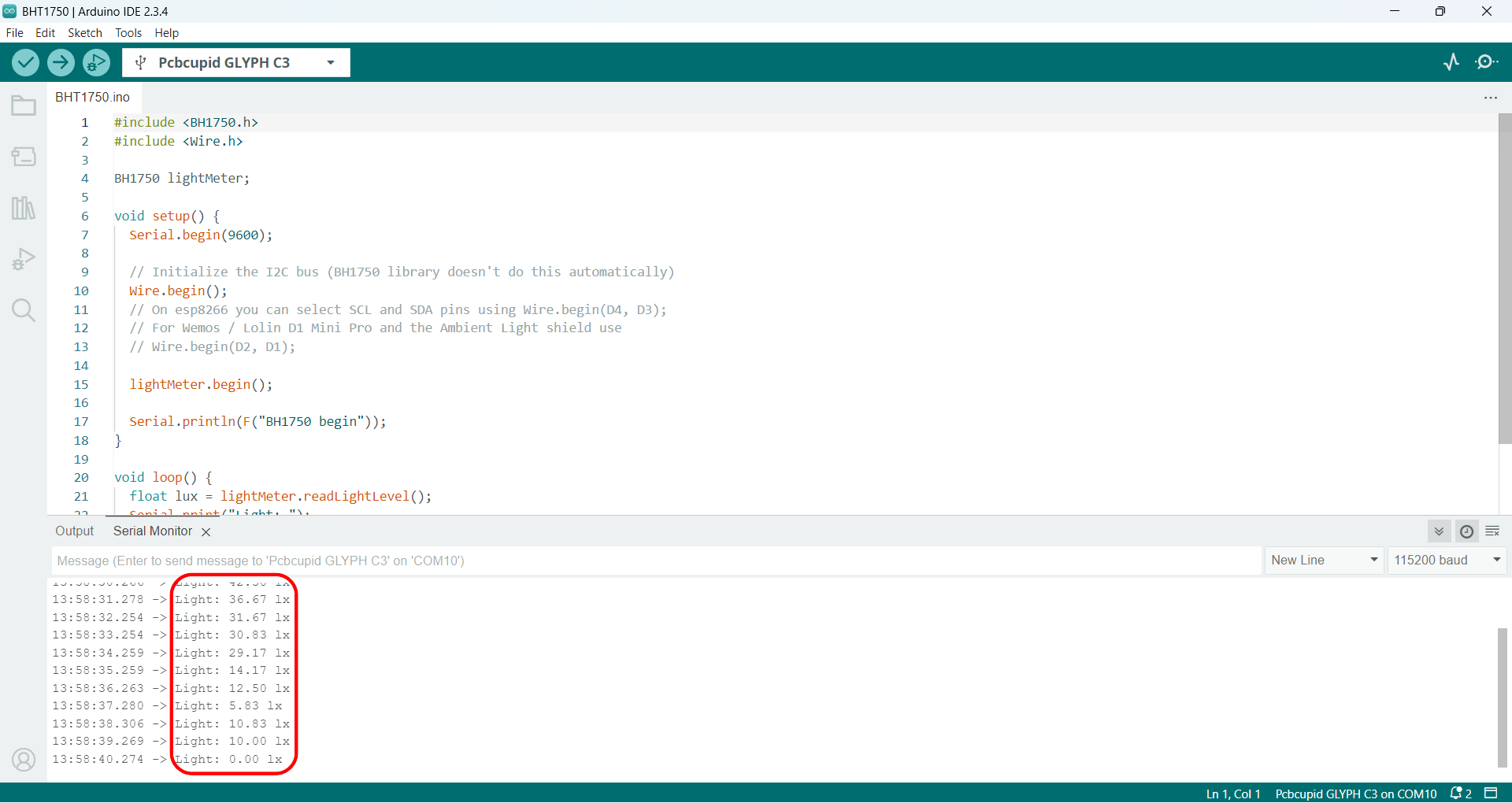
Ensure the baud rate is set to 9600.
Read the Light Levels
The Serial Monitor will display light levels in lux measured by the BH1750 sensor. The output should look something like this:
 This guide helps you integrate the BH1750 light sensor with GLYPH Boards assuming you are using GLYPH-C3 (but any GLYPH development board from the ESP32 Series should work). Along with that it should prove to be a good example for using G-LINK that comes as a part of GLYPH board and also shows cross compatibility between G-LINK and QWIIC Connector. The provided code in this example should reads light levels and prints them to the Serial Monitor. We’ll walk you through setting up the sensor and modifying the code.