
Documentation Index

Fetch the complete documentation index at: https://learn.pcbcupid.com/llms.txt

Use this file to discover all available pages before exploring further.

A Serial Flash Module is a compact memory device designed to interface a microcontroller (e.g., Arduino, ESP32, GLYPH, STM32) for non-volatile data storage, firmware storage, logging, and configuration management. Unlike SD cards, Serial Flash is directly soldered onto the board and communicates typically over SPI (and sometimes QSPI) for high-speed data transfer.

Pin Configuration

  • VCC: Power supply input for the Serial Flash chip (typically 3.3V).
  • G (GND): Ground .
  • CLK: Serial Clock input for SPI communication
  • CS: Chip Select (active LOW). Enables communication with the Serial Flash device.
  • MO (MOSI / SI): Master Out Slave In — carries data from the
  • MI (MISO / SO): Master In Slave Out — carries data from the Serial Flash to the microcontroller.
  • SD2 (IO2): Data line 2. Used in Quad-SPI (QSPI) mode for higher-speed data transfer. In standard SPI mode, this pin is typically unused or acts as a hold function depending on the chip.
  • SDI3 (IO3): Data line 3. Used in Quad-SPI (QSPI) mode. In standard SPI mode, this pin may function as Write Protect (WP) or Hold depending on the flash device.

Key Features

  • Non-volatile memory (retains data without power)
  • SPI / QSPI communication support
  • High-speed data transfer
  • Compact and small footprint
  • Low power consumption
  • High endurance (multiple erase/write cycles)
  • Sector and block erase capability
  • Supports execute-in-place (XIP) in QSPI
  • Wide voltage operating range (typically 3.3V)
  • Reliable long-term data storage

Application

  • Firmware Storage: Storing bootloader, application code, or external program memory in embedded systems.
  • OTA Updates: Holding firmware files for over-the-air updates in IoT devices.
  • Data Logging: Recording sensor readings, event logs, or system data in real-time applications.
  • Configuration Storage: Saving device settings, calibration values, or user preferences.
  • Buffer Memory: Temporary storage for data processing in communication or control systems.
  • Embedded Systems: Expanding memory capacity in microcontroller-based designs.

Step 1: Hardware Required

  1. Glyph Boards
  2. G-MOD Serial flash Module

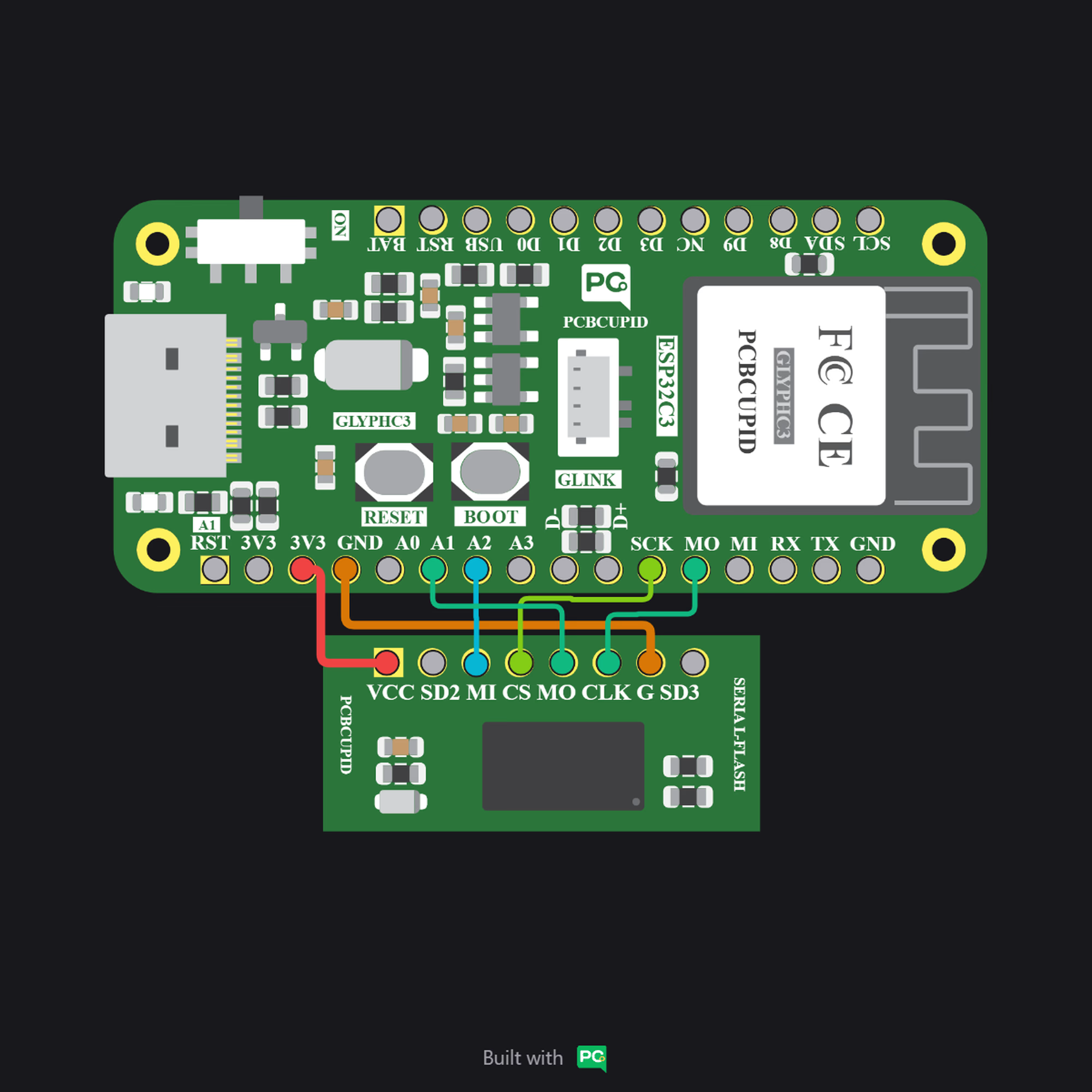
Step 2: Circuit Diagram

serial-flash

Step 3: Code Setup

  1. Open Arduino IDE.
  2. Copy and paste the following code into the Arduino IDE:
Here’s your code with detailed comments added so it’s easier to follow and understand:
#include <SPI.h>  

// Define the pin connections for the external SPI Flash chip
#define FLASH_CS   5   // Chip Select (CS) pin
#define FLASH_MISO 4   // Master In Slave Out (MISO) pin
#define FLASH_MOSI 7   // Master Out Slave In (MOSI) pin
#define FLASH_CLK  6   // Clock (SCK) pin

// Create an SPI object for FSPI (ESP32-C3 supports FSPI hardware bus)
SPIClass SPI1(FSPI);

void setup() {
  Serial.begin(115200);
  delay(1000);

  Serial.println("ESP32-C3 SPI Flash Test");

  pinMode(FLASH_CS, OUTPUT);
  digitalWrite(FLASH_CS, HIGH);

  SPI1.begin(FLASH_CLK, FLASH_MISO, FLASH_MOSI, FLASH_CS);
  SPI1.beginTransaction(SPISettings(1000000, MSBFIRST, SPI_MODE0));

  // Read JEDEC ID
  readJEDEC();

  // Write and Read Test Data
  writeData(0x000000, "Hello Flash!");
  delay(100);
  readData(0x000000, 12);
}

void loop() {
  // Nothing here
}

// ---------------- JEDEC READ ----------------
void readJEDEC() {
  digitalWrite(FLASH_CS, LOW);

  SPI1.transfer(0x9F);

  byte mfg  = SPI1.transfer(0x00);
  byte type = SPI1.transfer(0x00);
  byte size = SPI1.transfer(0x00);

  digitalWrite(FLASH_CS, HIGH);

  Serial.print("Manufacturer ID: 0x");
  Serial.println(mfg, HEX);
  Serial.print("Memory Type: 0x");
  Serial.println(type, HEX);
  Serial.print("Memory Size: 0x");
  Serial.println(size, HEX);
}

// ---------------- WRITE ENABLE ----------------
void writeEnable() {
  digitalWrite(FLASH_CS, LOW);
  SPI1.transfer(0x06);
  digitalWrite(FLASH_CS, HIGH);
}

// ---------------- WRITE DATA ----------------
void writeData(uint32_t address, const char* data) {
  writeEnable();

  digitalWrite(FLASH_CS, LOW);

  SPI1.transfer(0x02);  // Page Program

  SPI1.transfer((address >> 16) & 0xFF);
  SPI1.transfer((address >> 8) & 0xFF);
  SPI1.transfer(address & 0xFF);

  while (*data) {
    SPI1.transfer(*data++);
  }

  digitalWrite(FLASH_CS, HIGH);
  delay(10);
}

// ---------------- READ DATA ----------------
void readData(uint32_t address, int length) {
  digitalWrite(FLASH_CS, LOW);

  SPI1.transfer(0x03);

  SPI1.transfer((address >> 16) & 0xFF);
  SPI1.transfer((address >> 8) & 0xFF);
  SPI1.transfer(address & 0xFF);

  Serial.print("Data Read: ");

  for (int i = 0; i < length; i++) {
    char c = SPI1.transfer(0x00);
    Serial.print(c);
  }

  digitalWrite(FLASH_CS, HIGH);
  Serial.println();
}

Step 4: Upload the Code

  1. Connect the Board
  • Connect your GLYPH board to your computer
  1. Select the Board and Port
Do the following settings in your Arduino IDE,
  • Tools > Board > esp32 > Pcbcupid GLYPH C3
For the Pcbcupid Glyph C3 to appear under Tools > Board > esp32, the esp32 board version installed in the Arduino IDE should be greater or equal to 3.1.0.
  • Tools > Port and select the port connected to your GLYPH.
  • Tools > USB CDC on Boot > Enabled
If USB CDC on BOOT not enabled, you won’t be seeing any serial data on Arduino IDE.
  1. Upload the Code
    • Click the upload button (➡️ icon) or use the shortcut CRTL + U in Arduino IDE to upload the code to the board.
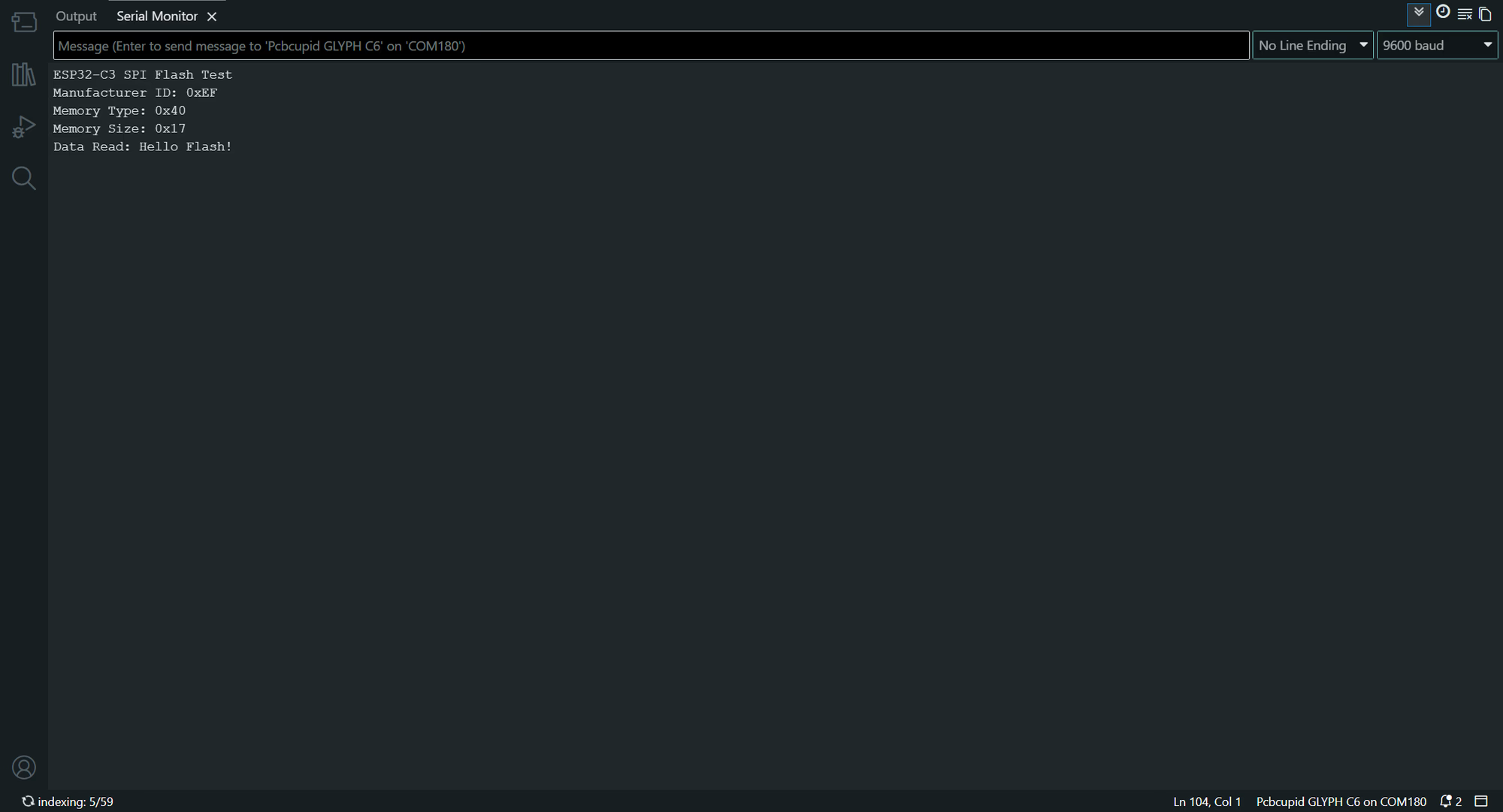
Step 5: Observe Output on Serial Monitor

pcbcupid-seial-flash-module