Documentation Index

Fetch the complete documentation index at: https://learn.pcbcupid.com/llms.txt

Use this file to discover all available pages before exploring further.

A dual-channel microphone is a device that captures audio signals in two independent channels, typically for stereo or two separate audio sources. The ICS-43434 digital I2S output bottom port microphone. The complete ICS-43434 solution consists of a MEMS sensor, signal conditioning, an analog-to-digital converter, decimation and antialiasing filters, power management, and an industry standard 24-bit I²S interface. The I²S interface allows the ICS-43434 to connect directly to digital processors, such as DSPs and microcontrollers, without the need for an audio codec in the system. The ICS-43434 has multiple modes of operation: High Performance, Low Power (AlwaysOn) and Sleep. The ICS-43434 has high SNR and 120 db SPL AOP in all operational modes.
End of Life (EOL) Notice: The ICS43434 sensor has reached its End of Life. For more details and suggested replacements, please refer to the official TDK InvenSense Product Page.

Pin Configuration

  • VDD : Power supply for the microphone (1.62V to 3.63V)
  • GND : Ground connection
  • WS : Word Select (Frame Sync) input for I²S interface
  • SCK : Serial Clock input for I²S interface
  • SD : Serial Data output
  • L/R : Left/Right channel select. Determines whether the device outputs data on the left or right channel

Key Features

  • Operating Voltage: 1.62V to 3.63V
  • Current Consumption (Typical): 490 µA
  • Sleep Current : 12uA
  • Acoustic Overload Point: 120 dB SPL
  • Signal-to-Noise Ratio (SNR): 65 dB(A)
  • Frequency Response: 60 Hz to 20 kHz
  • Sensitivity: -26 dBFS ±1 dB
  • Interface: I²S (Integrated Interchip Sound)
  • Output Format: 24-bit, two’s complement
  • Channel Selection: Left/Right selectable via L/R pin
  • Application Suitability: Optimized for voice capture and far-field audio

Applications

  • Stereo Recording: Used in music recording, film production, and live performances for spatial sound capture.
  • Dual-Source Recording: Captures two separate audio sources simultaneously (e.g., interviews or instruments).
  • Podcasting and Streaming: Provides high-quality, independent channels for voice and background sounds.
  • Surround Sound: Integrated into systems for 3D sound environments.

Step 1: Hardware Required

  1. Glyph Boards
  2. Gsense 2CH Microphone

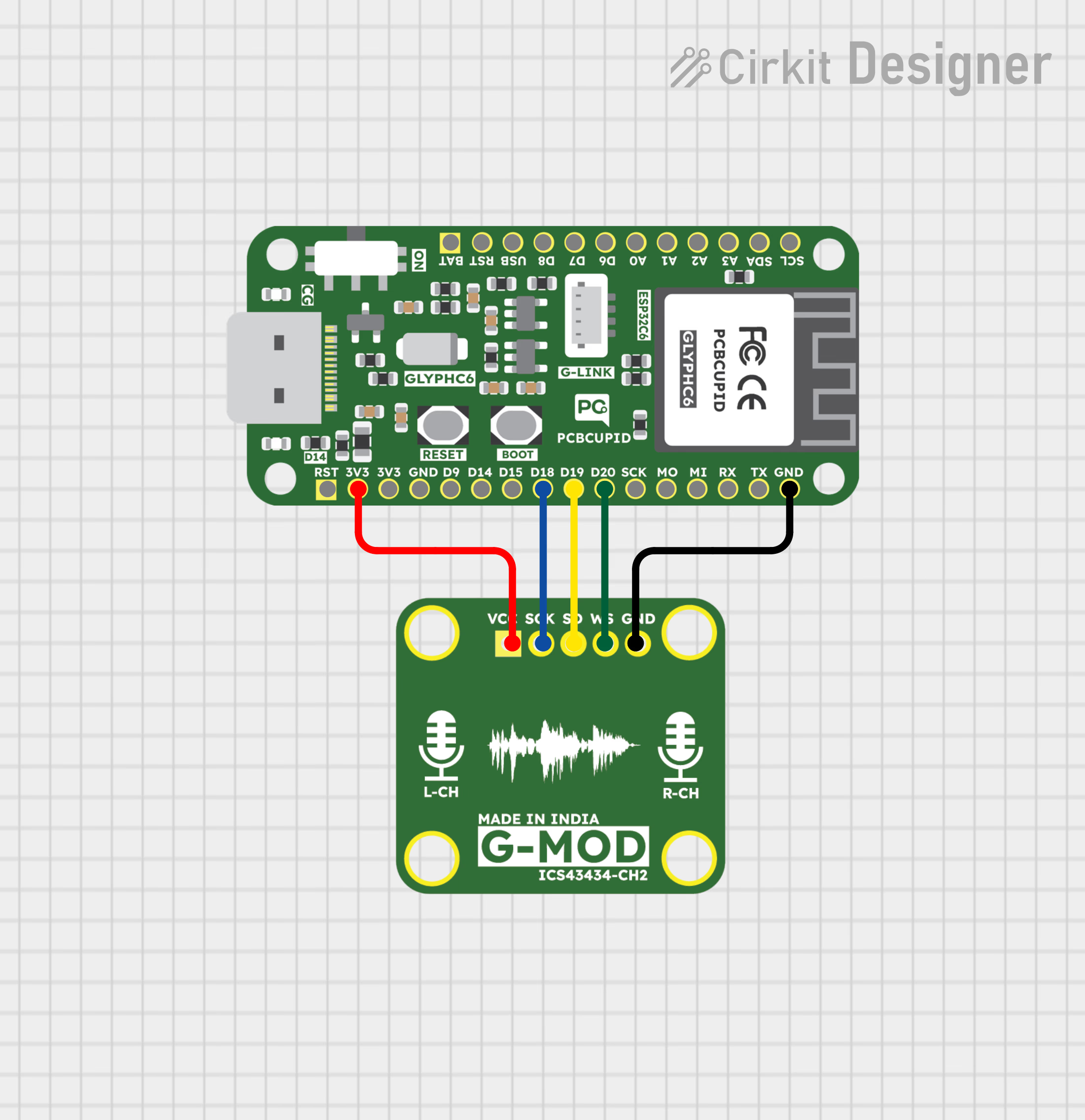
Step 2: Circuit Diagram

pcbcupid_2-ChMic

Step 3: Code Setup

  1. Open Arduino IDE.
  2. Make sure to install the “Audio Tool” library
  3. Copy and paste the following code into the Arduino IDE:
#include "AudioTools.h"

AudioInfo info(44100, 2, 32);
I2SStream i2sStream; // Access I2S as stream
CsvOutput<int32_t> csvOutput(Serial);
StreamCopy copier(csvOutput, i2sStream); // copy i2sStream to csvOutput

// Arduino Setup
void setup(void) 
{
    Serial.begin(115200);
    AudioToolsLogger.begin(Serial, AudioToolsLogLevel::Info);
    
    auto cfg = i2sStream.defaultConfig(RX_MODE);
    cfg.copyFrom(info);
    cfg.i2s_format = I2S_STD_FORMAT;  // or try with I2S_LSB_FORMAT
    cfg.pin_ws = 20;
    cfg.pin_bck = 18;
    cfg.pin_data_rx = 19;
    cfg.is_master = true;
    cfg.use_apll = false; 
    i2sStream.begin(cfg);

    // make sure that we have the correct channels set up
    csvOutput.begin(info);
}

// Arduino loop - copy data
void loop() 
{
    copier.copy();
}

Step 4: Upload the Code

  1. Connect the Board
  • Connect your GLYPH board to your computer
  1. Select the Board and Port
Do the following settings in your Arduino IDE,
  • Tools > Board > esp32 > Pcbcupid GLYPH C3
For the Pcbcupid Glyph C3 to appear under Tools > Board > esp32, the esp32 board version installed in the Arduino IDE should be greater or equal to 3.1.0.
  • Tools > Port and select the port connected to your GLYPH.
  • Tools > USB CDC on Boot > Enabled
If USB CDC on BOOT not enabled, you won’t be seeing any serial data on Arduino IDE.
  1. Upload the Code
    • Click the upload button (➡️ icon) or use the shortcut CRTL + U in Arduino IDE to upload the code to the board.
Step 5: Observe the Output

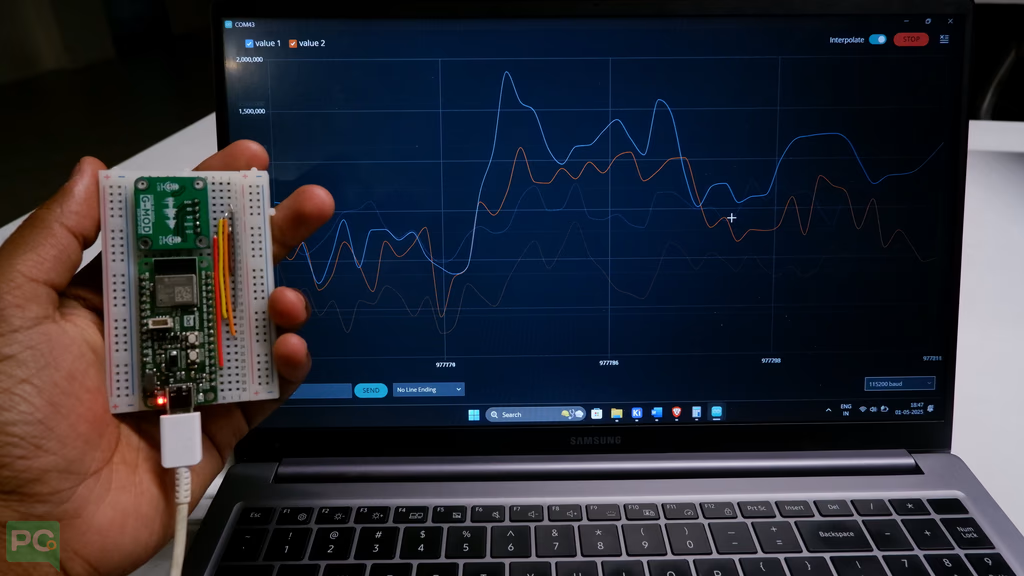
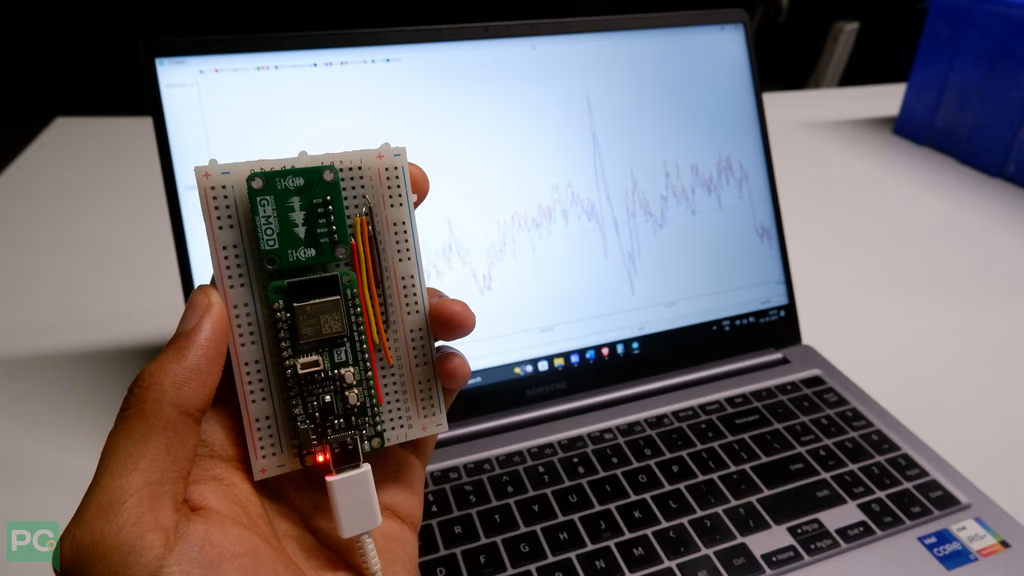
The output can be visualized in the plotter of Arduino IDE, Please check the below image for reference Output on Arduino IDE 1.x
PCBCUPID_arduino_IDE_1.x
Output on Arduino IDE 2.x
pcbcupid-arduino-ide-2.x