Connection Diagram
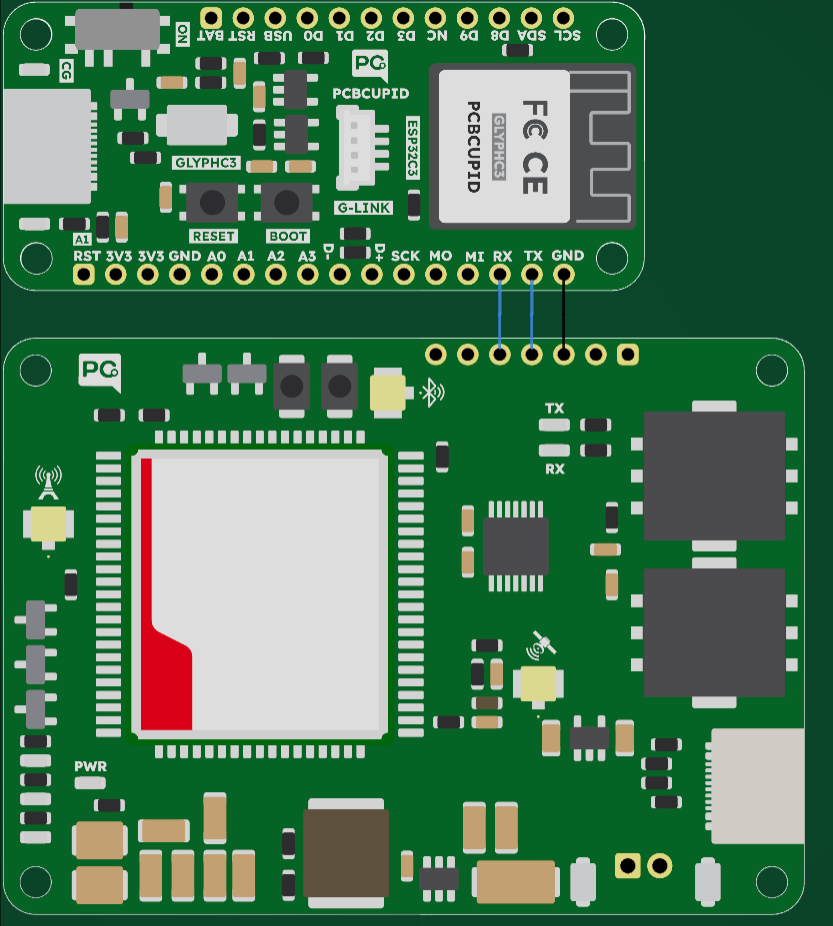
Step 1: Hardware Required
- A Glyph C3 development board for the example below.
- A TerraLink A7672S board and a suitable power source.
- A USB data cable for programming Glyph and jumper wires for UART.
- A suitable cellular antenna and an activated SIM for later network tests. The basic
ATcommunication check does not require network registration.
Step 2: Connect Glyph to TerraLink
Power both boards off before wiring. This example configures the Glyph C3’s MI/GPIO7 as UART TX and MO/GPIO6 as UART RX. Do not use these pins for SPI at the same time.
Leave header pins 1 and 2 disconnected for this example and use TerraLink’s local power-key/reset buttons. Leave the two GPIO pins disconnected as well.
Check Pinouts for the header orientation. GPIO numbers in the sketch are processor GPIO numbers, not header-position numbers.
Step 3: Set Up Arduino IDE
Follow the Arduino IDE setup guide, then select the Glyph C3 board and its connected port. Enable USB CDC on Boot when using the Glyph C3 native USB port for Serial Monitor. The example uses a second hardware UART for TerraLink and keeps the USB serial connection for the computer. No modem library is needed for this first test. It uses the Arduino-ESP32 UART API.Step 4: Upload the Serial Console
115200 is the example UART setting: it must match the modem’s configured baud rate. SERIAL_8N1 means eight data bits, no parity, and one stop bit. Change the GPIO constants when using another compatible ESP32-based Glyph board.
Step 5: Send Your First Commands
Power TerraLink and follow the modem hardware guide’s power-key sequence. Open Serial Monitor at 115200 baud and select Both NL & CR so commands include the carriage-return terminator. Send:
Read the exact response definitions in the SIMCom A76XX AT command manual available from its documentation page. An
OK response to AT confirms serial communication; it does not mean a SIM is ready, the network is registered, or internet access is active.
From a Console to an Application
Once communication works, replace manual typing with code that sends commands, waits for complete responses, and checks for errors or timeouts. The modem can also send notifications without being asked, so your application must distinguish those from command responses. A typical sensor application checks SIM readiness, waits for network registration, configures the operator’s APN, activates a data connection, and then uses the modem’s supported MQTT or HTTP commands. Use the A7672S command set for these steps; examples for another modem are not automatically interchangeable.Other Development Methods
- Computer over USB: Send AT commands from a serial terminal using the modem USB interface and matching drivers.
- Other microcontrollers: Use a compatible UART interface and the A7672S command set. A 5 V controller requires suitable level shifting.
- Modem firmware update: SIMCom documents USB and FOTA update routes. Use the correct image and vendor procedure for the installed module.
- Application inside the modem: Embedded development support depends on the exact A7672 variant and revision. Confirm the SDK and firmware with SIMCom before treating this as a supported programming route. See the A7672 documentation.
If the Modem Does Not Respond
- Check common ground, header orientation, and the TX/RX wiring against the table.
- Check the modem’s power state, supply stability, UART baud rate, and line-ending setting.
- Confirm GPIO6/GPIO7 are not also assigned to another peripheral.
- Garbled output usually calls for checking UART format and baud rate; resets during transmission call for checking the power source and antenna connection.