G-MOD : 2 Channel Relay
Overview
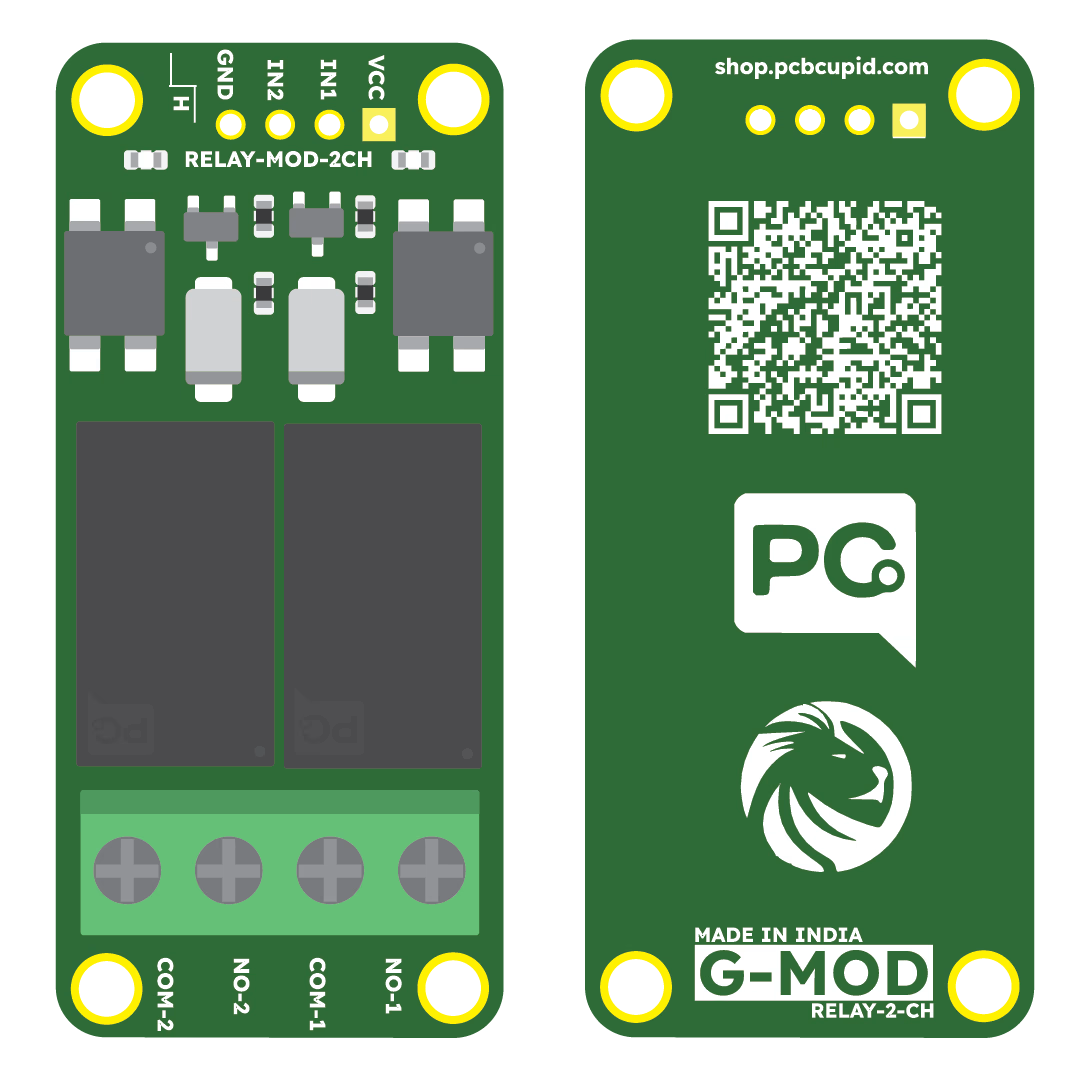
A 2-channel relay module provides control for two independent relay channels. This makes it ideal for controlling two separate high-power loads simultaneously using low-power control signals from microcontrollers like Arduino, GLYPH, or even Raspberry Pi. Here's how it works:
Components
- Two Relays: Each relay can independently control a high-power (Both AC / DC) device.
- Control Pins: There are two input pins (IN1 and IN2) for controlling each relay.
- Power Supply: A single power source is used for both relays 5V
- Protection : Has 2 Optocoupler to electrical isolation between the control and relay circuits for both channels.
Pin Configuration
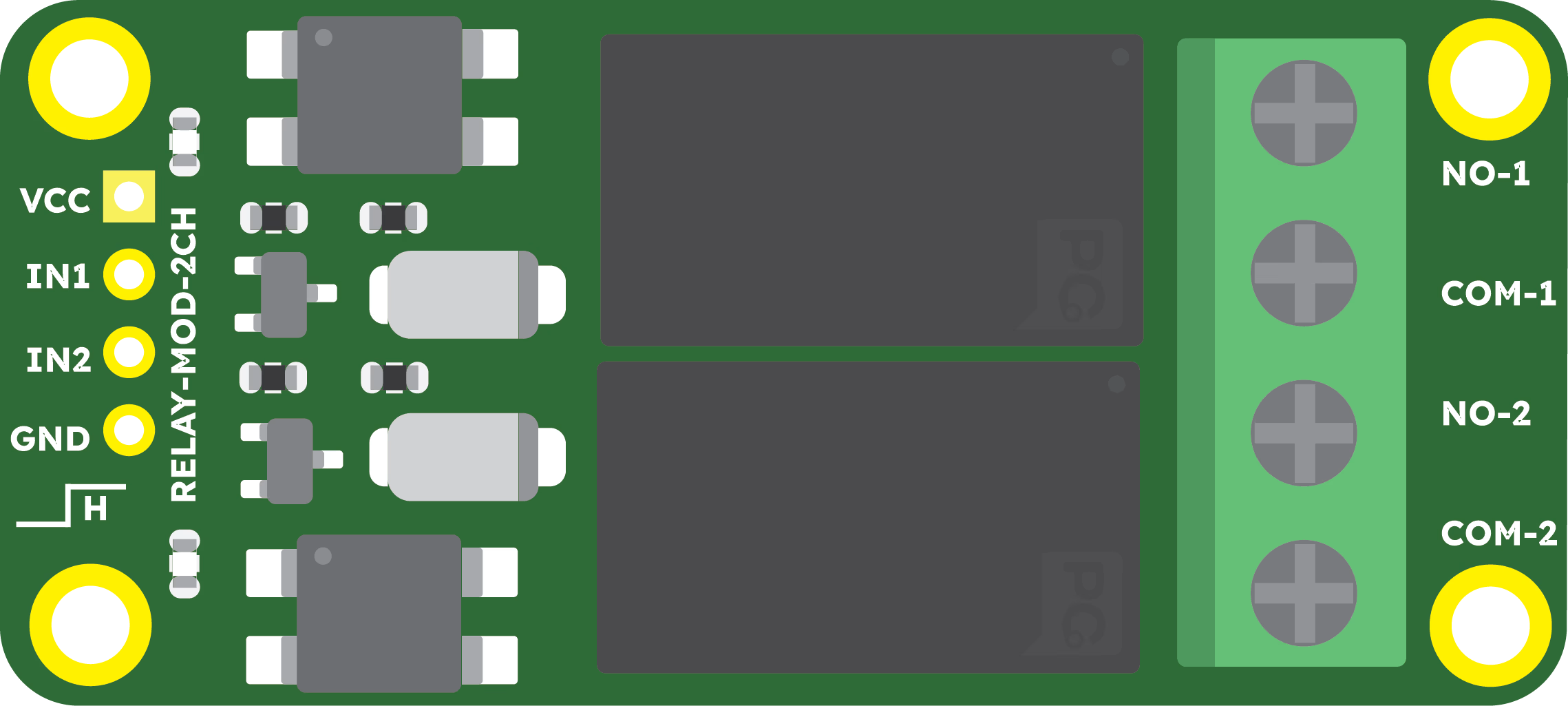
- VCC: Power supply for the module (5V).
- GND: Ground connection.
- IN1: Control signal for Relay 1.
- IN2: Control signal for Relay 2.
- COM1, NO1: Relay 1 switching terminals.
- COM2, NO2: Relay 2 switching terminals.
Relay Contacts
- COM (Common): The input terminal.
- NO (Normally Open): Open by default, closes when the relay is activated.
Working
- Each relay channel works independently, following the same principles as a single-channel relay:
-
When Control Signal is LOW (0V):
The associated transistor remains off. The corresponding relay coil is de-energized. The relay's Normally Open (NO) contact stays open.
-
When Control Signal is HIGH (3.3V/5V):
The associated transistor turns on, allowing current to flow through the relay coil. The coil energizes, creating a magnetic field that pulls the armature. The relay's NO contact closes, completing the circuit for the connected load.
-
Operation Sequence for Two Relays
- IN1 HIGH: Activates Relay 1 to control Load 1.
- IN2 HIGH: Activates Relay 2 to control Load 2.
- Both IN1 and IN2 HIGH: Activates both relays simultaneously to control both loads.
- Both IN1 and IN2 LOW: Deactivates both relays, disconnecting both loads.
-
Applications
- Home Automation: Controlling lights and fans independently.
- Industrial Automation: Managing two separate devices or motors.
- DIY Projects: Operating appliances remotely with microcontroller-based projects.
This guide will help you interface a 2 Channel Relay assuming you are using GLYPH-C3(but any GLYPH development board from the ESP32 Series should work)
Step 1: Hardware Required
- Glyph Board
- GMOD 2 Channel Relay Module
Step 2: Circuit Diagram
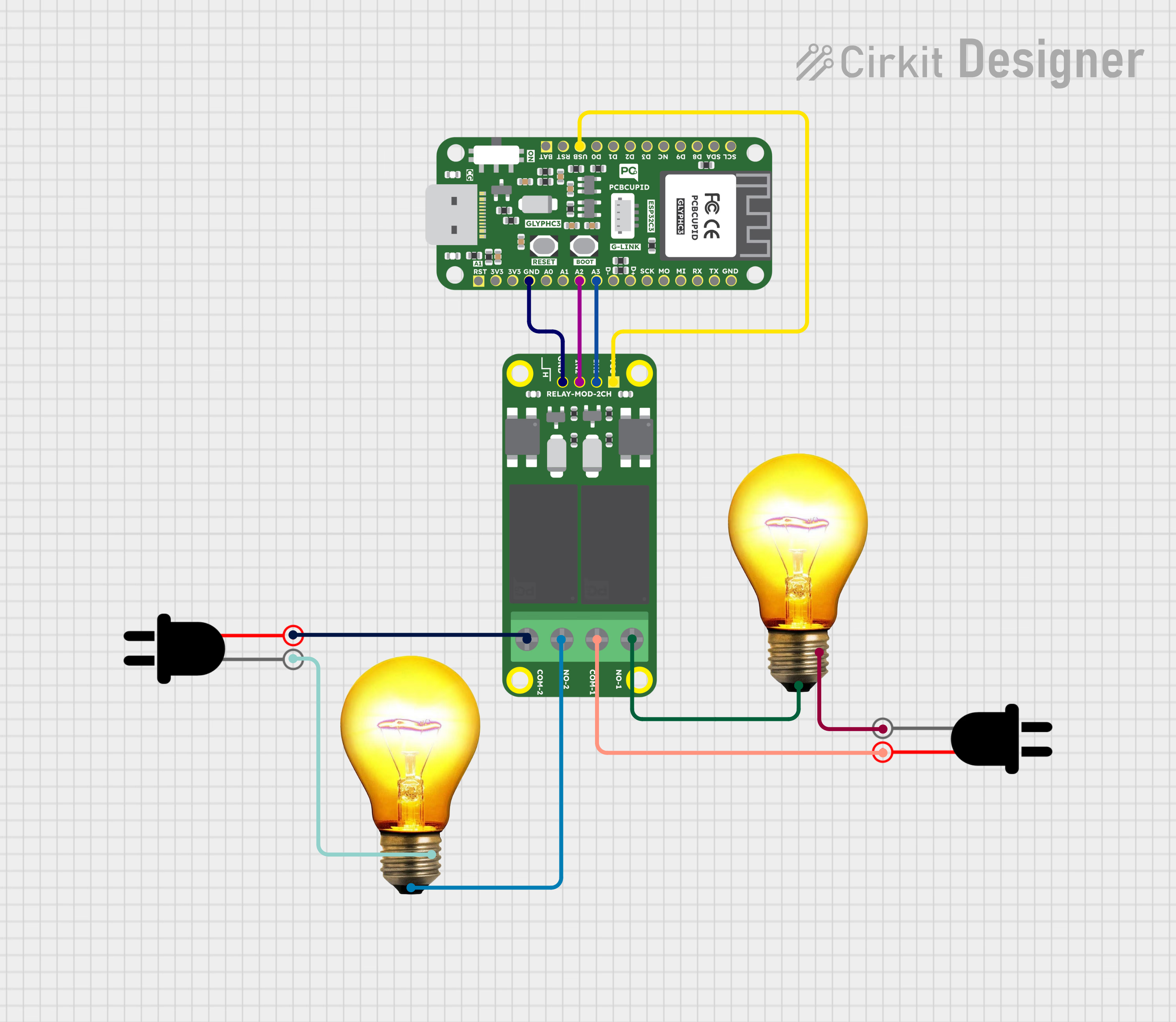
Step 3: Code Setup
- Open Arduino IDE.
- Copy and paste the following code into the Arduino IDE:
// Pin definitions for 2-Channel Relay Module
const int RELAY_1 = 3;  // GPIO2 for first relay
const int RELAY_2 = 2;  // GPIO3 for second relay

void setup()

{
  // Initialize serial communication
  Serial.begin(115200);

  // Configure relay pins as outputs
  pinMode(RELAY_1, OUTPUT);
  pinMode(RELAY_2, OUTPUT);

  // Initialize Both Relay Channels to OFF state (relays are typically Active LOW- Means they are OFF when a HIGH Signal is Applied and vice-versa)
  digitalWrite(RELAY_1, HIGH);
  digitalWrite(RELAY_2, HIGH);

  Serial.println("Relay Module Initialized"); //Print that Relay Module is Initialized
}

void loop()
{
  // Example control sequence

  // Turn ON Relay 1
  digitalWrite(RELAY_1, LOW);
  Serial.println("Turning on Relay 1");
  delay(2000);

  // Turn OFF Relay 1
  digitalWrite(RELAY_1, HIGH);
  Serial.println("Turning off Relay 1");
  delay(1000);

  // Turn ON Relay 2
  digitalWrite(RELAY_2, LOW);
  Serial.println("Turning on Relay 2");
  delay(2000);

  // Turn OFF Relay 2
  digitalWrite(RELAY_2, HIGH);
  Serial.println("Turning off Relay 2");
  delay(1000);
}

// Helper functions for relay control
void turnOnRelay(int relayPin)
{
  digitalWrite(relayPin, LOW);
}

void turnOffRelay(int relayPin)
{
  digitalWrite(relayPin, HIGH);
}

void toggleRelay(int relayPin)
{
  digitalWrite(relayPin, !digitalRead(relayPin));
}
Step 4: Upload the Code
- Connect the Board
- Connect your GLYPH board to your computer
-
Select the Board and Port
Do the following settings in your Arduino IDE, Do the following settings in your Arduino IDE,
Tools > Board > esp32 > Pcbcupid GLYPH C3
For the Pcbcupid GLYPH C3 to appear under Tools > Board > esp32, the esp32 board version installed in the Arduino IDE should be greater than or equal to 3.1.0.
Tools > Portand select the port connected to your GLYPH.Tools > USB CDC on Boot >Enabled
If USB CDC on BOOT not enabled, you won't be seeing any serial data on Arduino IDE.
- Upload the Code
- Click the upload button (➡️ icon) or use the shortcut
CTRL + Uin Arduino IDE to upload the code to the board.
Step 5: Observe the Output
On Serial Monitor, you should see the output like this:
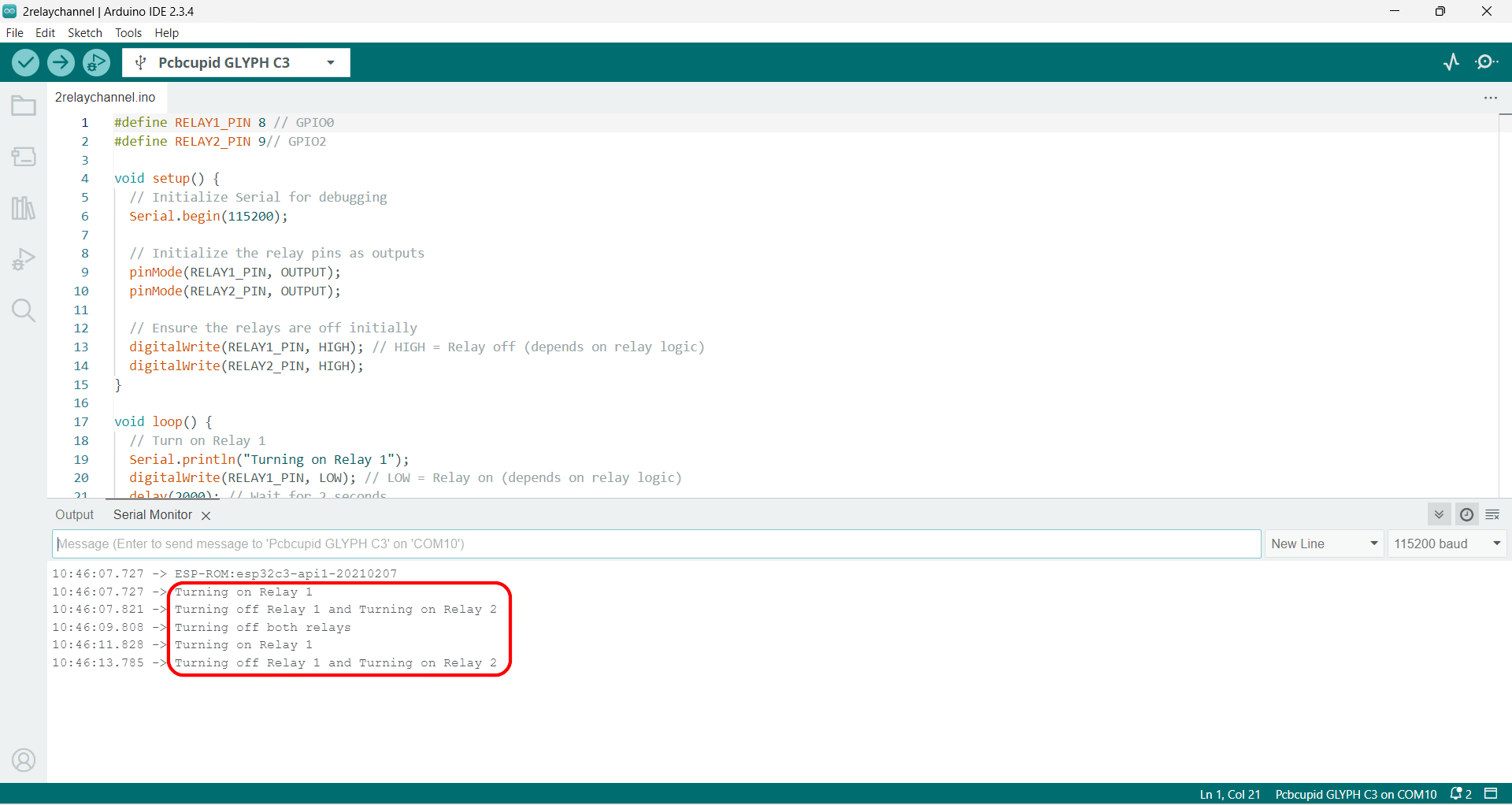
Along with this you should see the relay ticking and corresponding LED blink.