Download Thonny and your board firmware
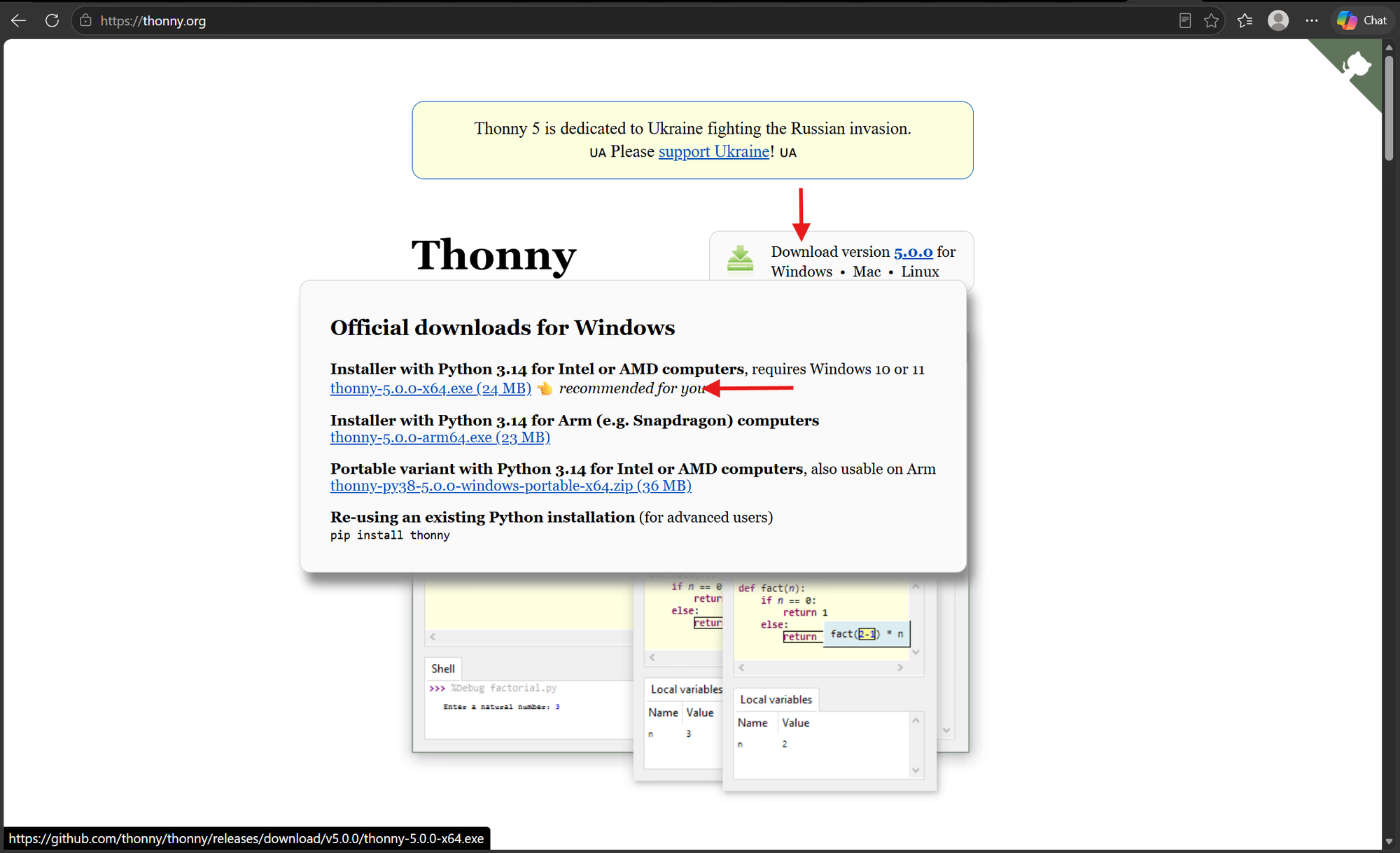
- Install Thonny for your operating system.
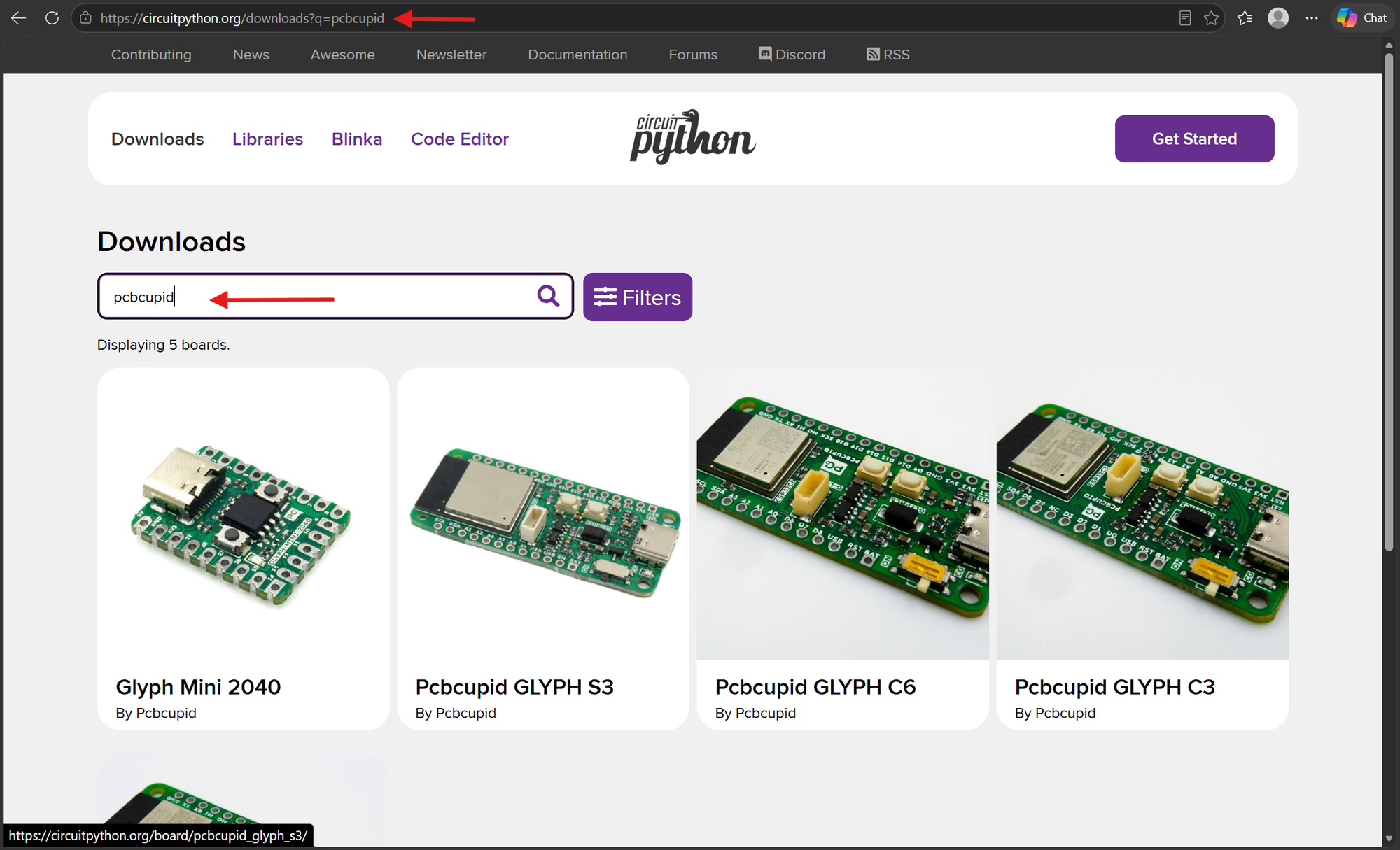
- Open the CircuitPython download page for your board: GLYPH C3, GLYPH C6, GLYPH H2, or GLYPH S3 (search for PCBCupid GLYPH S3).
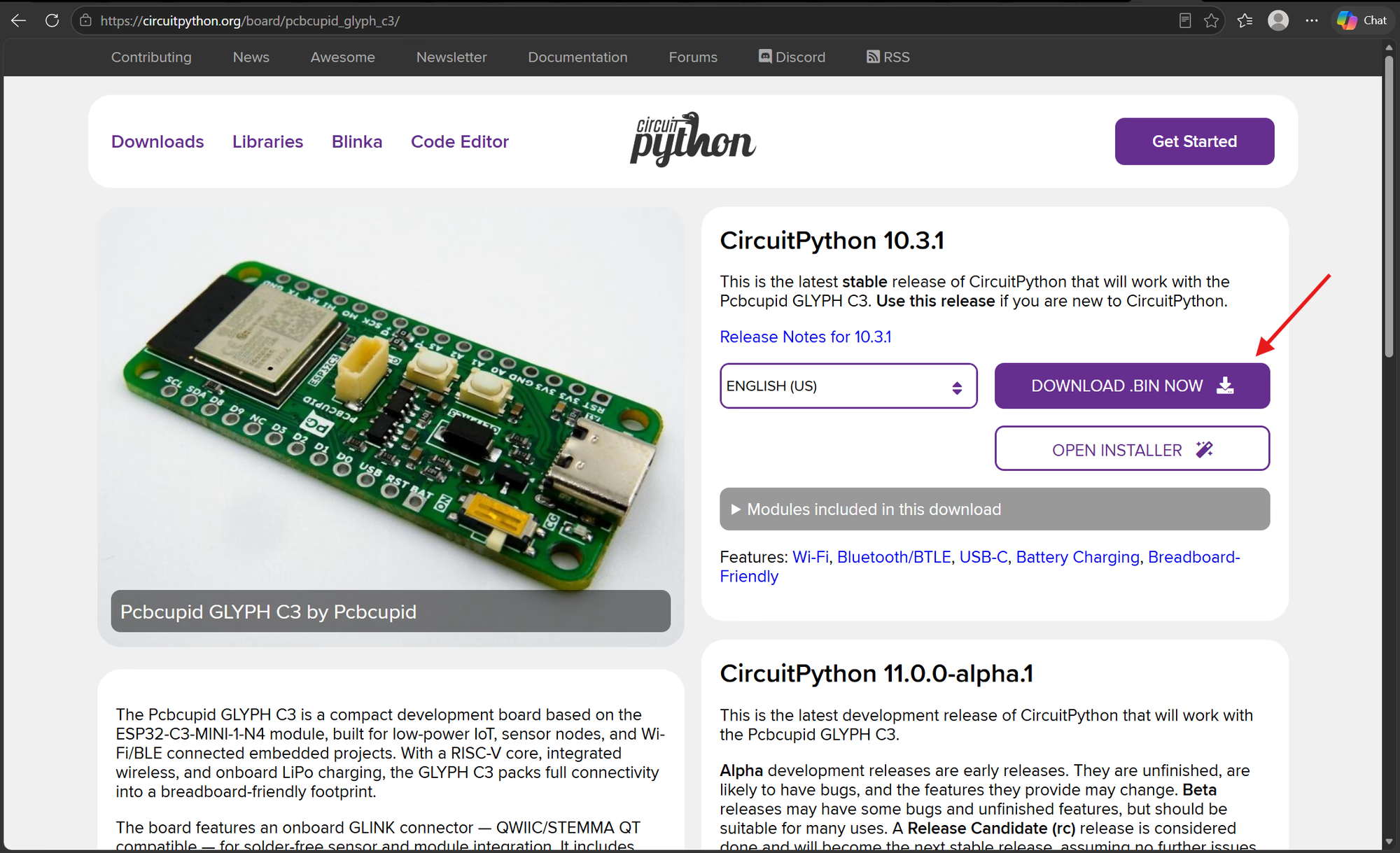
- Download the latest stable
.binfirmware for that board. Keep track of where the file was saved.
- Connect the GLYPH to your computer with a USB data cable.
Flash CircuitPython with Thonny
- Hold BOOT, press and release RESET, then release BOOT. If the board has no RESET button, hold BOOT while plugging in the USB cable. The board should appear as a serial port.
- In Thonny, open Tools → Options → Interpreter and select the ESP32 interpreter to access Install or update firmware. Open the firmware installer.
- Select the serial port for your GLYPH, choose the
.binfile you downloaded, and set the start address to0x0. CircuitPython ESP32 images must be flashed at0x0, even if a MicroPython preset suggests another address. - Click Install and wait for the success message. Disconnect and reconnect the board, or press RESET with BOOT released.
If Thonny does not offer the correct chip or start address, use the OPEN INSTALLER button on the board’s CircuitPython download page to flash the same firmware, then return to Thonny for editing. Close Thonny’s serial connection before opening the browser installer.
Install esptool in a terminal
If you prefer flashing from a terminal, install Python 3.10 or newer and run:python3 instead of python if that is how Python is installed. If your system blocks a global pip install, follow Espressif’s virtual environment instructions.
Flash CircuitPython with esptool
- Download the
.binfile for your exact GLYPH model from the link above. Close Thonny and any serial monitor so esptool can use the port. - Put the board in bootloader mode: hold BOOT, press and release RESET, then release BOOT. If there is no RESET button, hold BOOT while plugging in USB.
- Open a terminal in the folder containing the downloaded
.binfile. ReplaceCOM5with your board’s serial port (for example,/dev/ttyACM0on Linux or/dev/cu.usbmodem...on macOS) andfirmware.binwith the actual downloaded filename:
- Wait for esptool to finish writing and verifying the image. Press RESET with BOOT released, or unplug and reconnect the board. Then connect with Thonny to save
code.py.
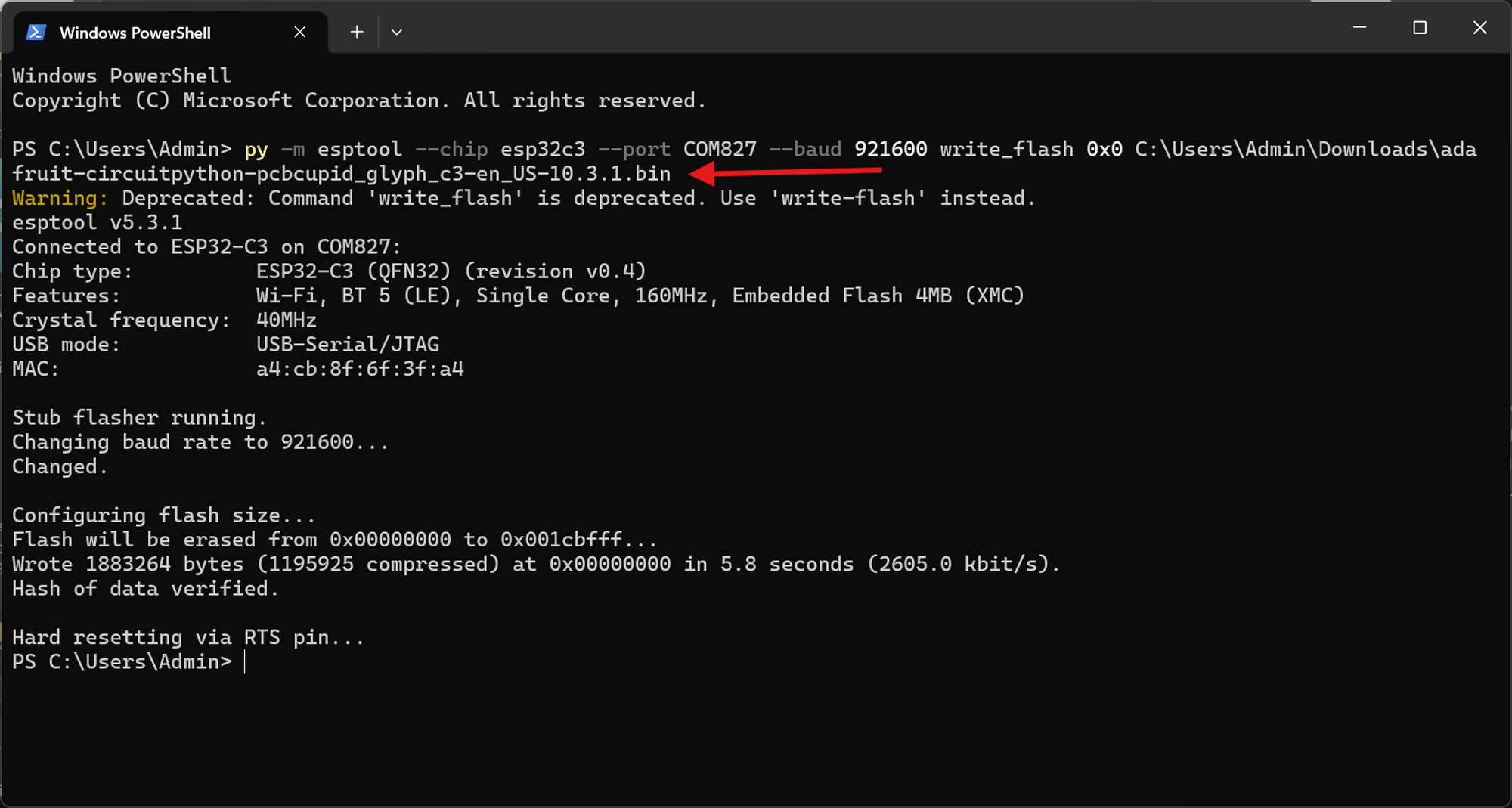 Use
Use python3 -m esptool if you installed esptool with python3. The 0x0 flash address is required for the downloaded CircuitPython ESP32 .bin image; see Espressif’s write-flash command reference.
Connect Thonny and run code
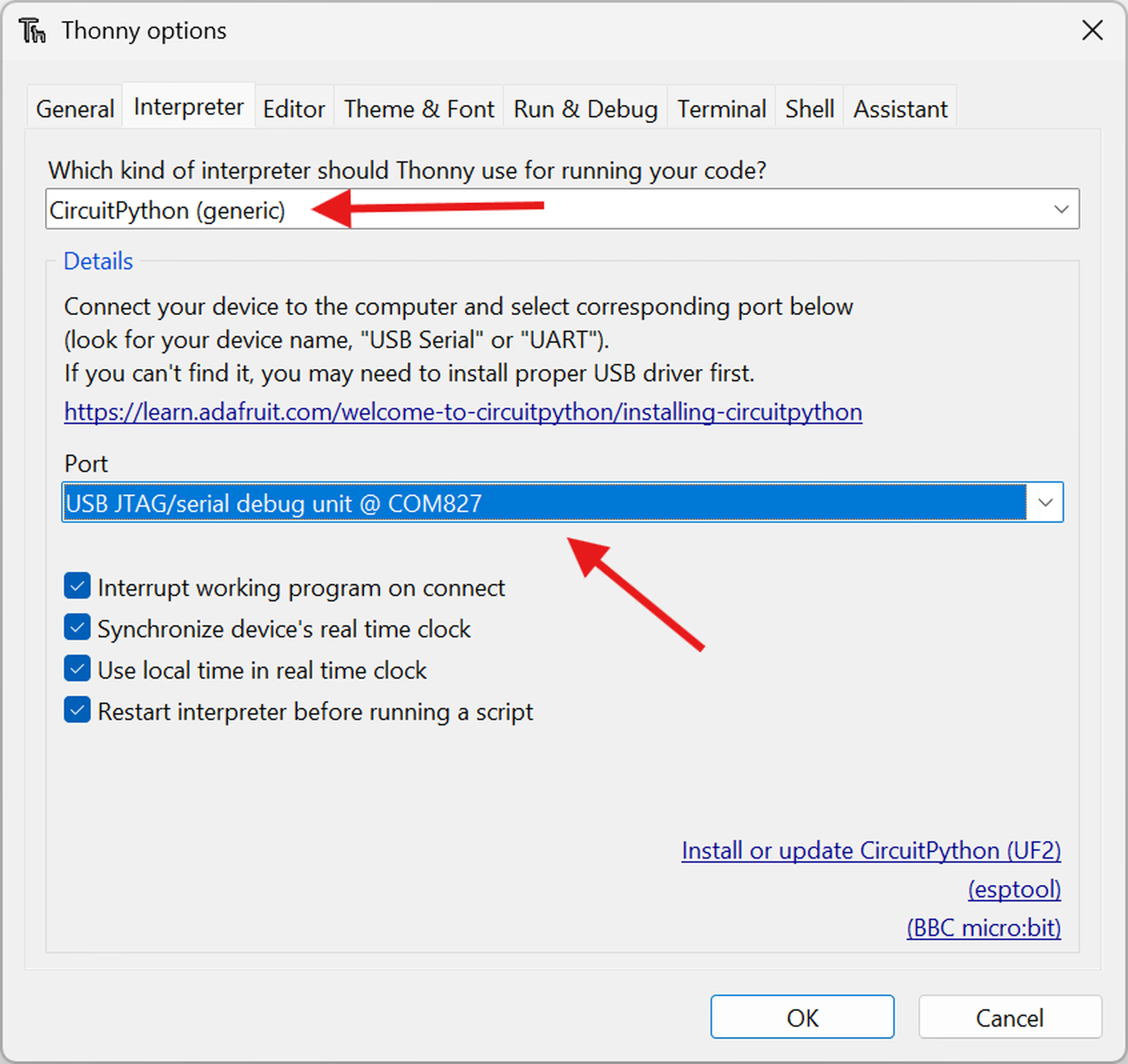
- In Tools → Options → Interpreter, choose CircuitPython (generic) and select the GLYPH serial port. The Shell should show the CircuitPython
>>>prompt. Press Ctrl+C if a running program occupies the Shell.
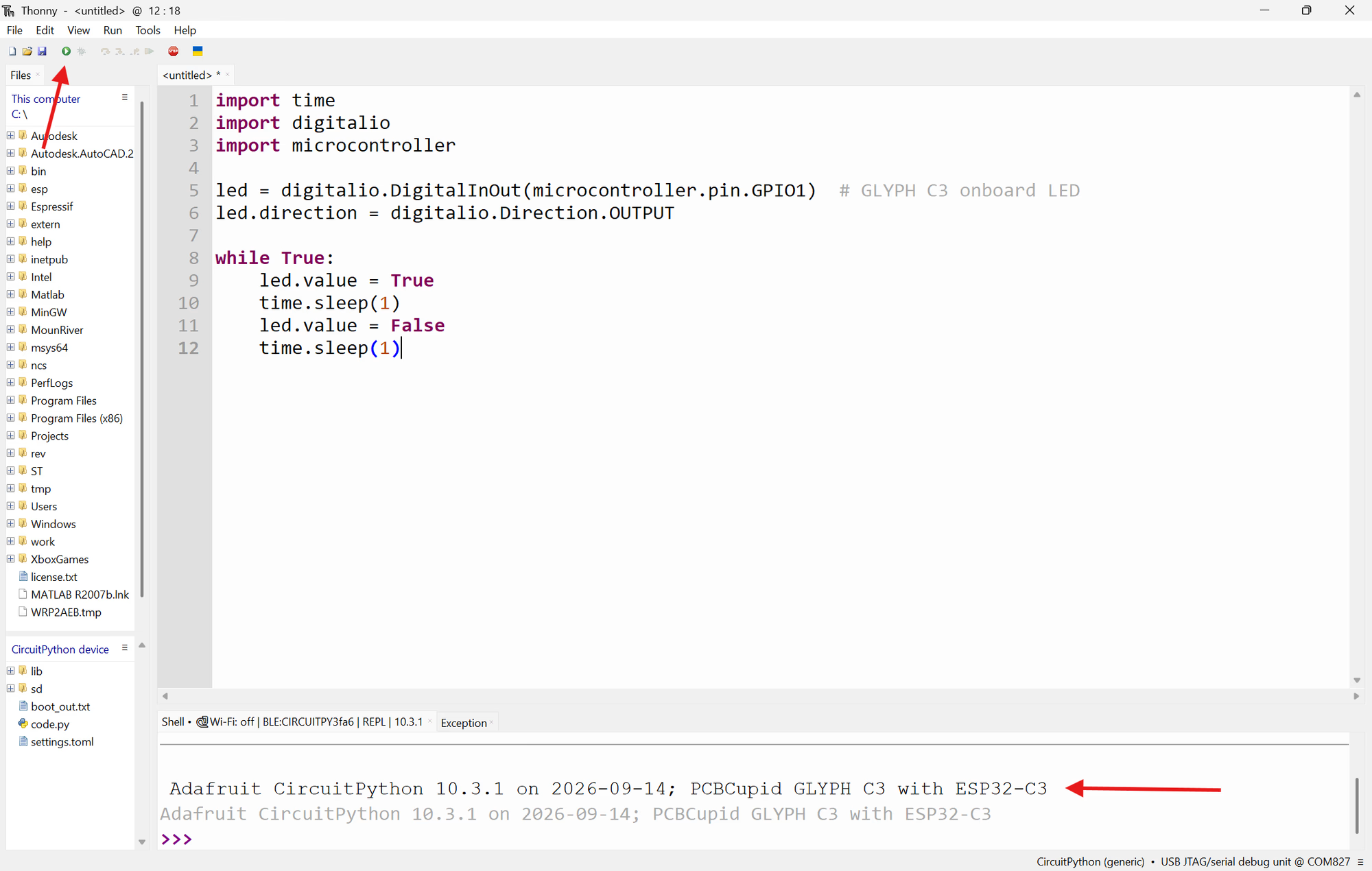
- Paste the following example into a new Thonny editor tab. Change the GPIO number to your board’s onboard LED: C3: 1, C6: 14, H2: 0. For other models, check that board’s pinout.
- Choose File → Save as, select CircuitPython device, and save the file as
code.py. CircuitPython runscode.pyautomatically at startup and after you save it. Use the Thonny Shell forprint()output and errors.
The C3, C6, and H2 use a serial connection and may not show a
CIRCUITPY USB drive. Save files to CircuitPython device in Thonny. On a board that does show a CIRCUITPY drive, saving code.py there works too.Add libraries for the examples
The basic GPIO examples only use built-in CircuitPython modules. Sensor and display examples name any extraadafruit_*.py files they need. Download the CircuitPython library bundle that matches your firmware’s major version, then copy the named files and their dependencies into the board’s lib/ directory using Thonny’s device file browser. Keep the filenames and folder structure from the bundle.
If the board is not detected
- Try a different USB data cable or port and close any other serial monitor.
- Re-enter bootloader mode with BOOT and RESET before flashing. After flashing, reset with BOOT released.
- Check that the firmware download matches the exact GLYPH board and that the flash start address is
0x0. - Reopen the CircuitPython interpreter and select the new serial port if its port name changed after flashing.