Setting Up MCP in Claude Code
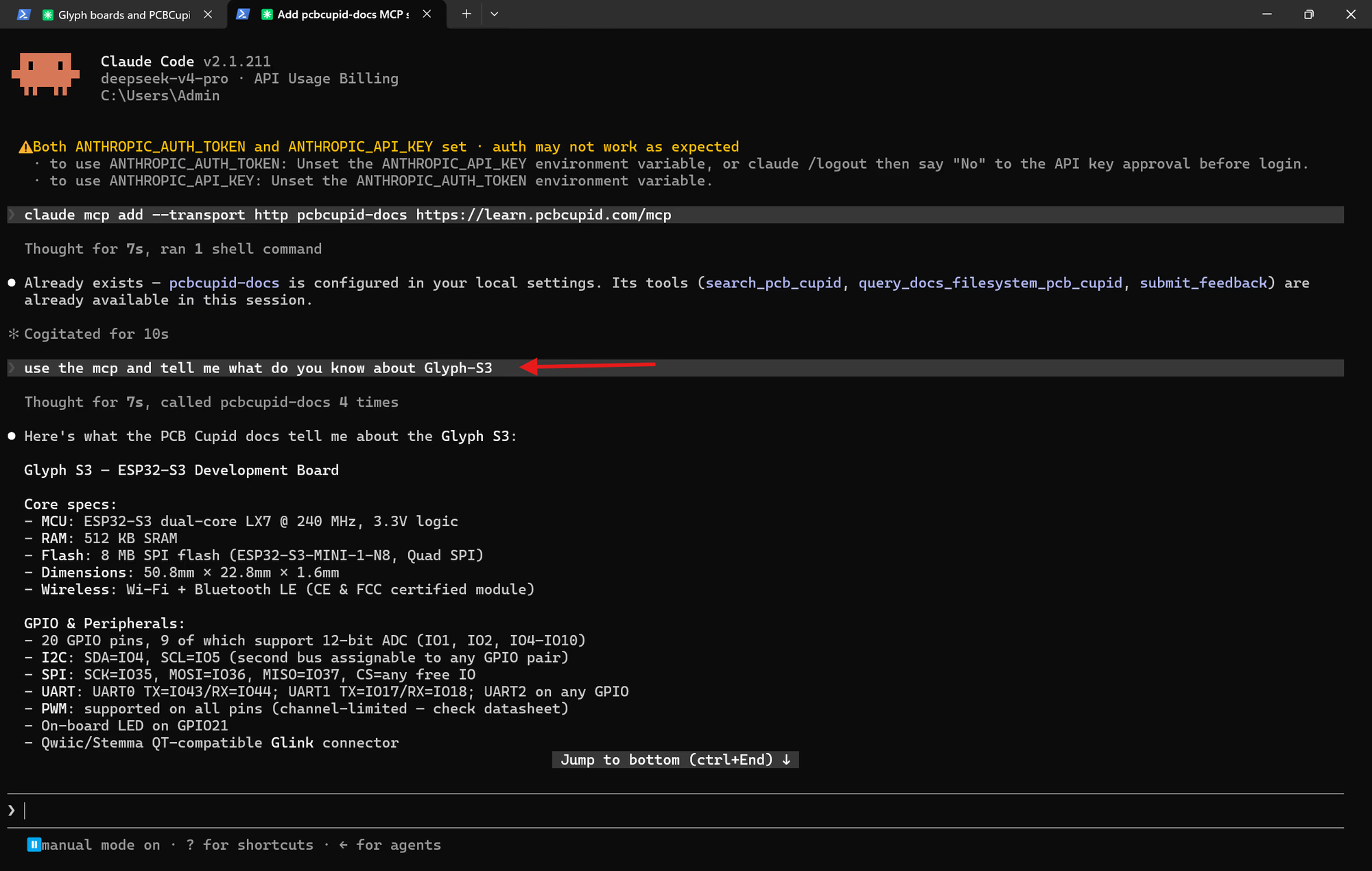
For instructions on installing Claude Code, refer to the Claude Code Installation Guide. Follow these steps to integrate the PCB Cupid Docs MCP server with Claude Code:Step 1: Open Your Terminal
Launch your command line interface where Claude Code is configured.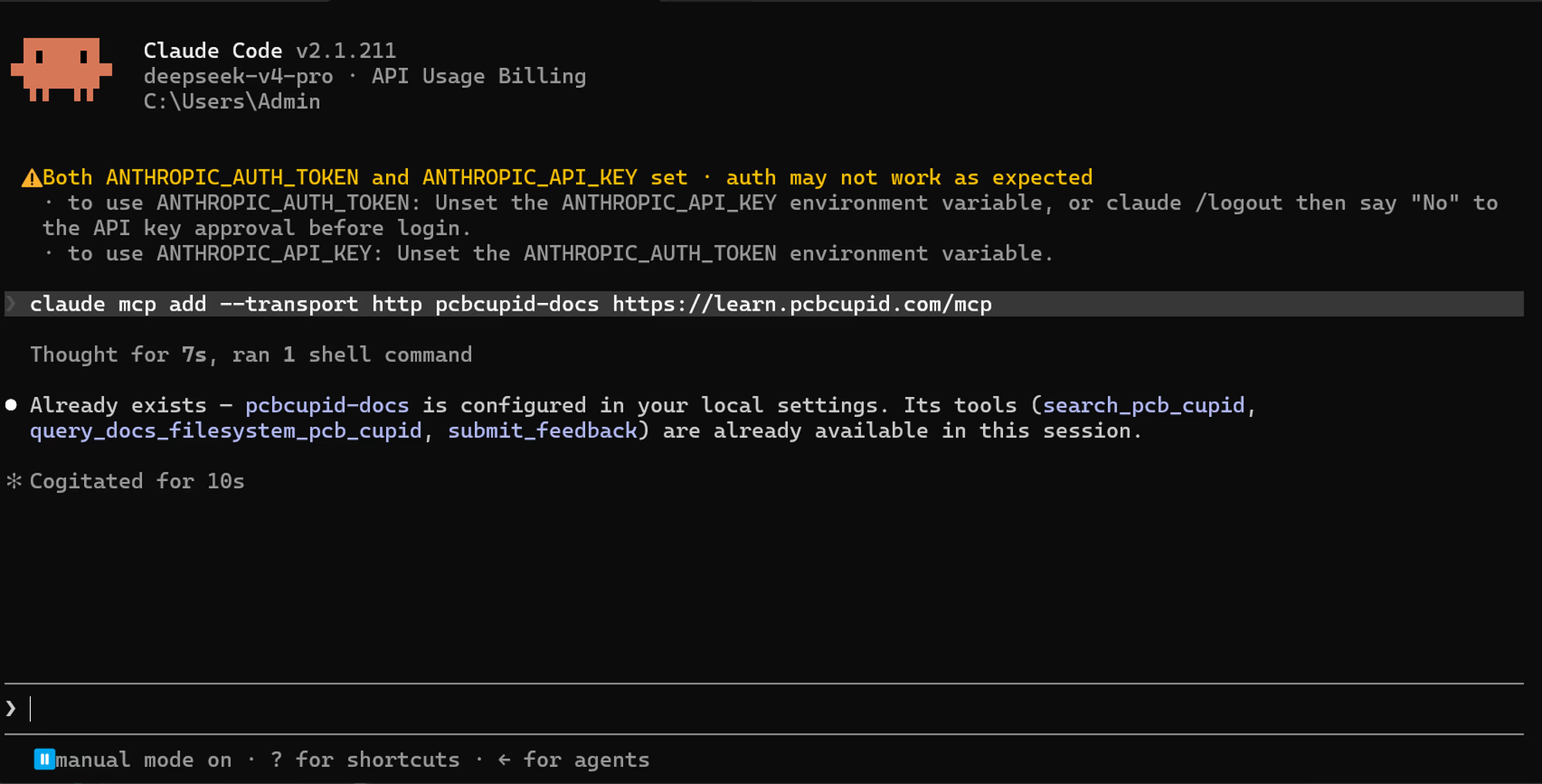
Step 2: Run the Add Command
Execute the following command to add the server using HTTP transport:Step 3: Verify the Connection
Confirm that the server is successfully connected and that Claude has access to the tools.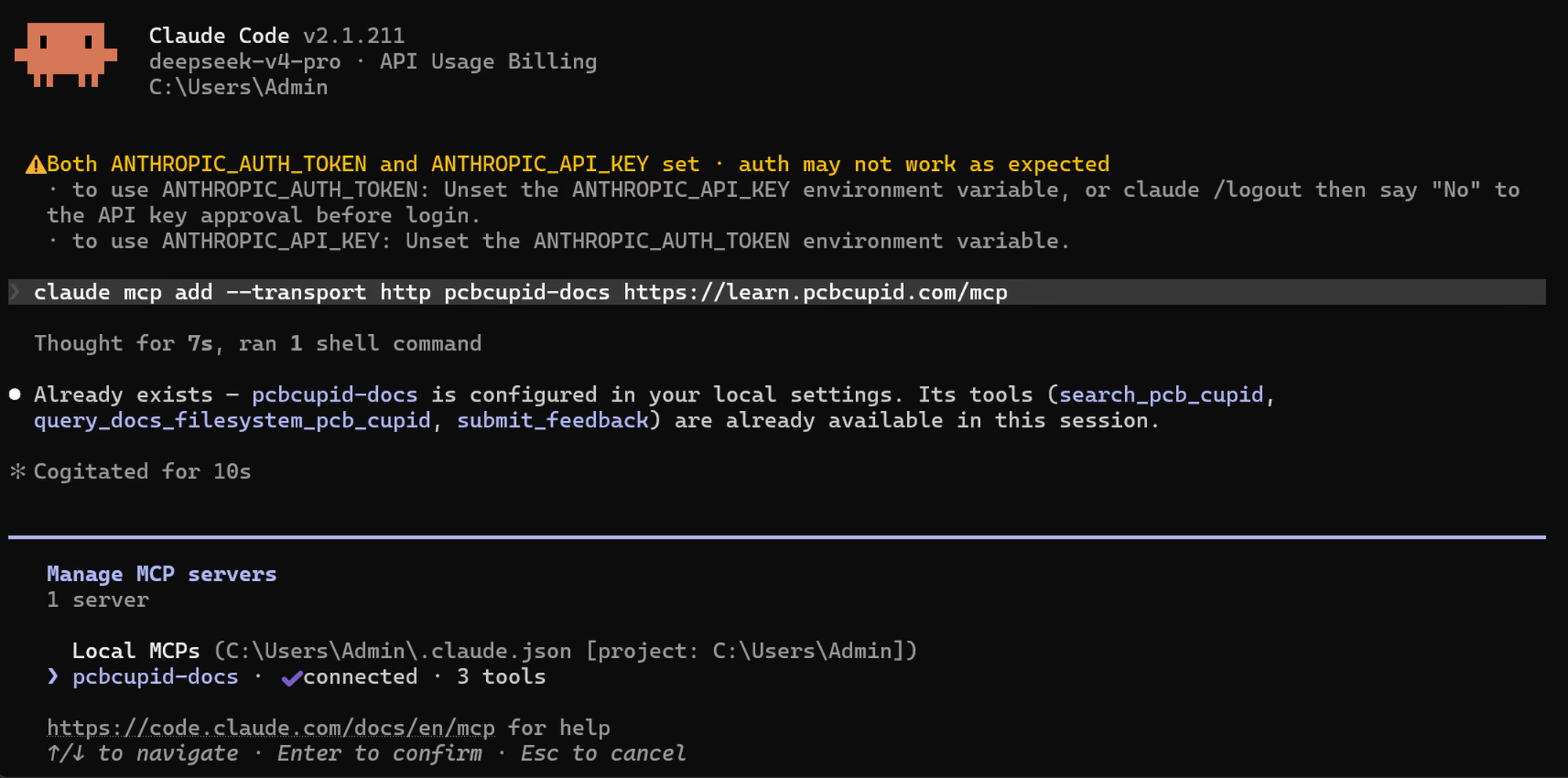
Setting Up MCP in Codex
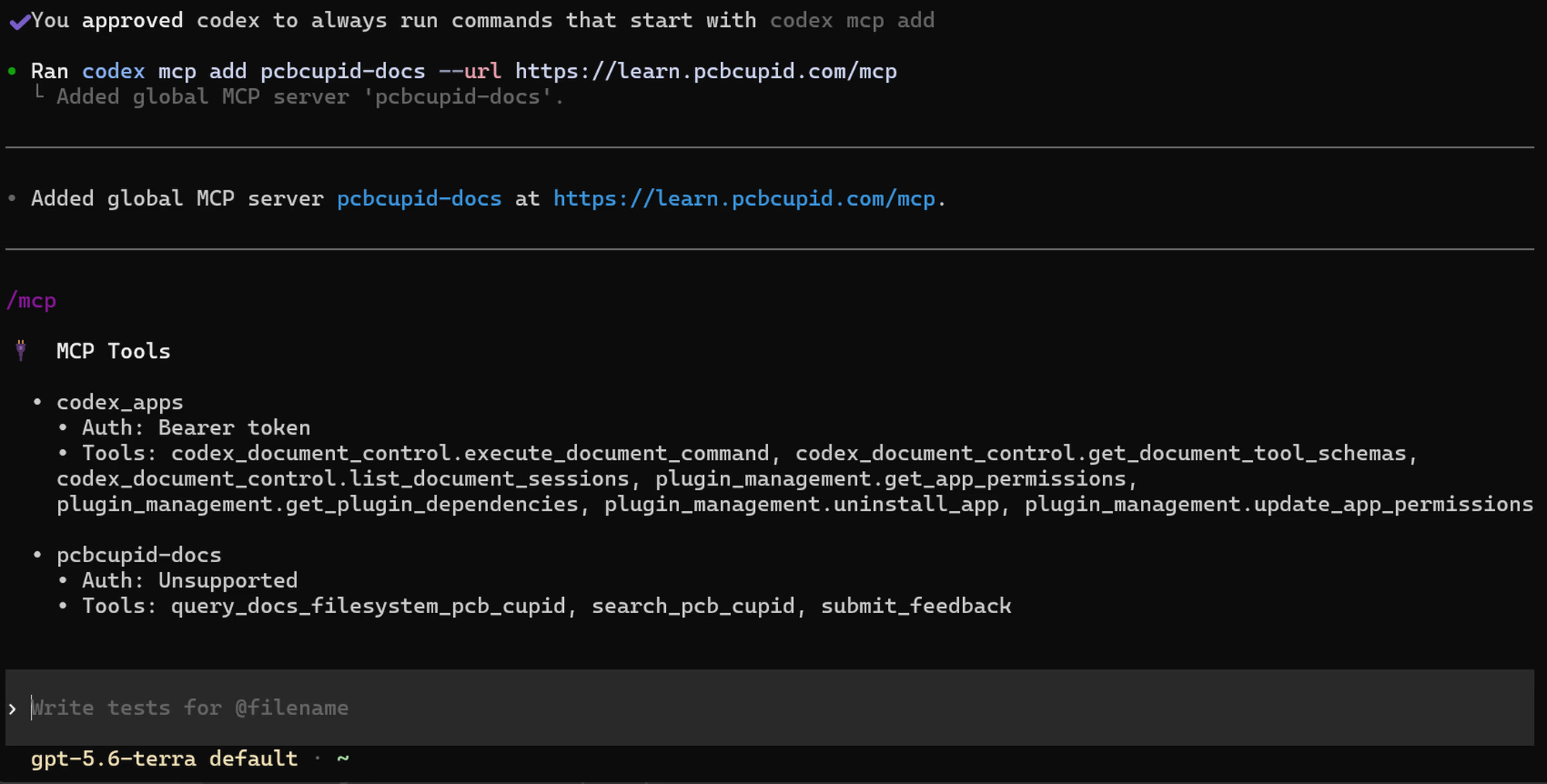
For instructions on installing Codex CLI, refer to the Codex Installation Guide. Follow these steps to integrate the PCB Cupid Docs MCP server with Codex:Step 1: Open Your Terminal
Launch your command line interface where Codex is configured.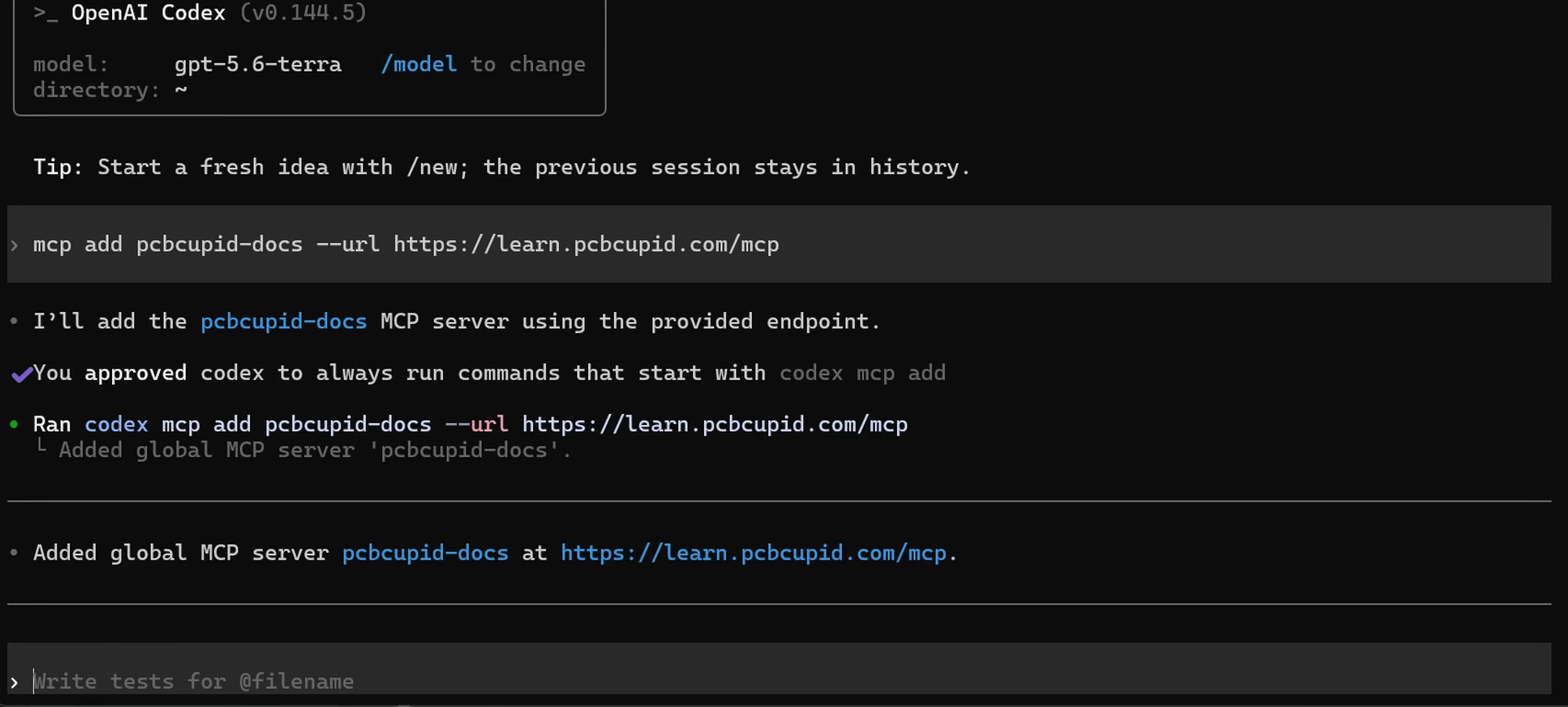
Step 2: Run the Add Command
Execute the following command to register the MCP server URL:Step 3: Verify the Connection
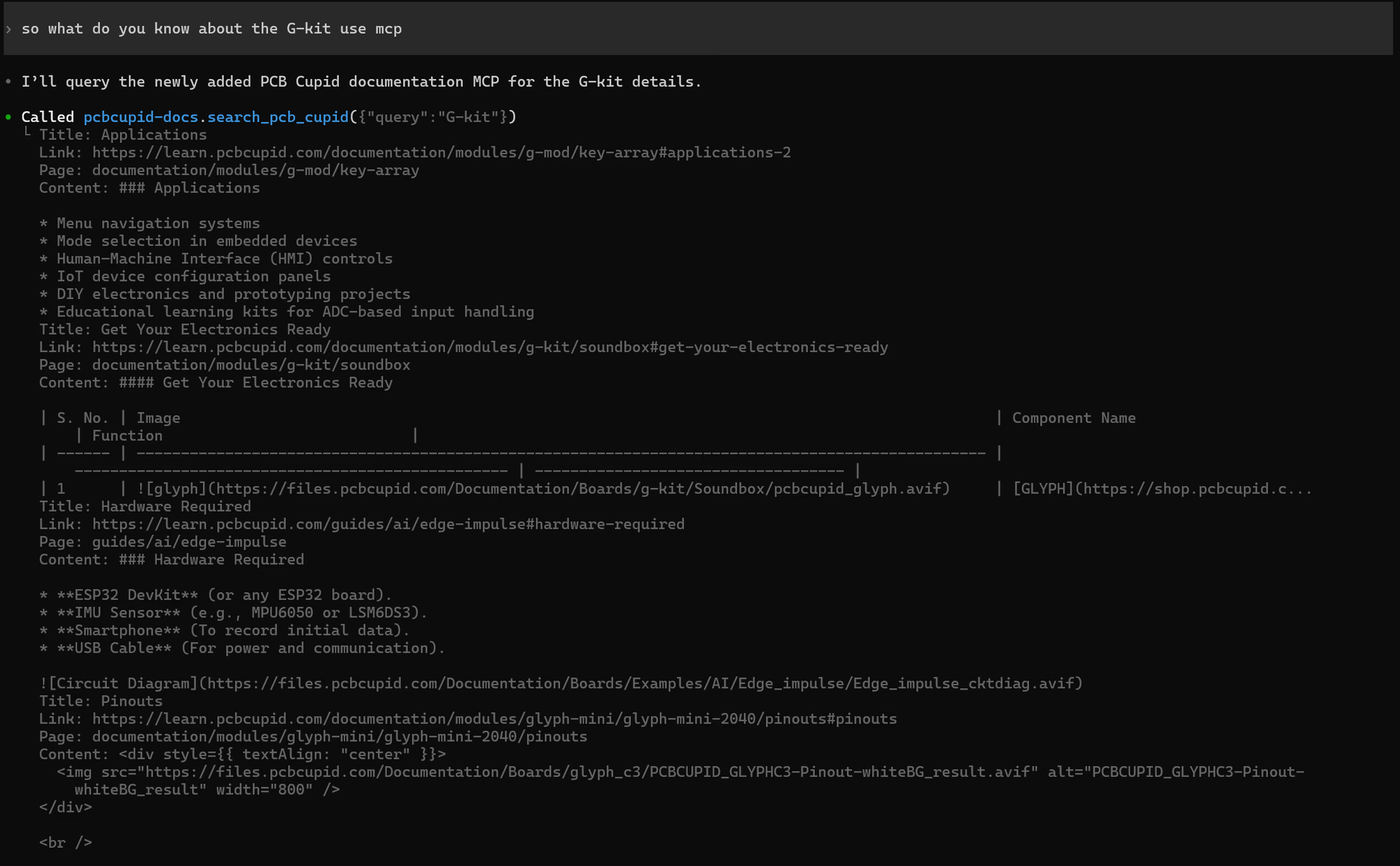
Confirm that Codex has successfully loaded the MCP toolset.