DIY MP3 player called SoundBox using a Glyph ESP32 board, I2S audio codec, speaker, and SD card.
The G-Kit SoundBox is a standalone MP3 player kit built around the Glyph Development Board designed to capture the charm of a vintage boombox while showcasing the power and flexibility of modern modular electronics.This project combines digital audio, intuitive UI design, and hands-on hardware interaction in one compact build. It’s not a music player — it’s an educational platform that teaches fundamentals of audio electronics, embedded programming, and system design.Learn Embedded Audio Design
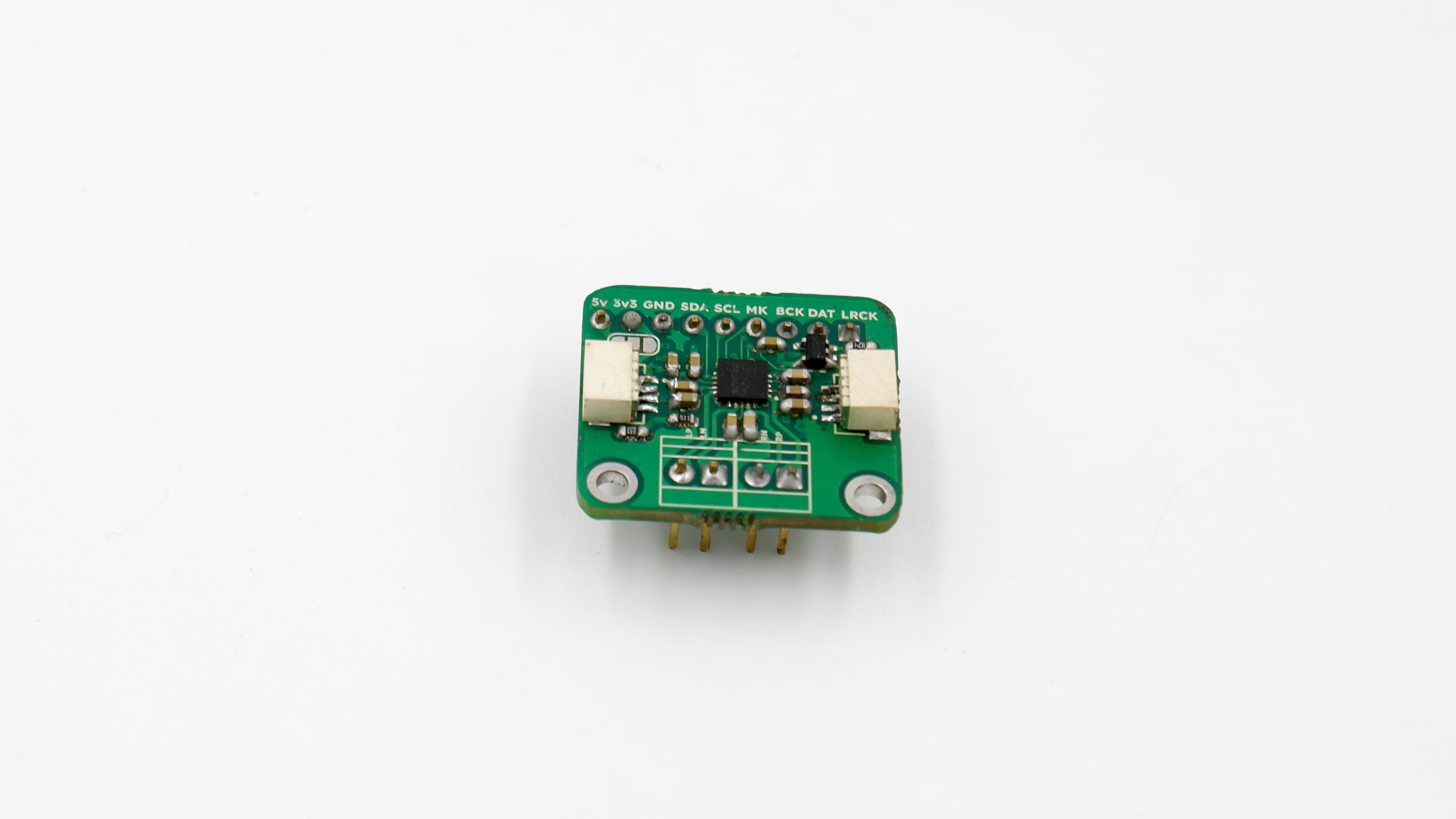
I²S Audio Interface: Learn how digital sound data flows from ESP32 to a dedicated audio chip.
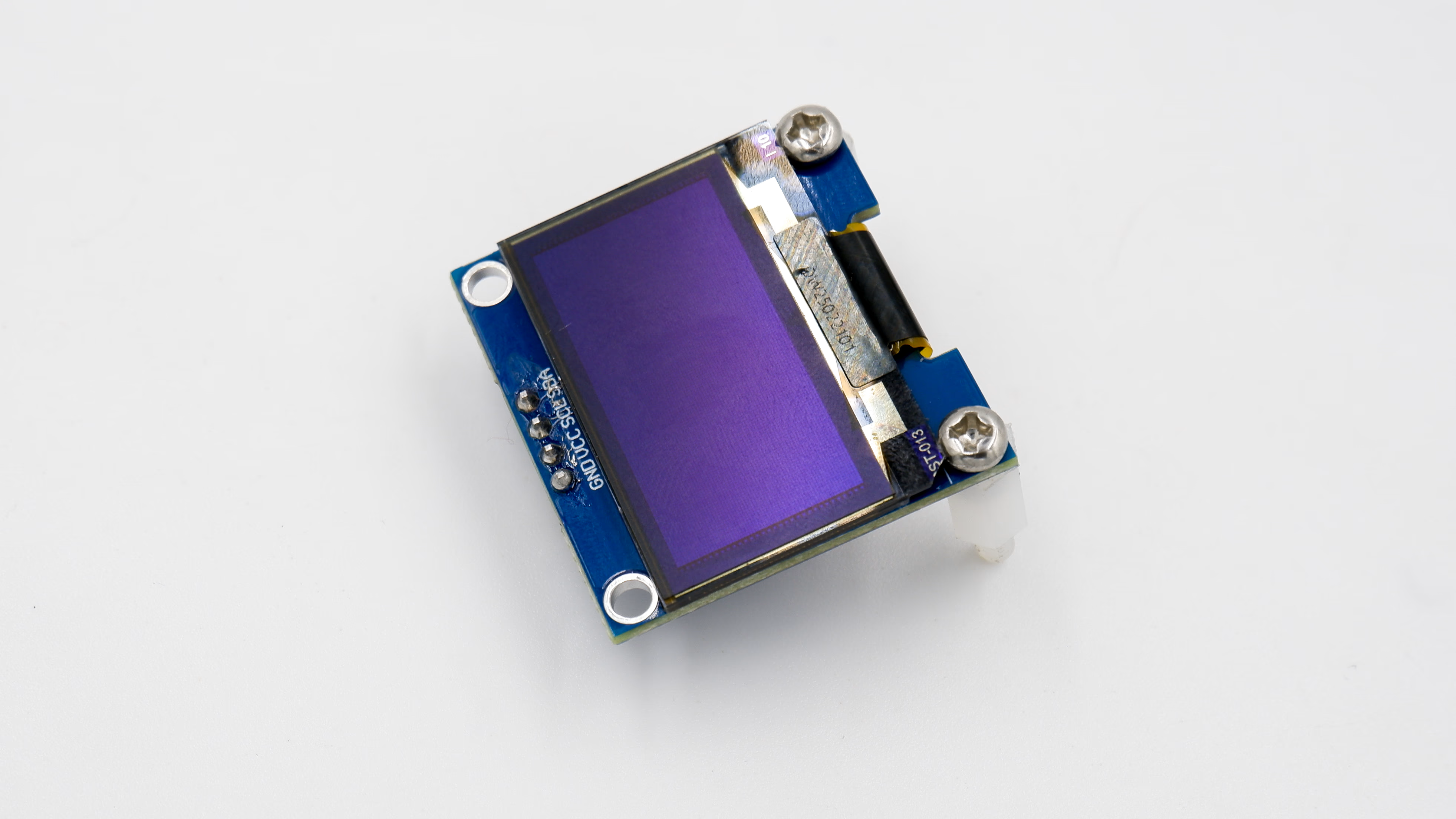
Real-Time Feedback: Track metadata, elapsed time, and progress sync instantly on OLED display.
All within Arduino!
Inspired by the ClassicsThe SoundBox replicates the look and feel of a classic boombox, reimagined with modern components. Speaker and button placement mirror traditional stereo layouts.
This section walks through complete assembly — from preparing components to final enclosure fitting.
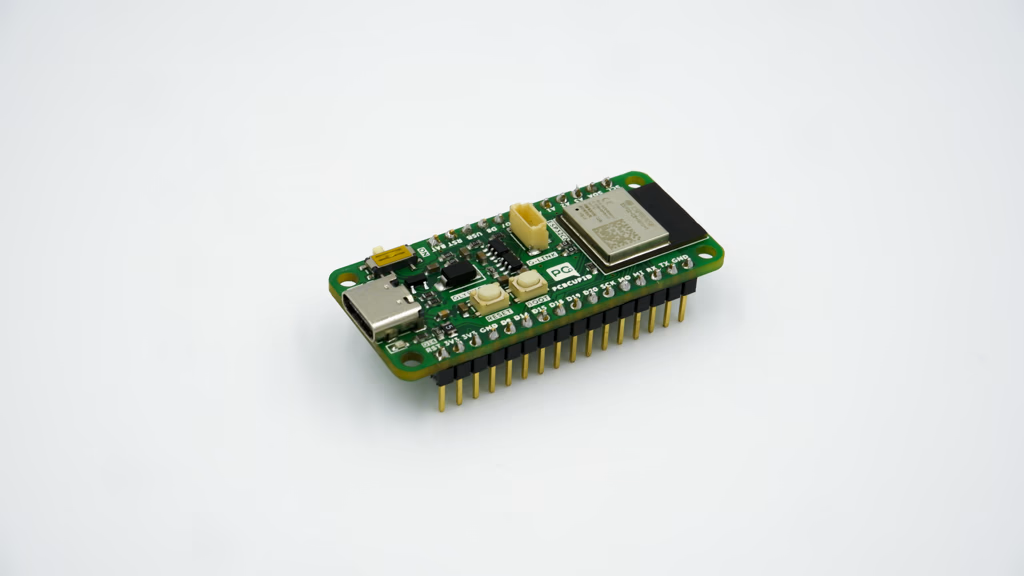
Make sure to follow Step 5 and Step 6 for installation first. This ensures Glyph has necessary firmware to run SoundBox features and tests all electronics.
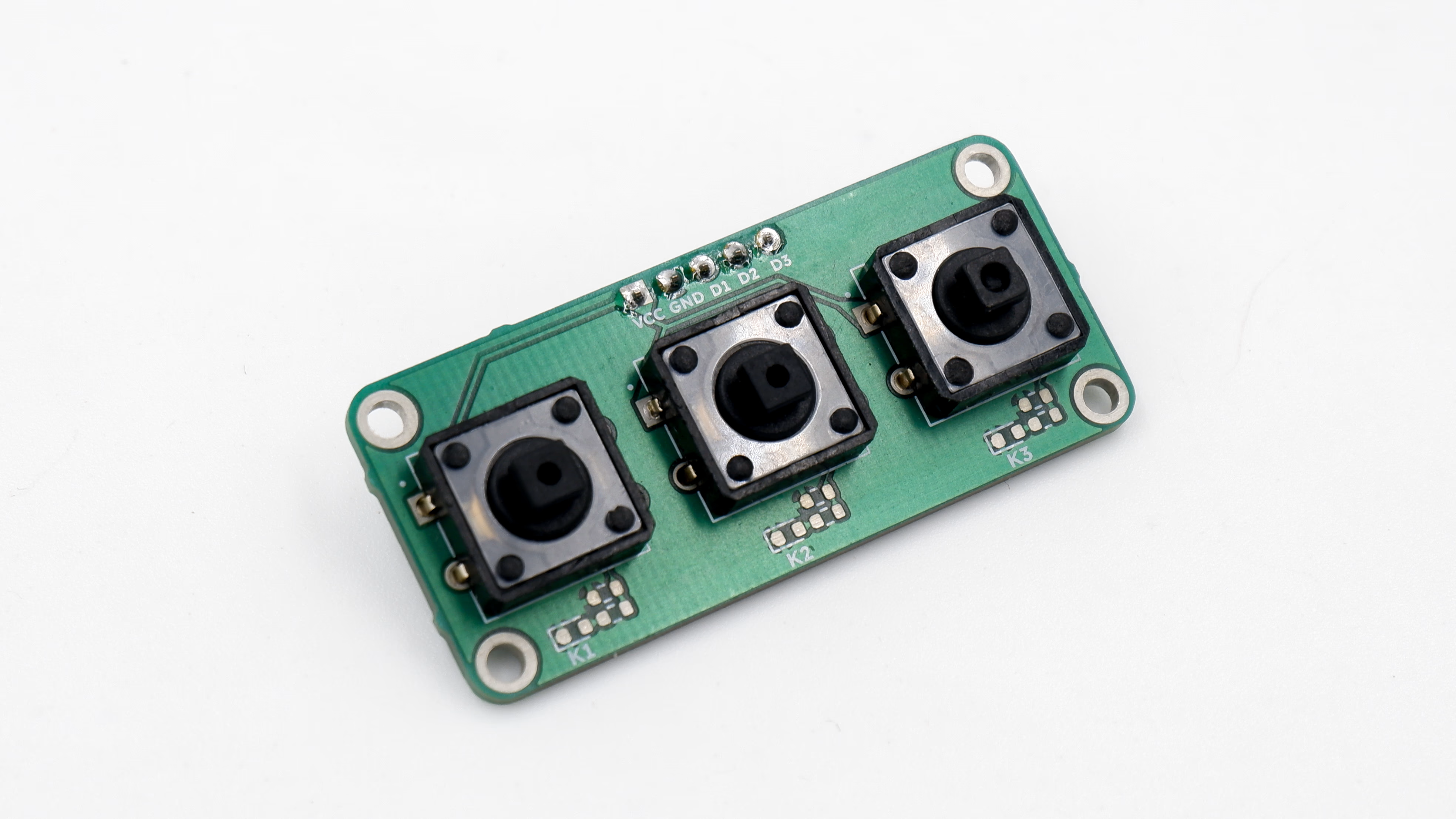
Place the 3D printed button cap on top of G-MOD 3x1 Key Array. It won’t snap-fit but works great without glue or adhesive.The enclosure is printed to tight tolerances so components fit snugly. Before proceeding, check all mounting points and openings are clear of print residue.The button array with the 3D printed cap will snap-fit on the extrusion to hold the button array in place.Align mounting holes on the button array to snap-fit points on the enclosure. Guide the button so the header faces away from the soundbox.Apply pressure on one side until mounting holes snap fit, then the other side.
The snap-fit may be very tight and can hold the button array firmly — difficult to remove once in place.
Double-check the button fits well and header pin faces toward you. This is critical as the G-Kit base board will access it.
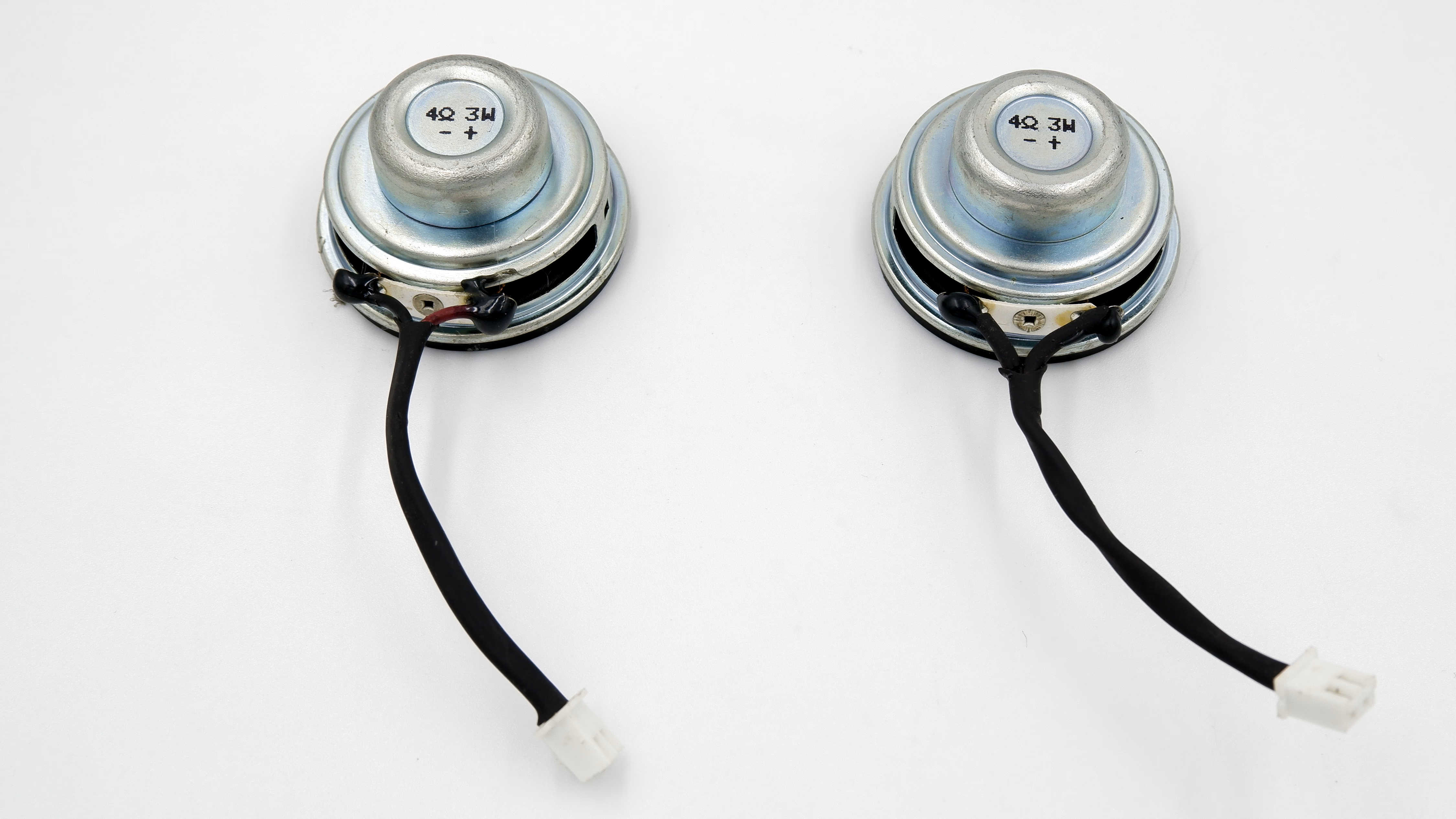
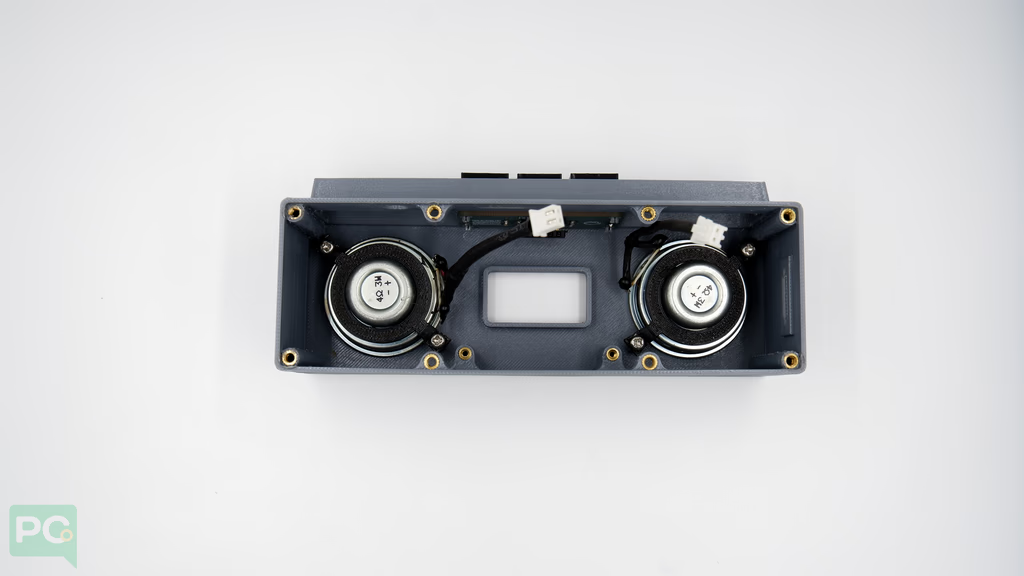
A 3D printed adapter holds the speaker to the enclosure.Align the speaker adapter to mounting points on the enclosure. Repeat for both speakers.Use M3 screws from the kit to fasten in place.Ensure speaker wire connectors face toward the display for easier connection to the G-Kit base board.
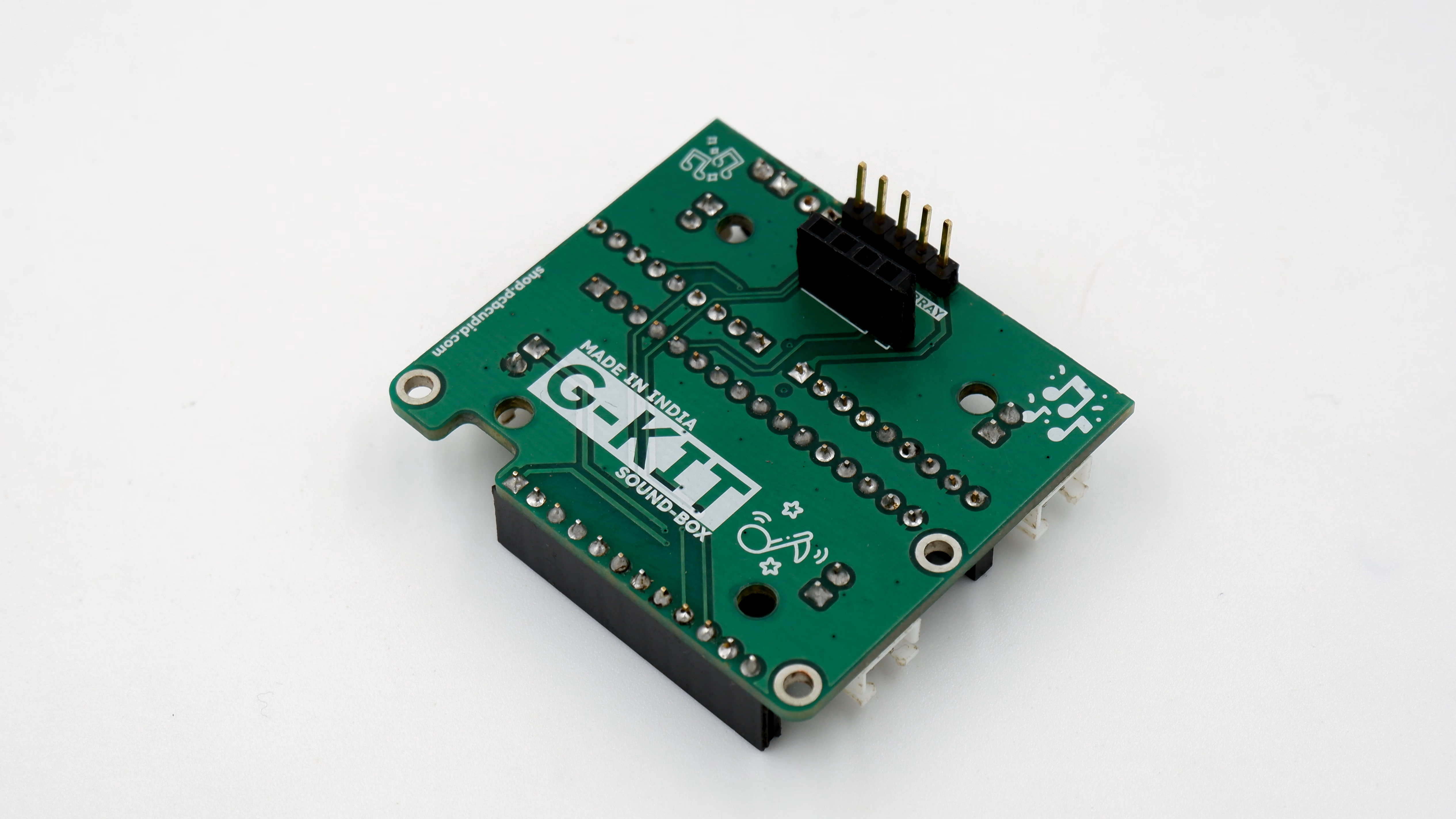
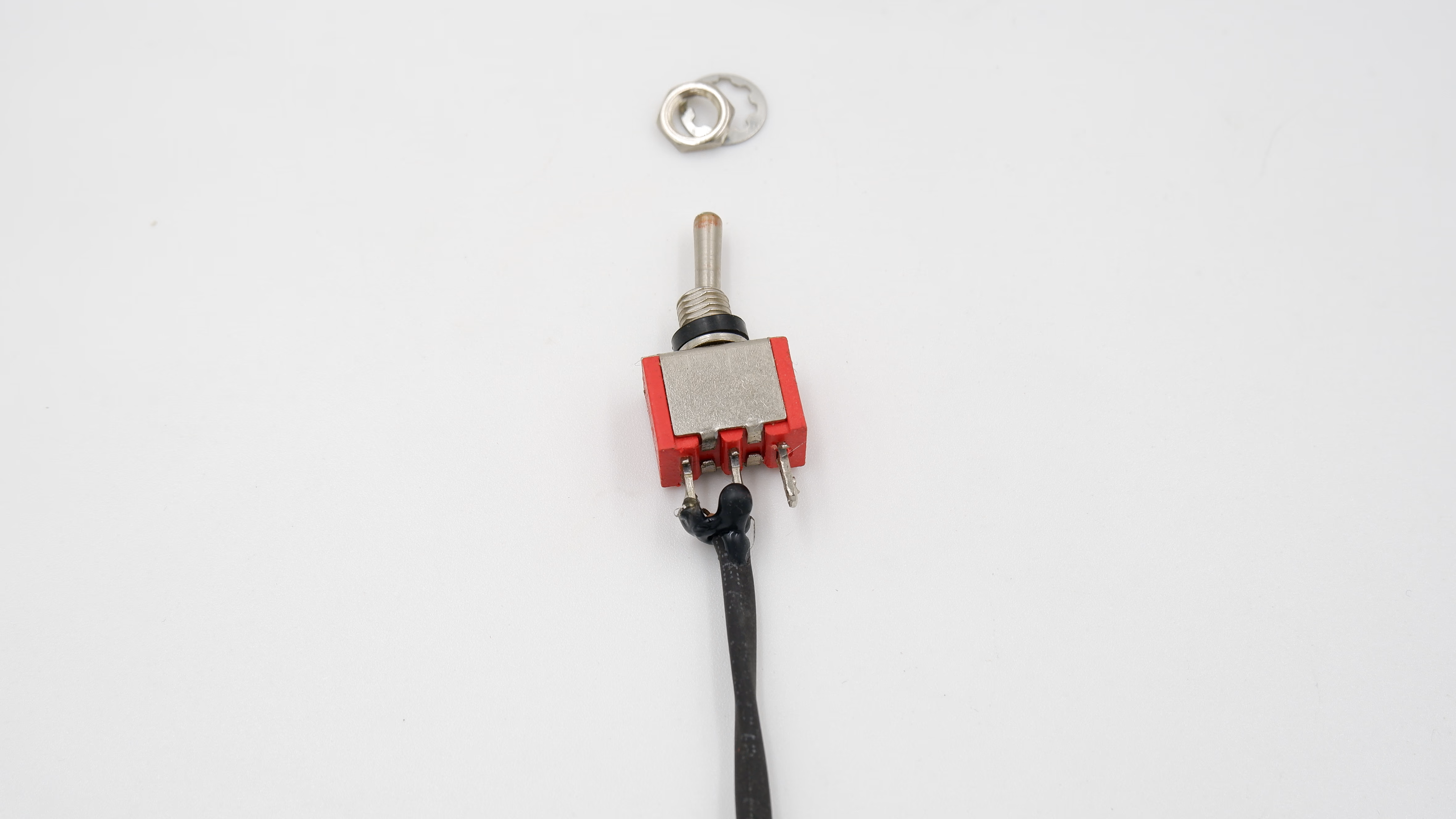
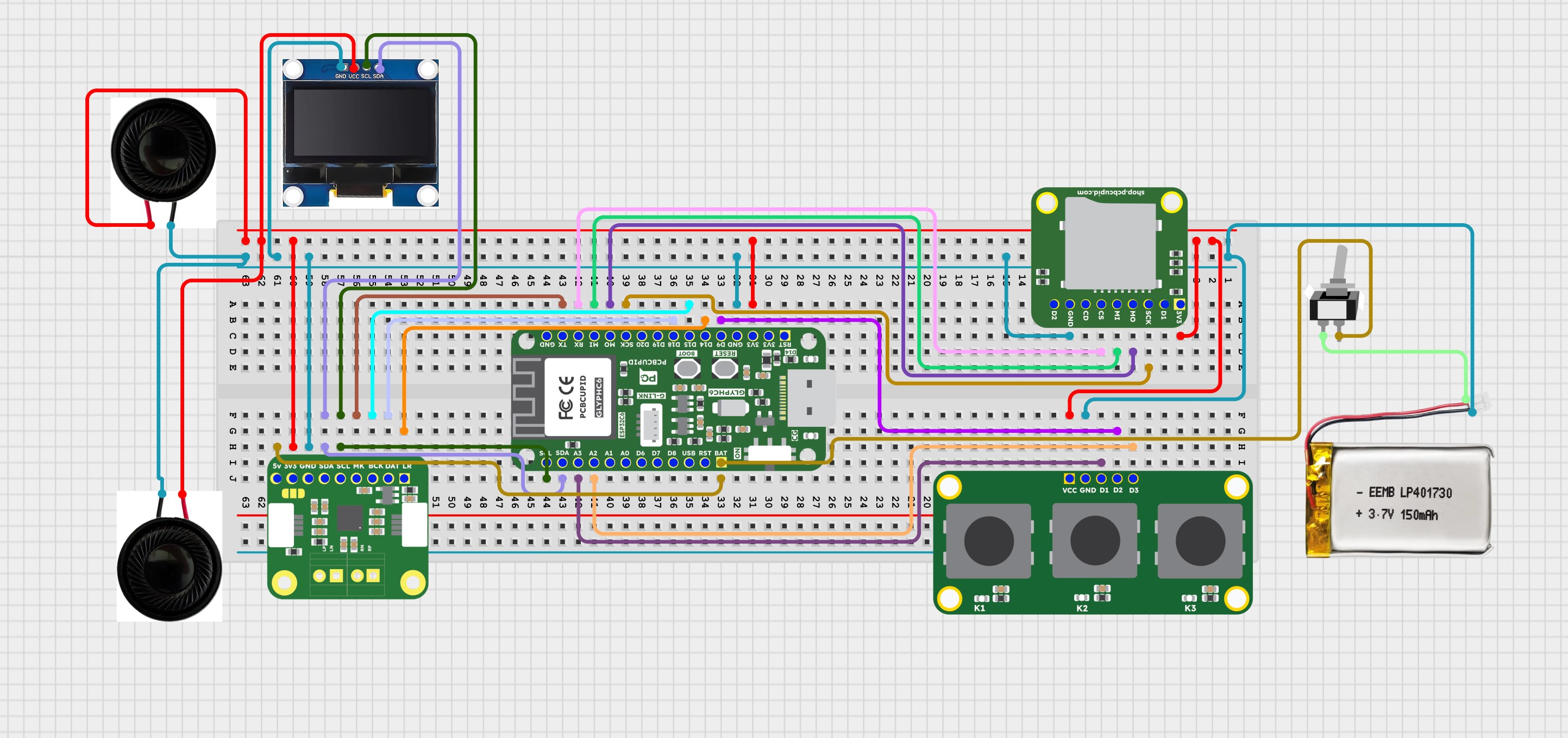
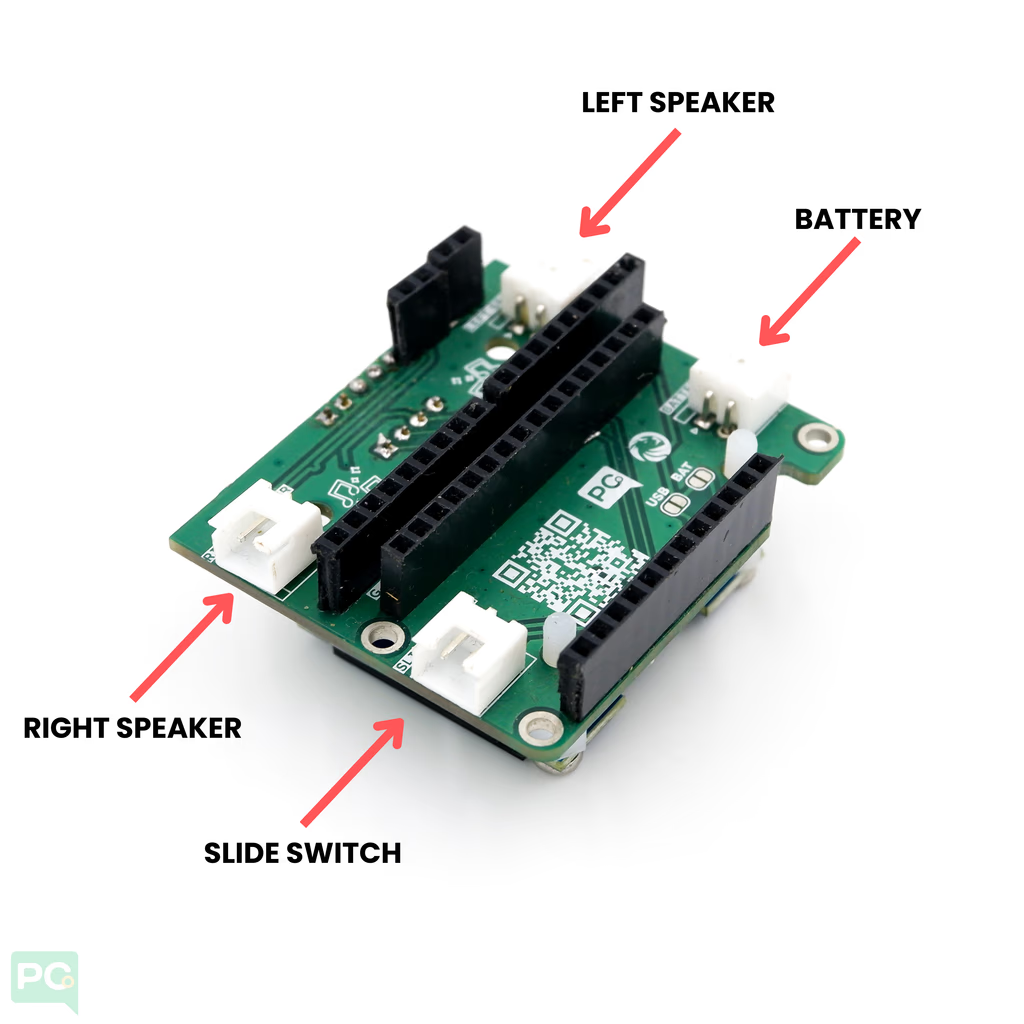
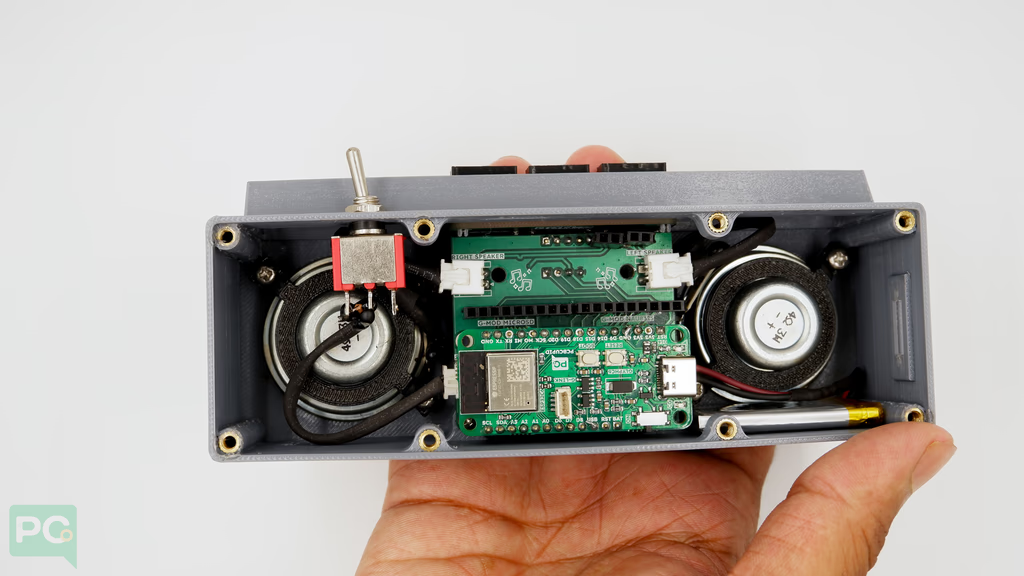
Once the display is placed, position the base board into the enclosure.Ensure the header on top of the base board fits onto the button placed earlier.Fasten in place using M2.5mm bolts.Add the toggle button for power on/off.Connect speaker and toggle switch connectors to the base board.
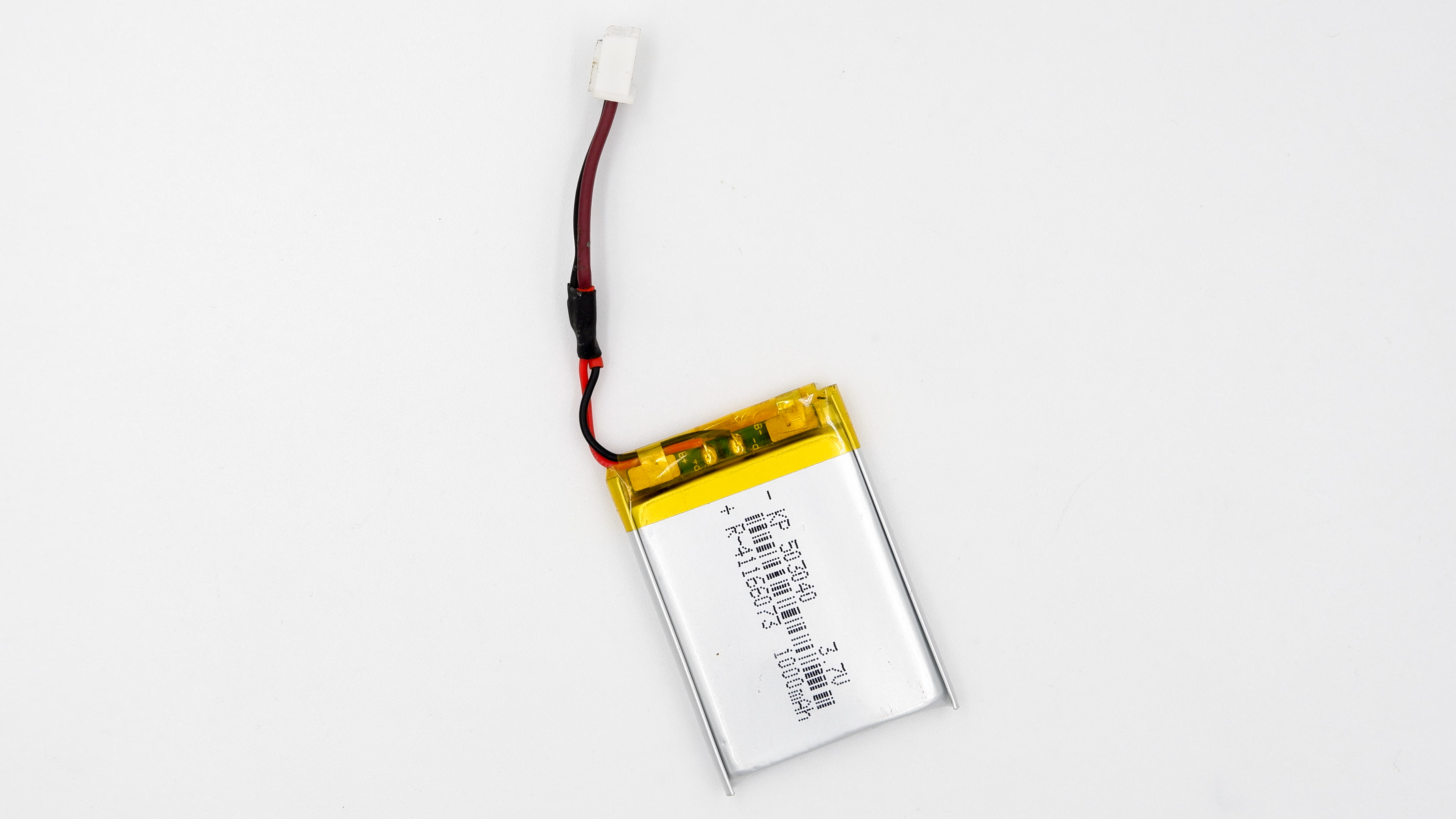
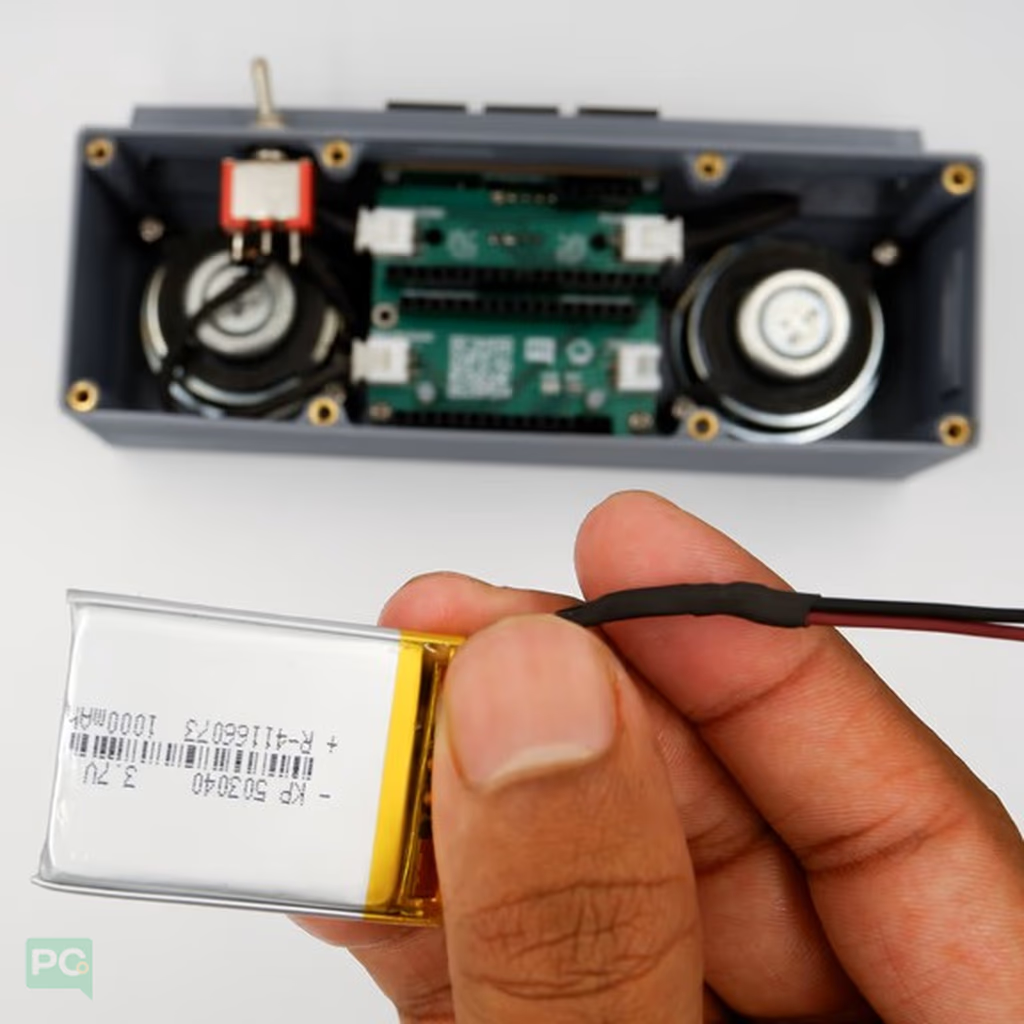
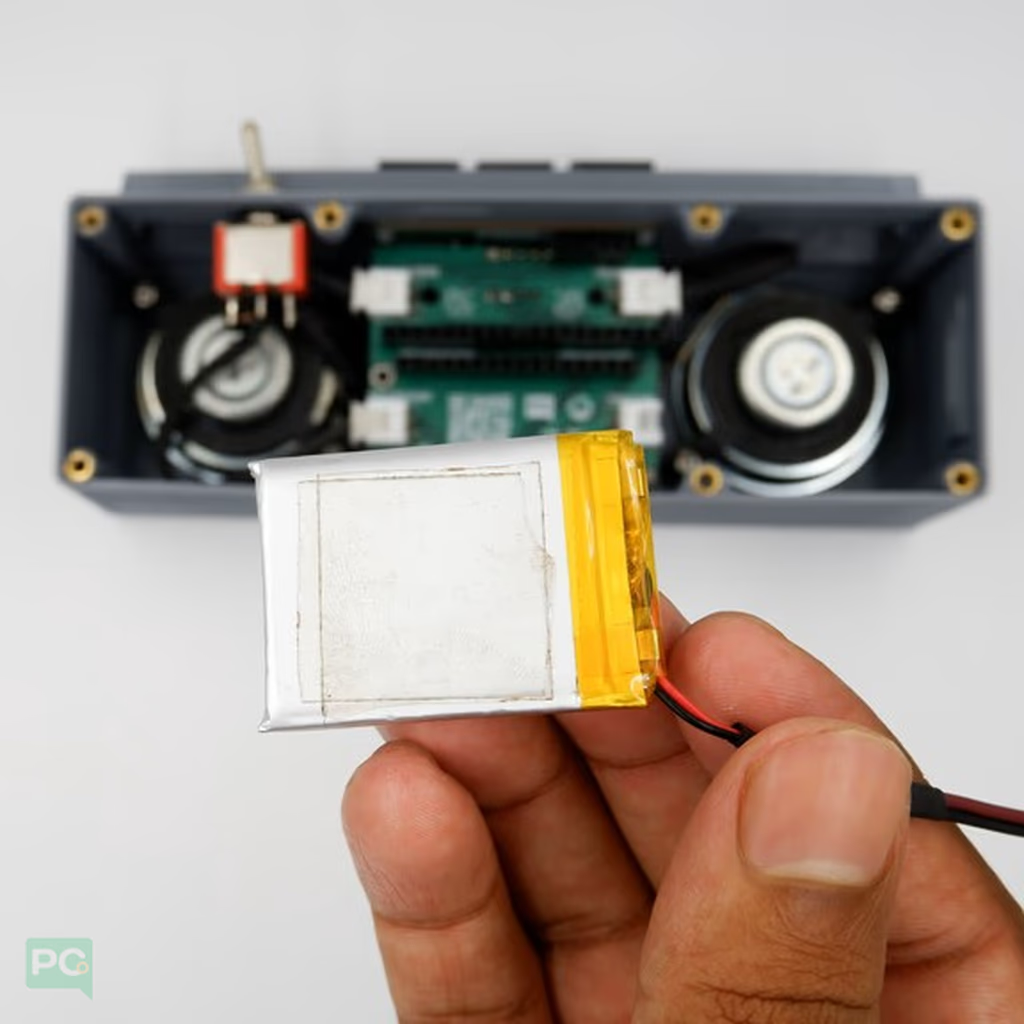
Apply double-sided tape to the battery to prevent movement inside the soundbox.
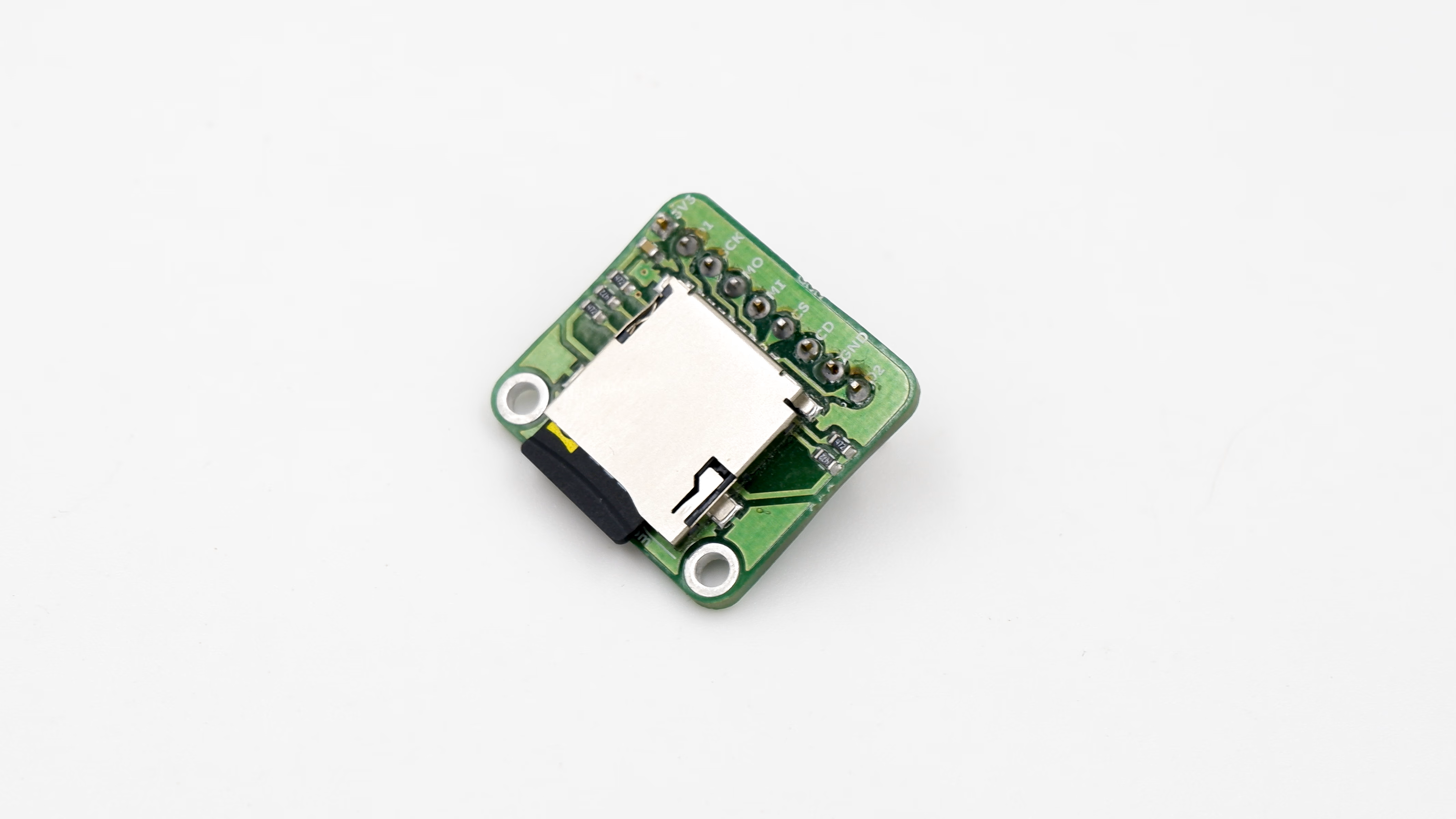
Place an 8mm nylon spacer on the G-Kit PCB to support the GMOD-microSD.Place the GMOD-microSD card module and check the SD card is accessible outside the box.Insert the SD card with pre-loaded music into the SD-Card Module.
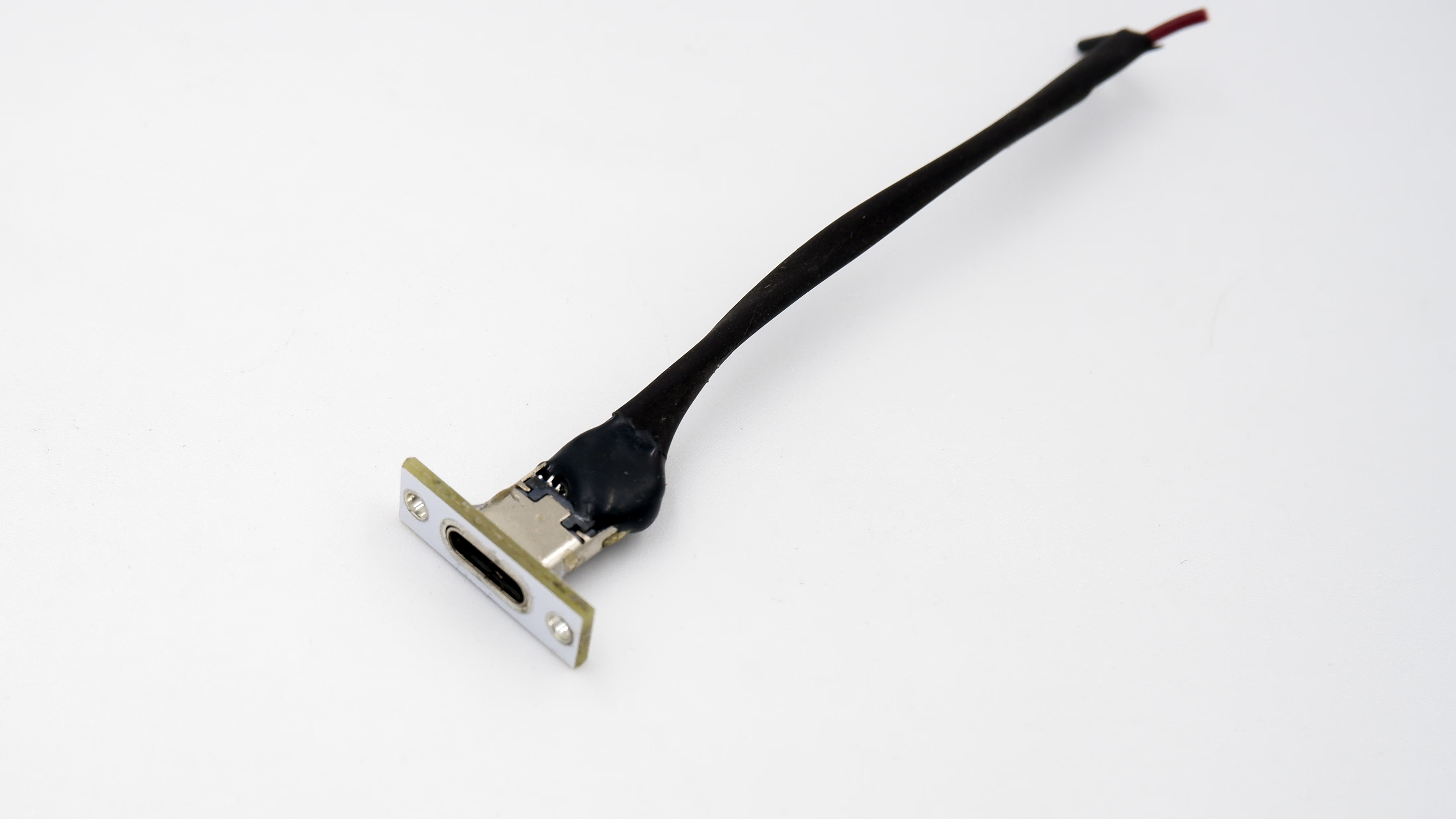
Insert the Type C USB from outside.Ensure it fits snugly in the groove made for the C-port on the 3D model.Add 2mm bolts and nuts to the Type C USB port to hold it together with the 3D model.Solder the wires to the GLYPH board (Black → GND, Red → USB).Add the back panel to finish.SoundBox after full assembly:Toggle the switch to start!After a few seconds the SoundBox boots up.Navigate and select songs to play.
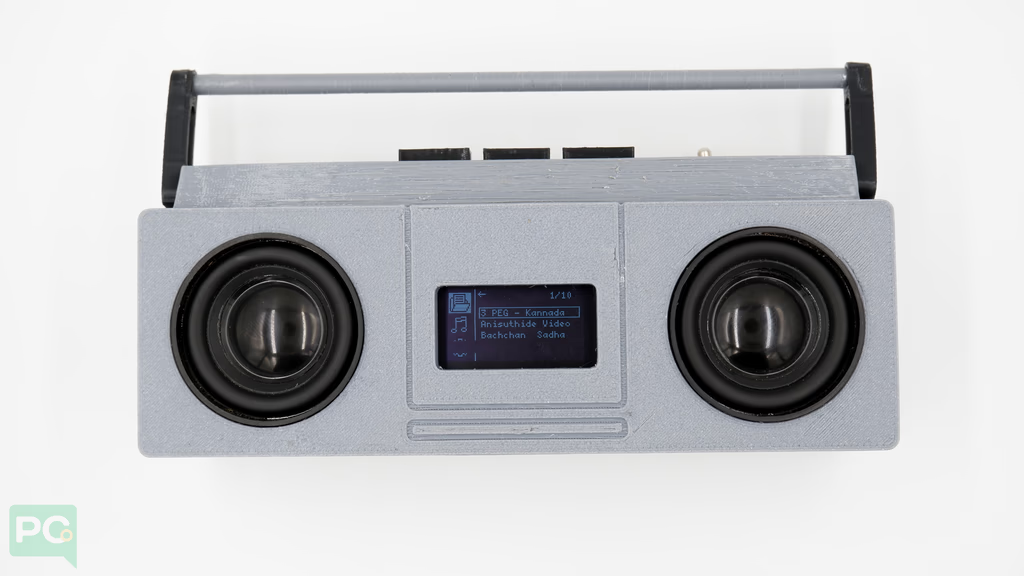 This project combines digital audio, intuitive UI design, and hands-on hardware interaction in one compact build. It’s not a music player — it’s an educational platform that teaches fundamentals of audio electronics, embedded programming, and system design.
Learn Embedded Audio Design
This project combines digital audio, intuitive UI design, and hands-on hardware interaction in one compact build. It’s not a music player — it’s an educational platform that teaches fundamentals of audio electronics, embedded programming, and system design.
Learn Embedded Audio Design
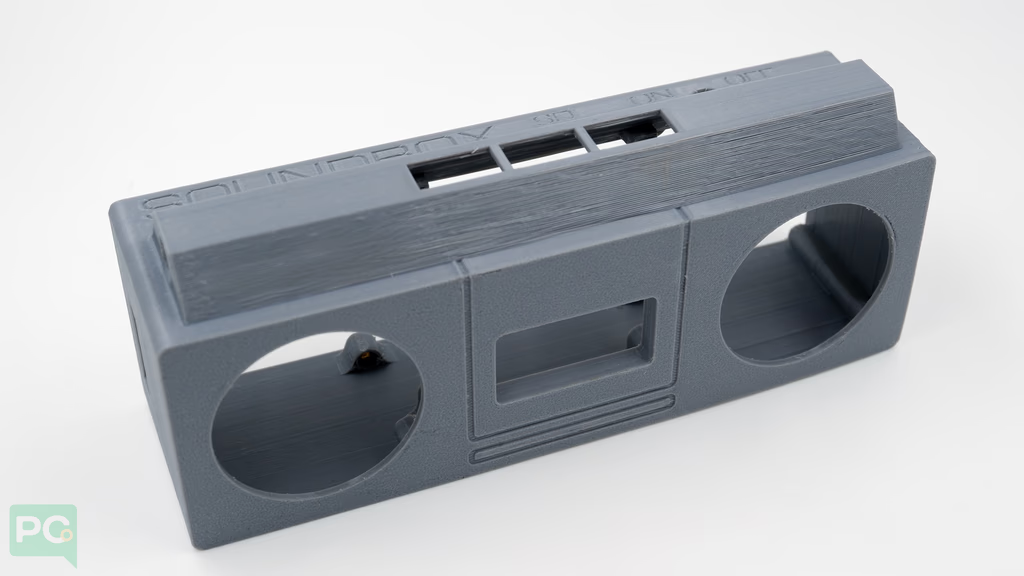
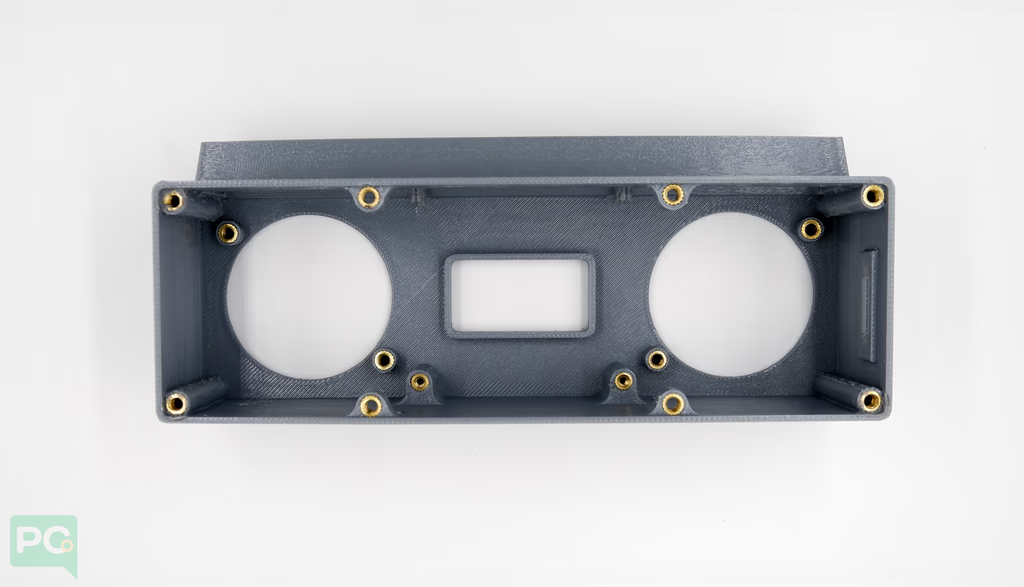
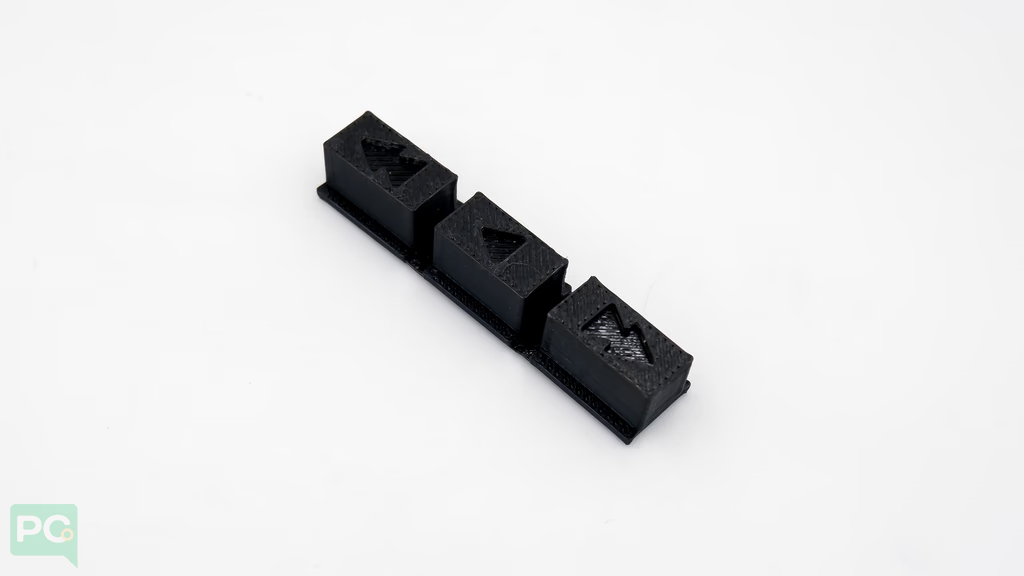
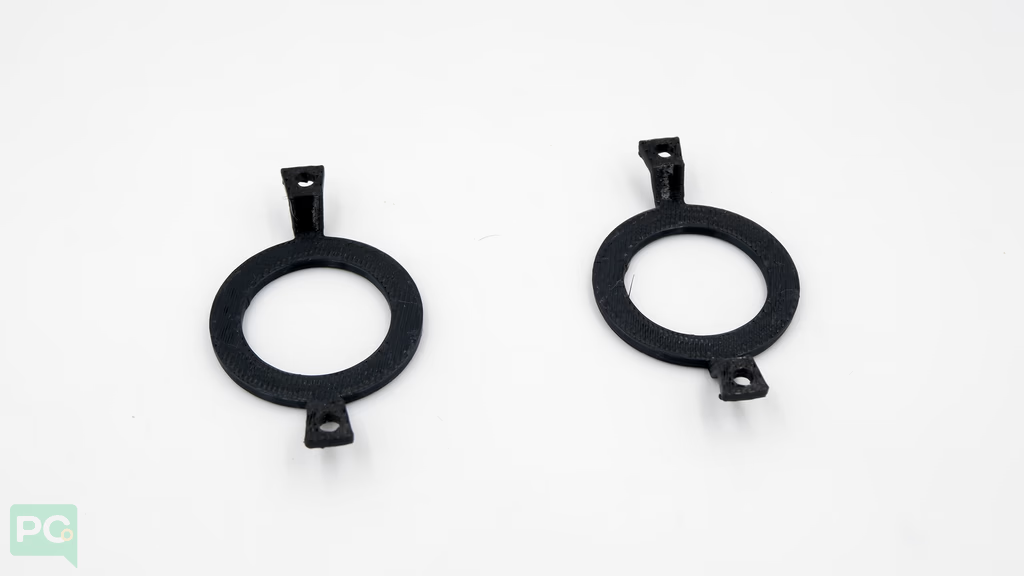
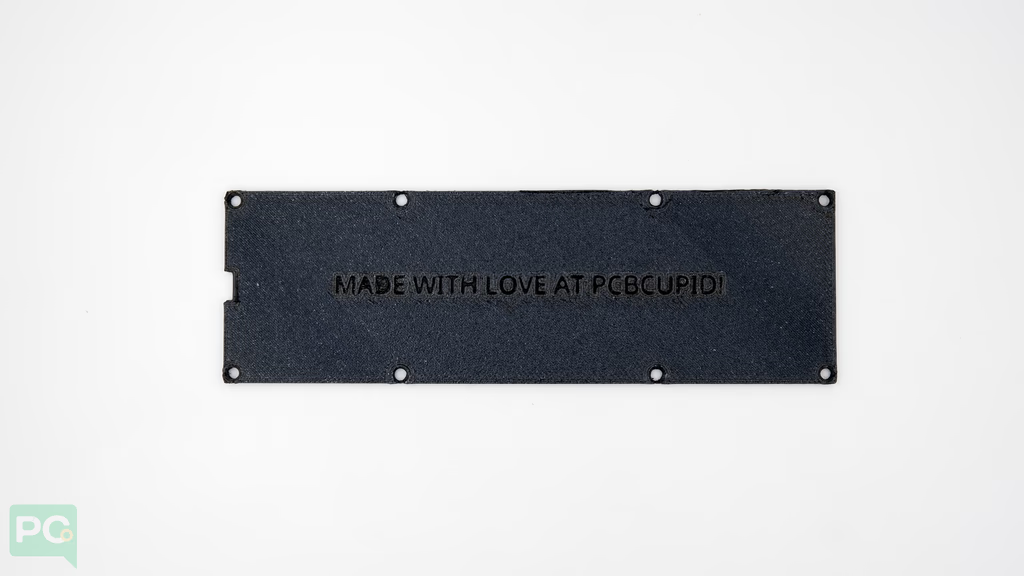
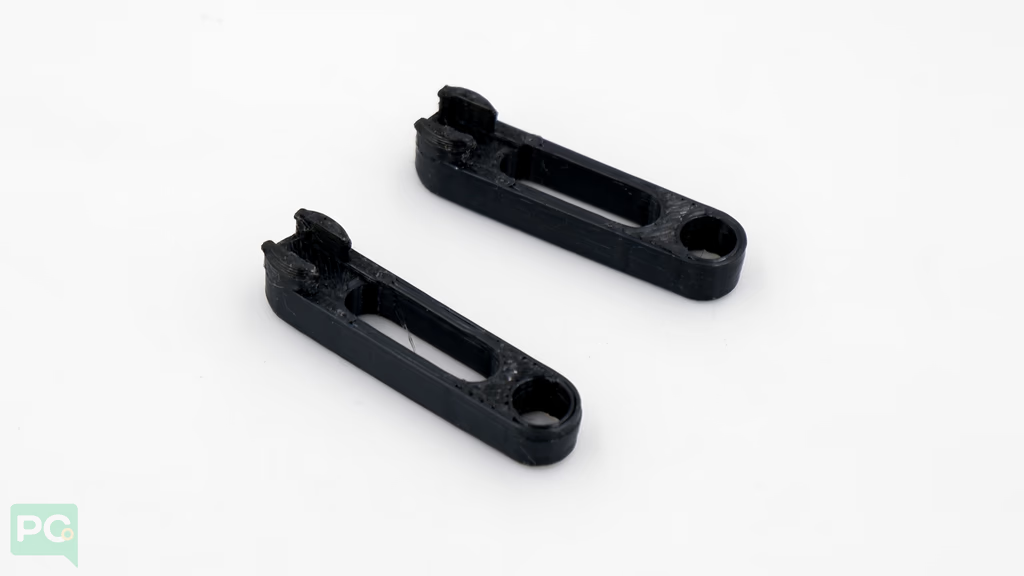
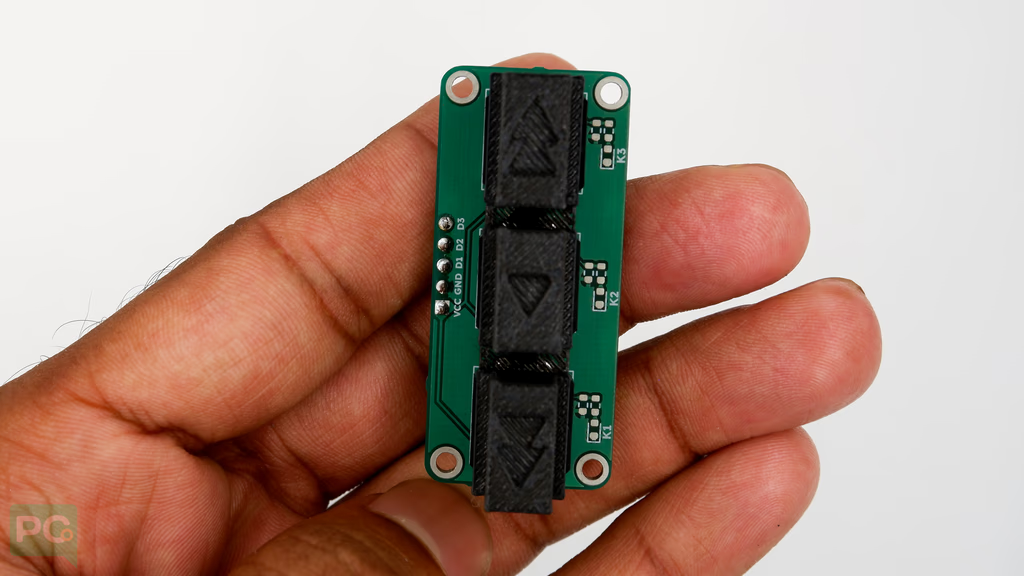 The enclosure is printed to tight tolerances so components fit snugly. Before proceeding, check all mounting points and openings are clear of print residue.
The button array with the 3D printed cap will snap-fit on the extrusion to hold the button array in place.
The enclosure is printed to tight tolerances so components fit snugly. Before proceeding, check all mounting points and openings are clear of print residue.
The button array with the 3D printed cap will snap-fit on the extrusion to hold the button array in place.
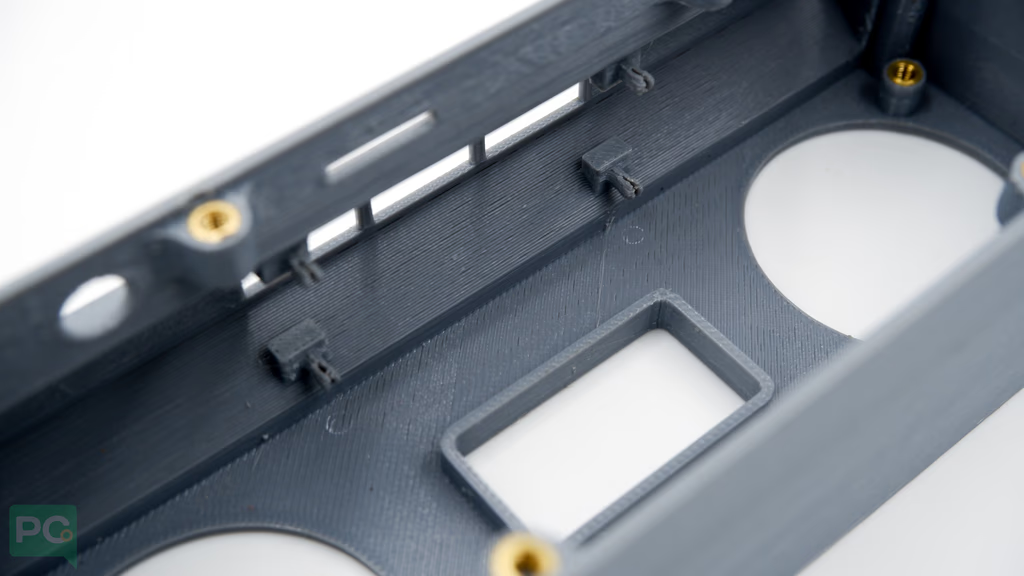 Align mounting holes on the button array to snap-fit points on the enclosure. Guide the button so the header faces away from the soundbox.
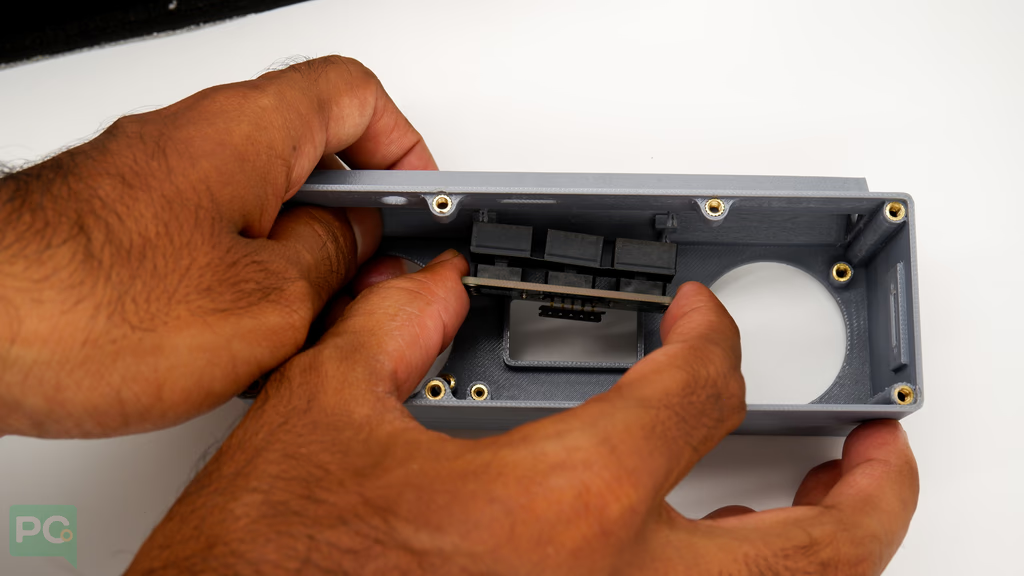 Apply pressure on one side until mounting holes snap fit, then the other side.
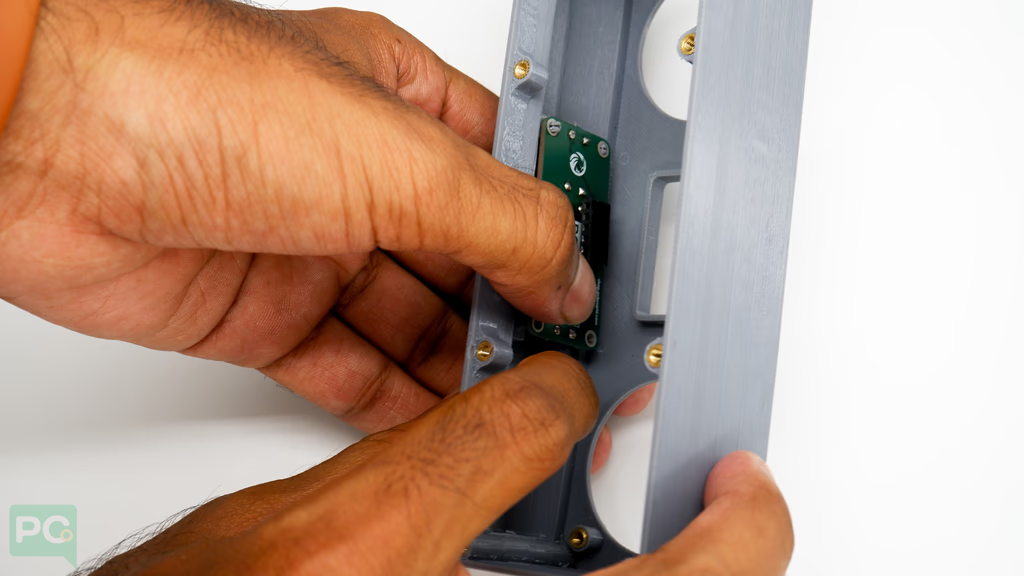 Double-check the button fits well and header pin faces toward you. This is critical as the G-Kit base board will access it.
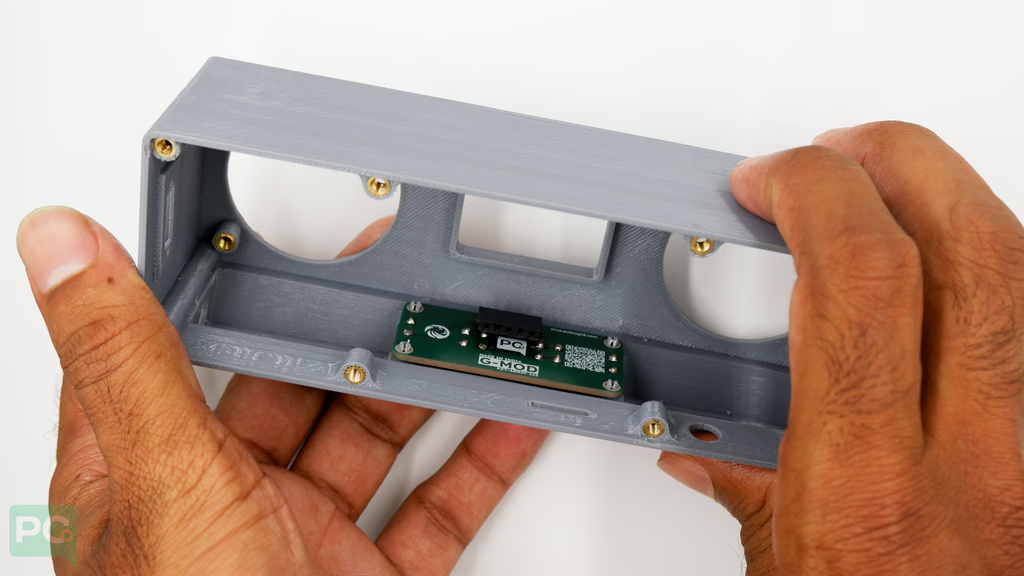
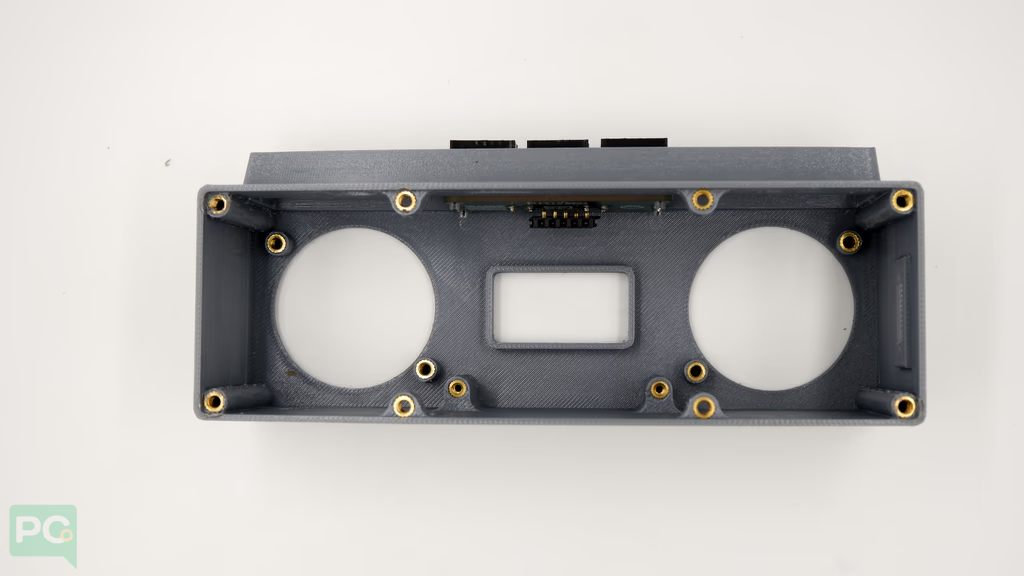
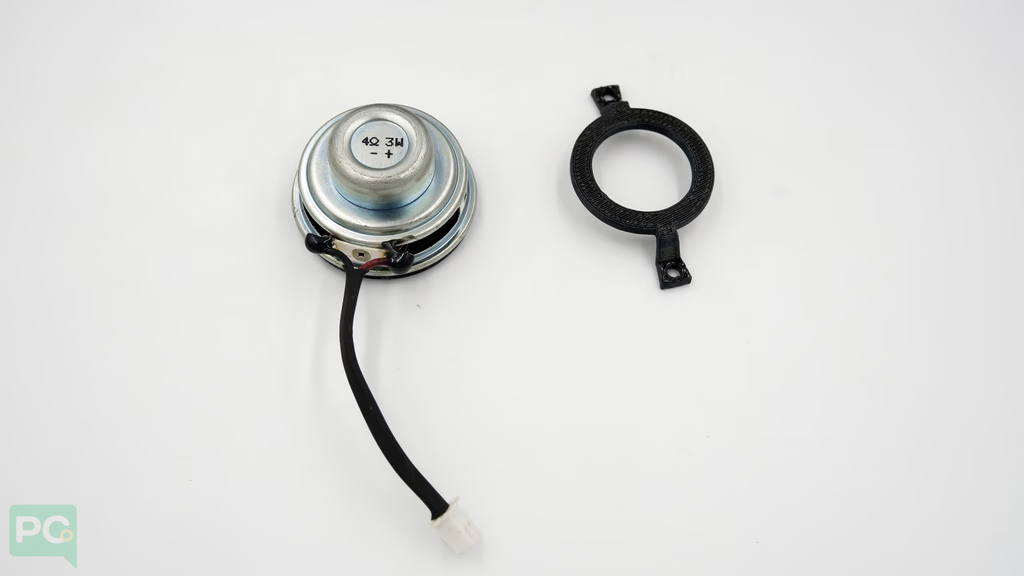
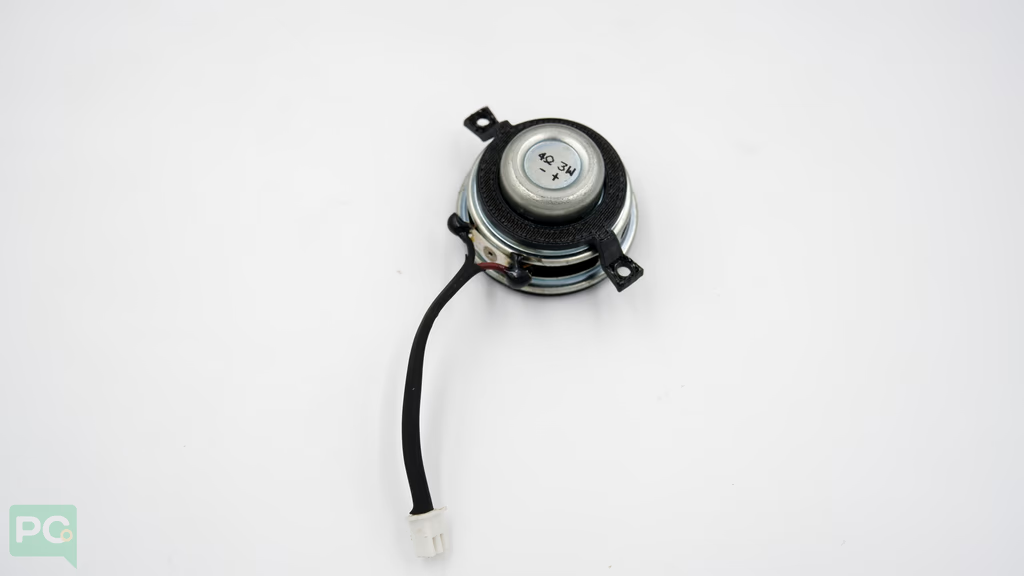 Align the speaker adapter to mounting points on the enclosure. Repeat for both speakers.
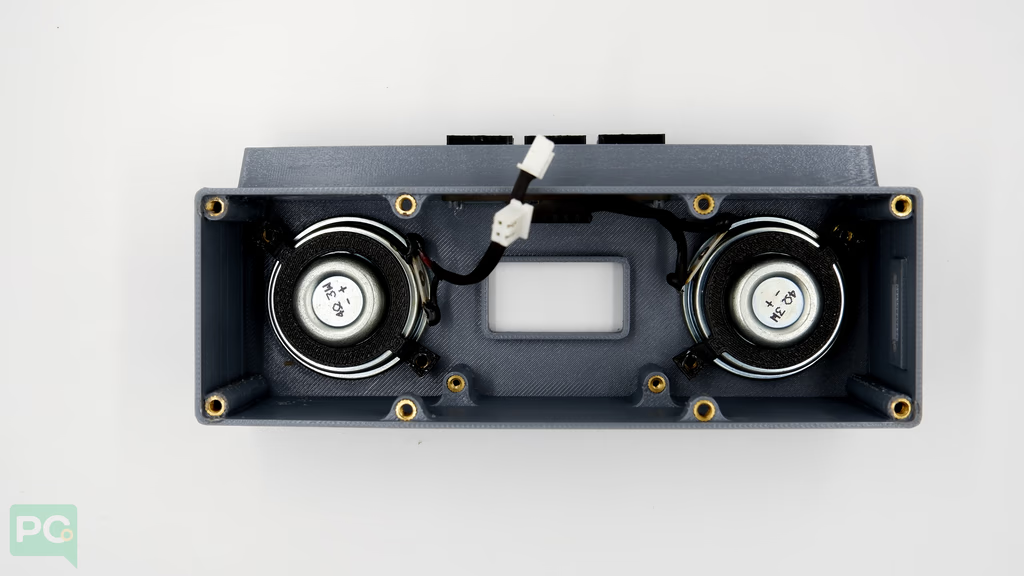 Use M3 screws from the kit to fasten in place.
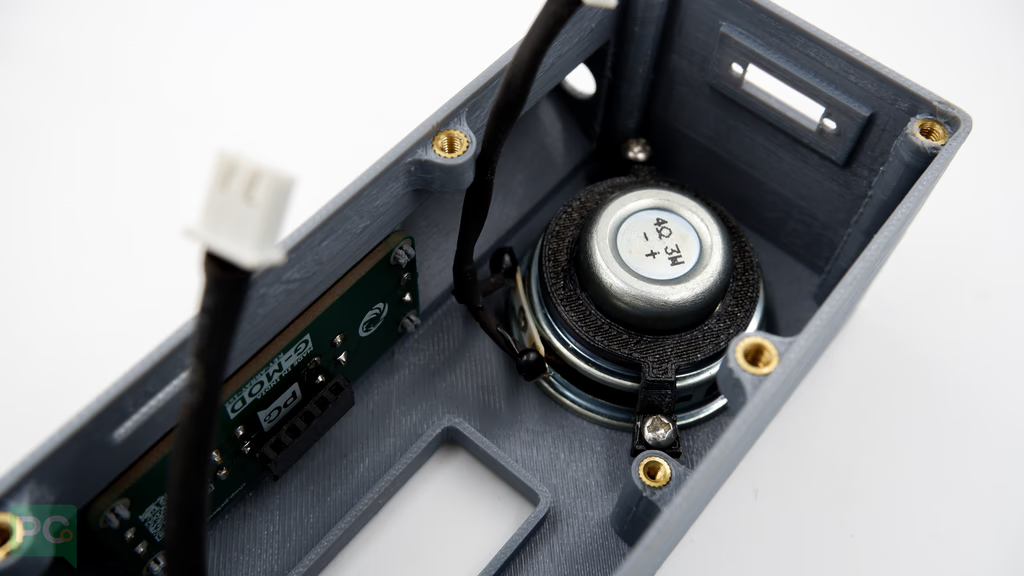 Ensure speaker wire connectors face toward the display for easier connection to the G-Kit base board.
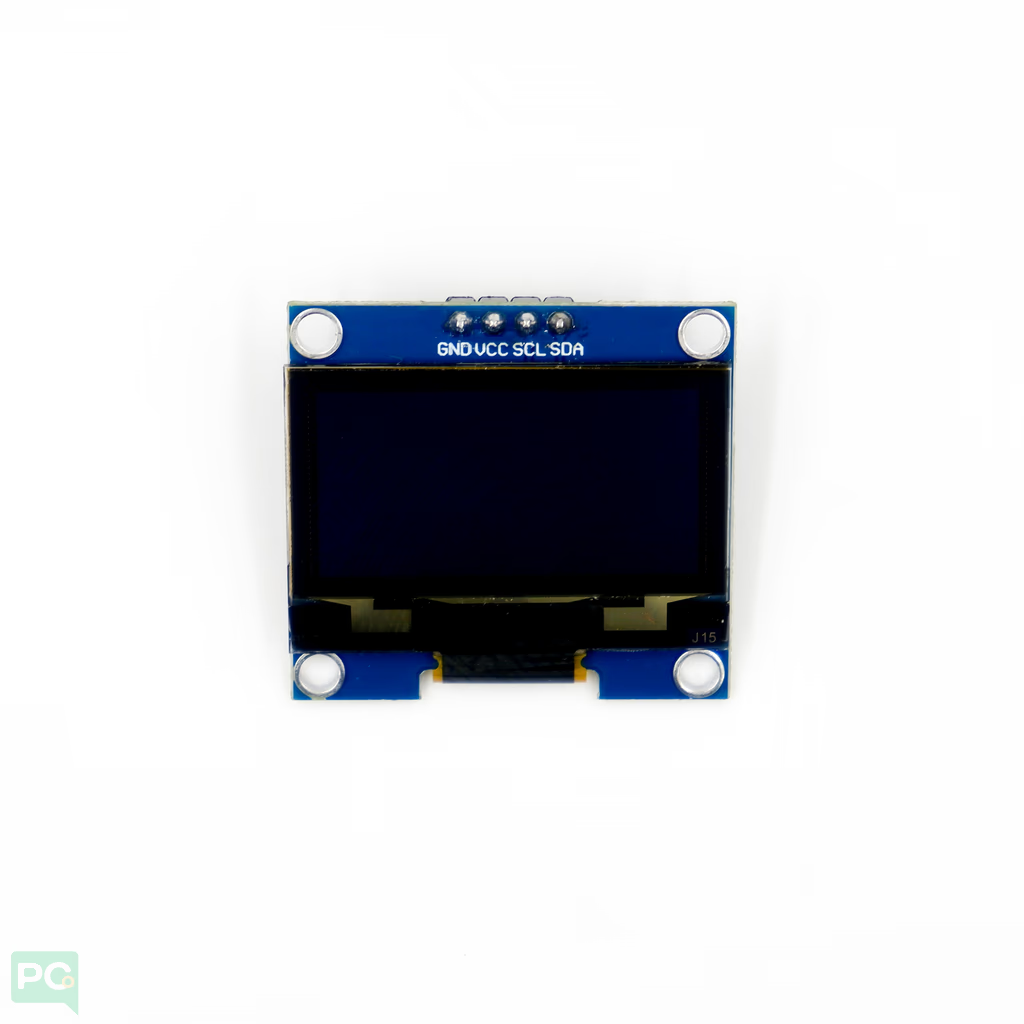
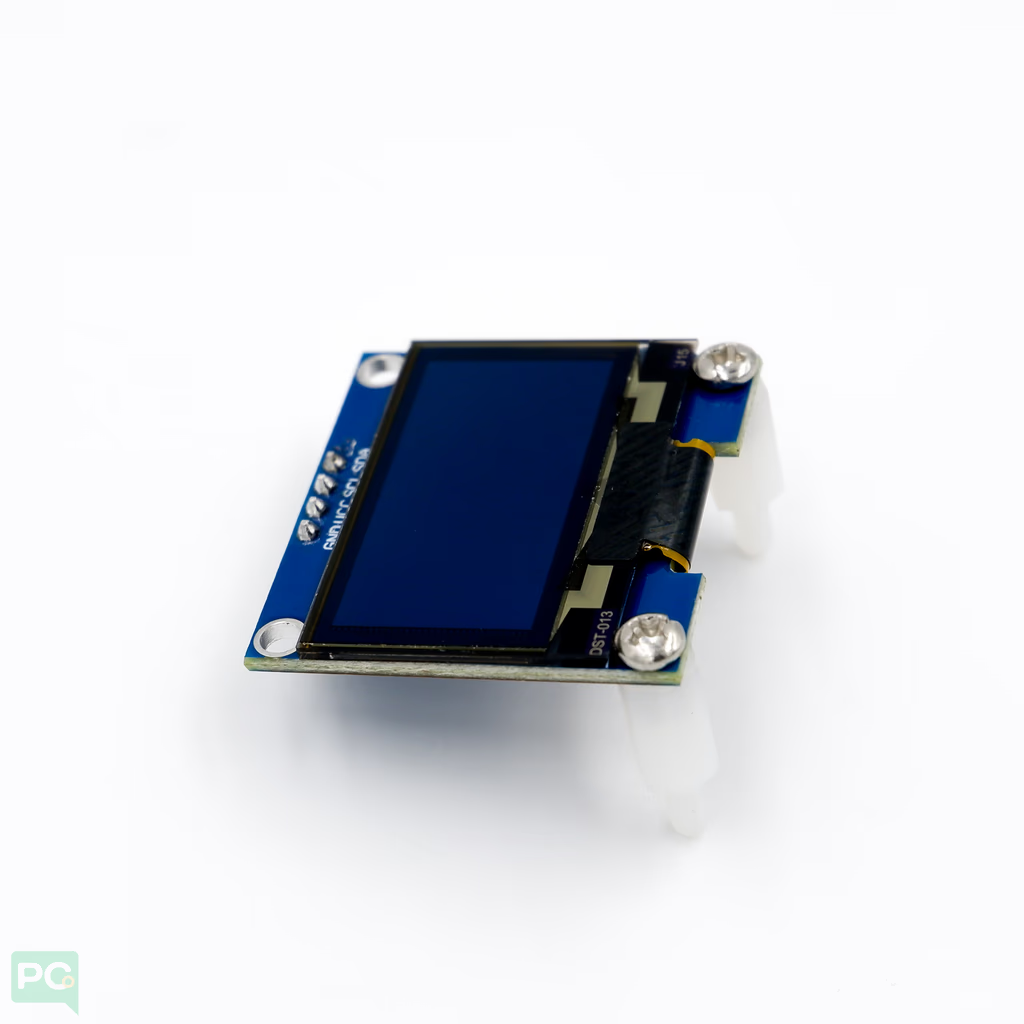
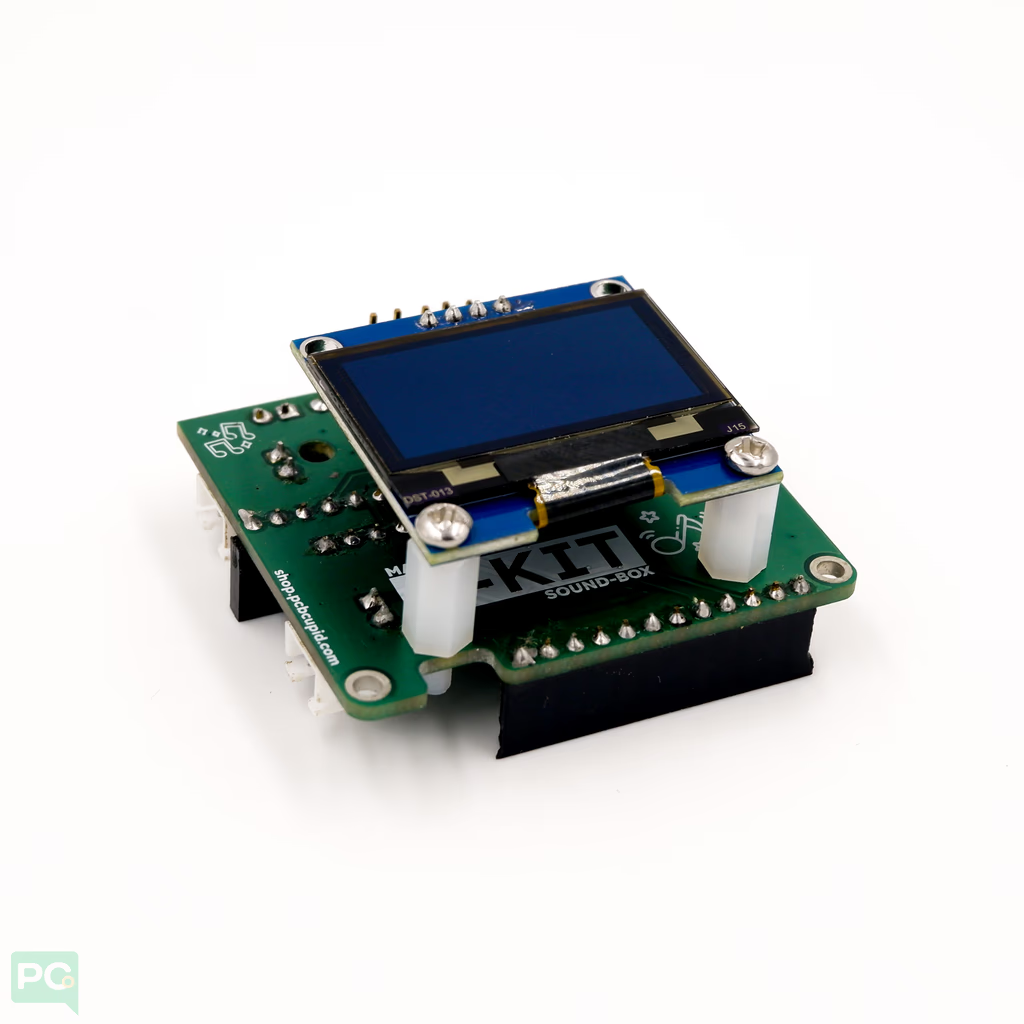
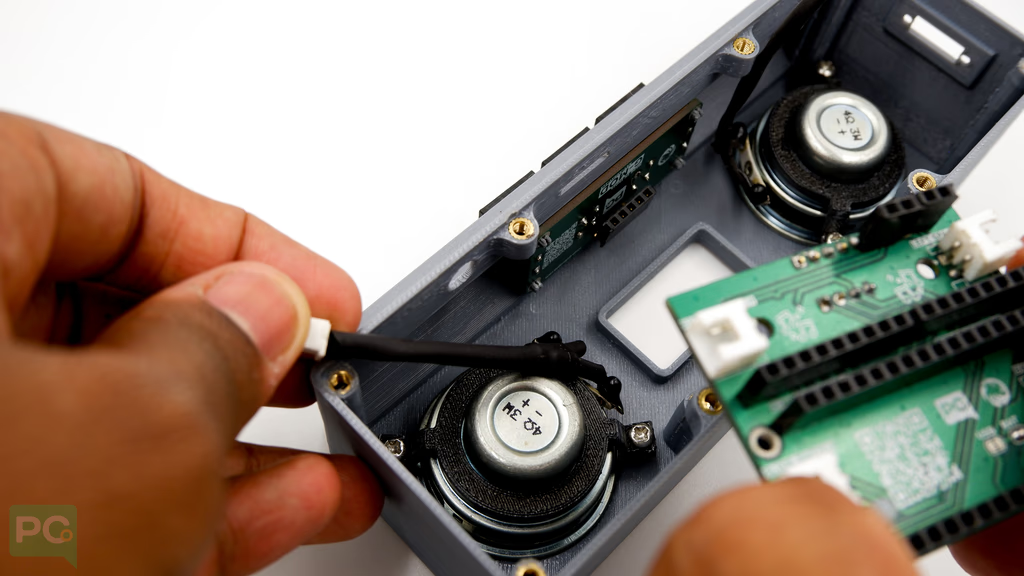 Ensure the header on top of the base board fits onto the button placed earlier.
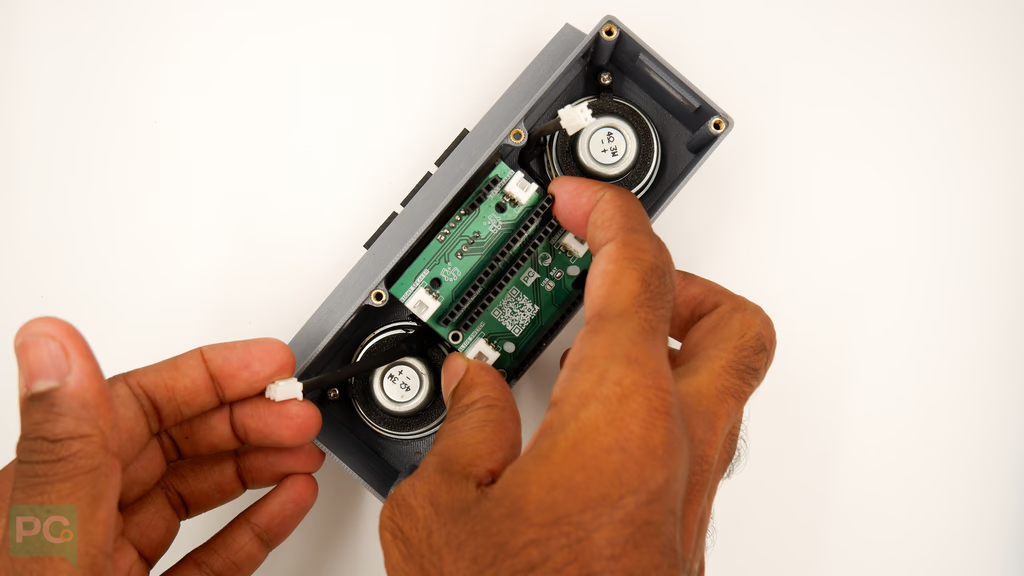 Fasten in place using M2.5mm bolts.
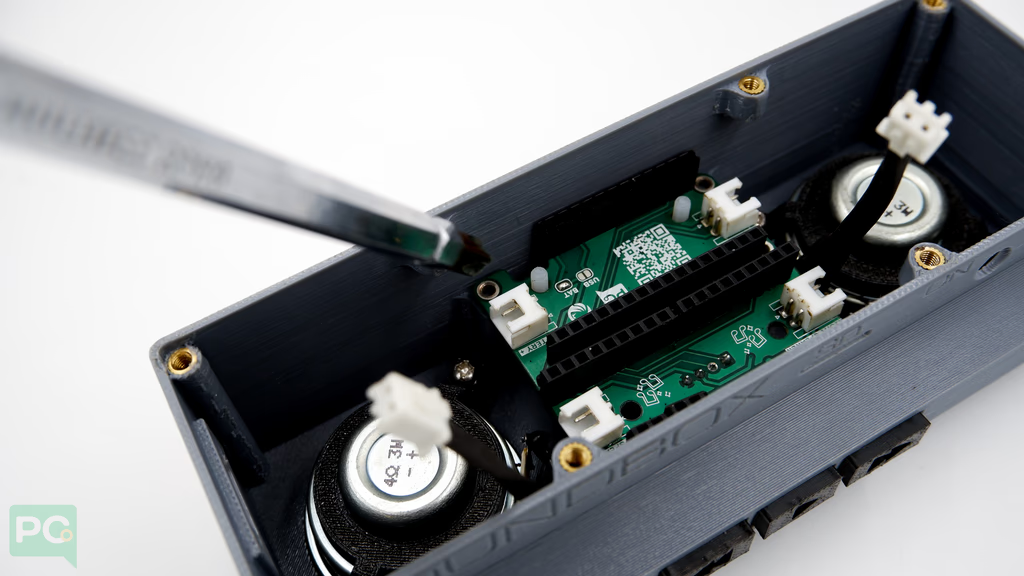 Add the toggle button for power on/off.
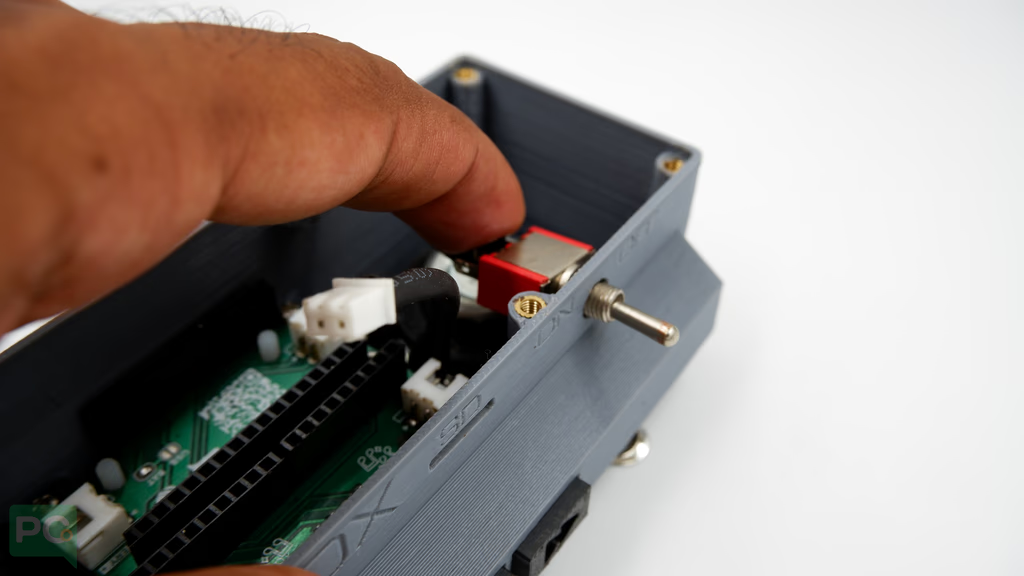 Connect speaker and toggle switch connectors to the base board.
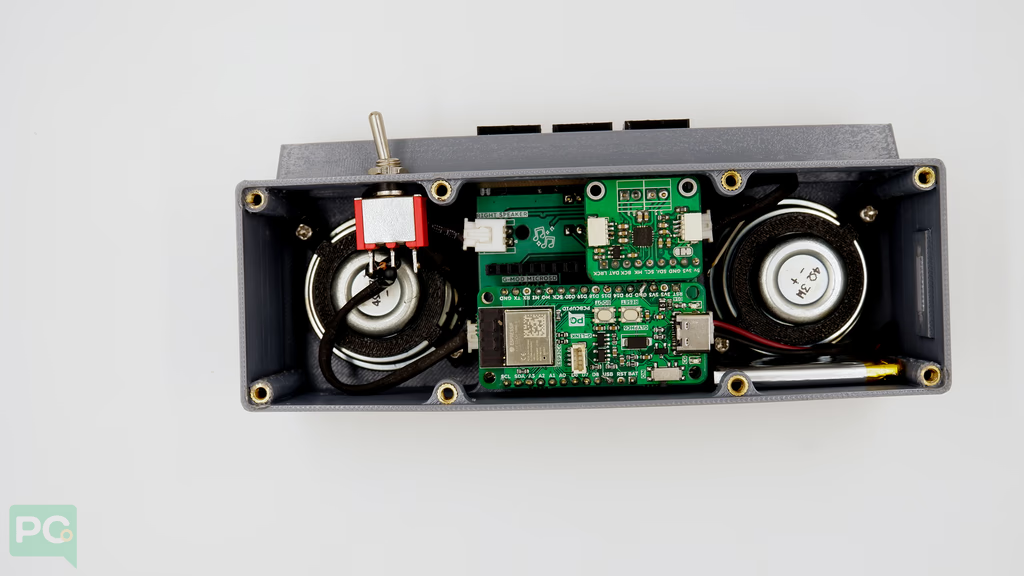
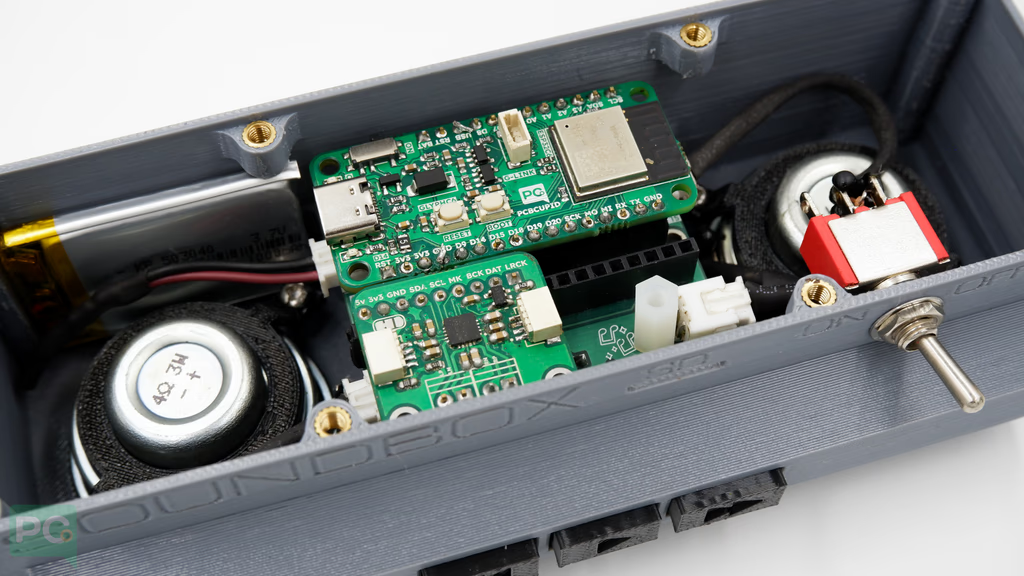 Place the GMOD-microSD card module and check the SD card is accessible outside the box.
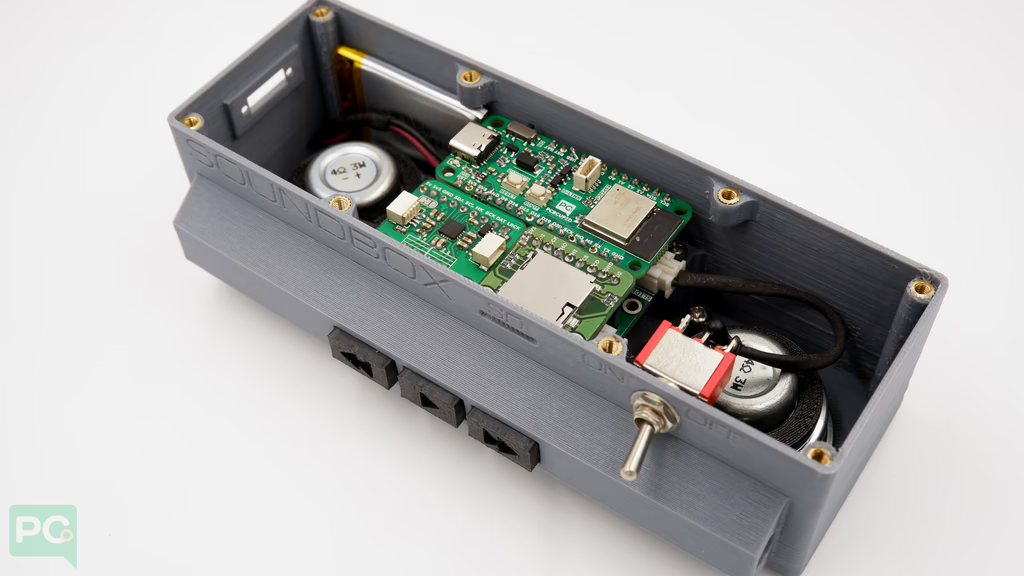 Insert the SD card with pre-loaded music into the SD-Card Module.
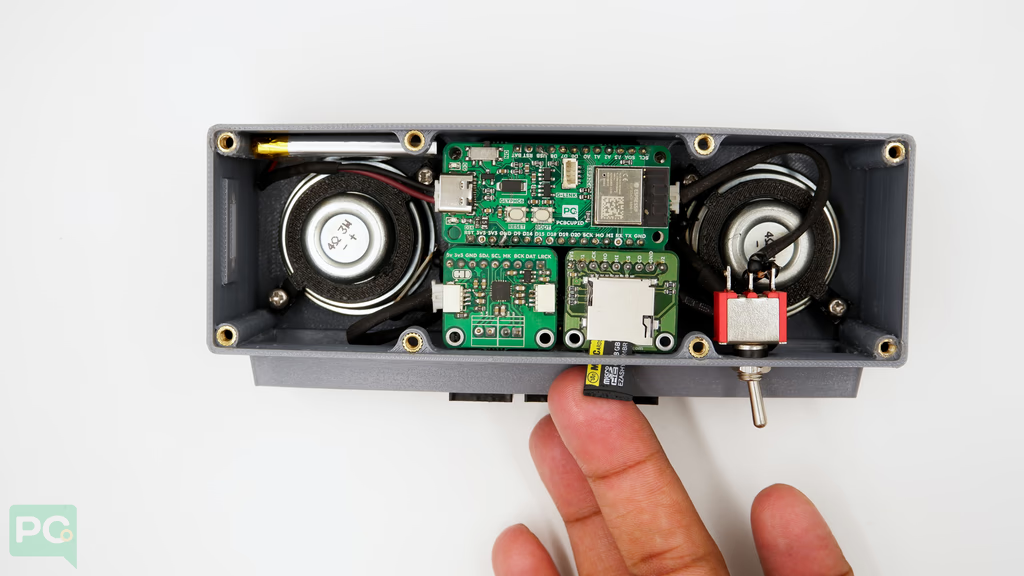
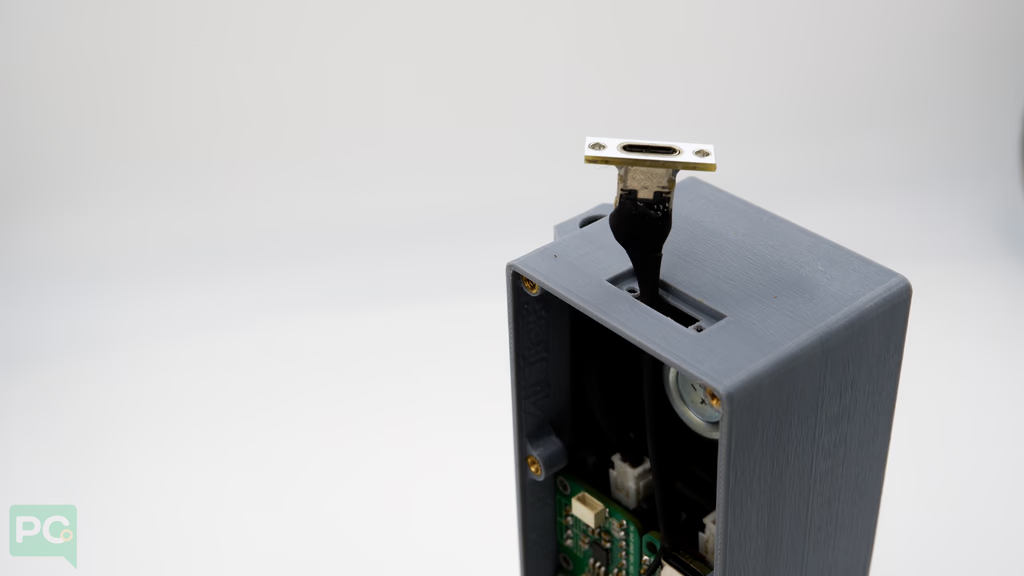 Ensure it fits snugly in the groove made for the C-port on the 3D model.
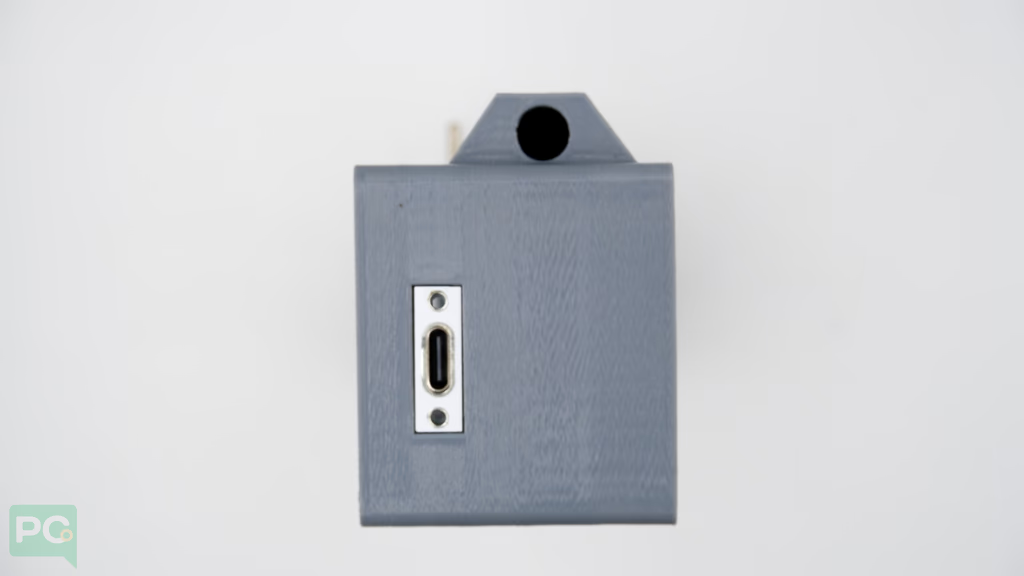 Add 2mm bolts and nuts to the Type C USB port to hold it together with the 3D model.
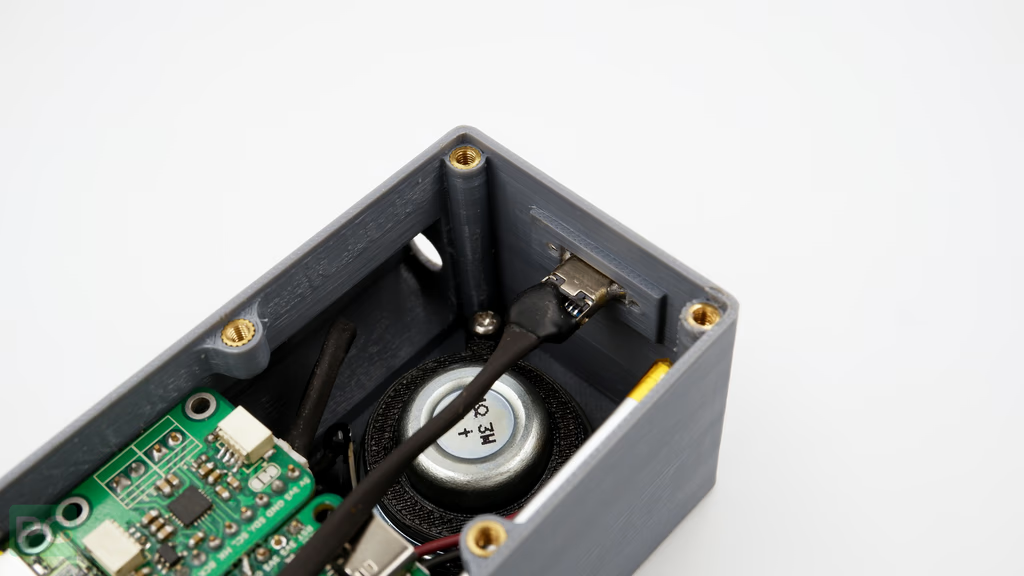 Solder the wires to the GLYPH board (Black → GND, Red → USB).
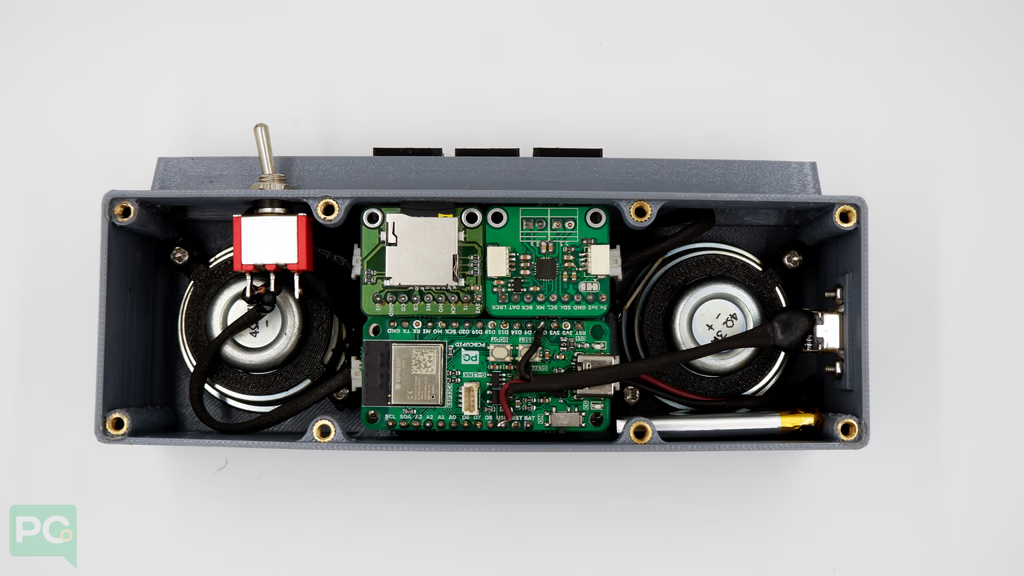 Add the back panel to finish.
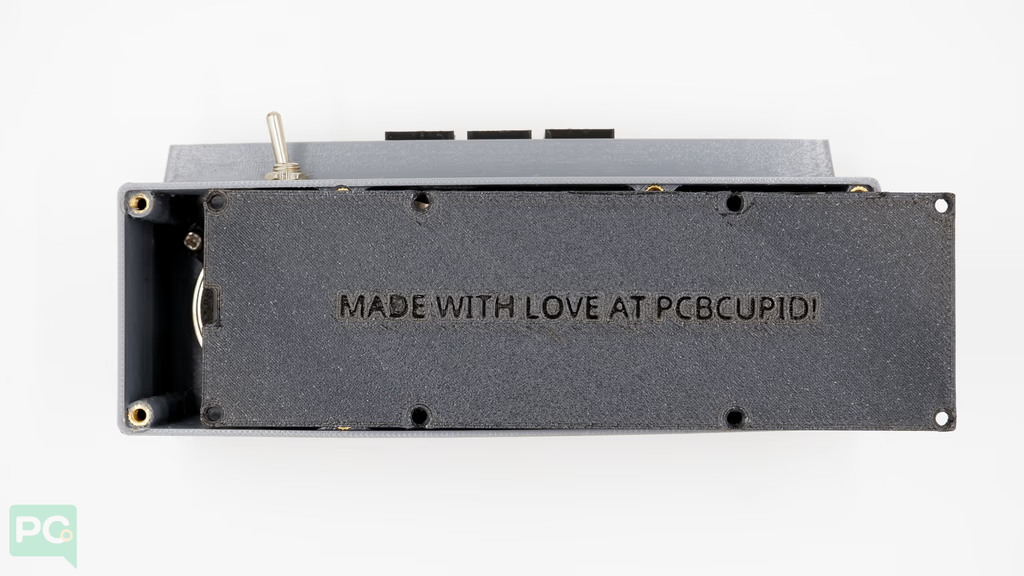 SoundBox after full assembly:
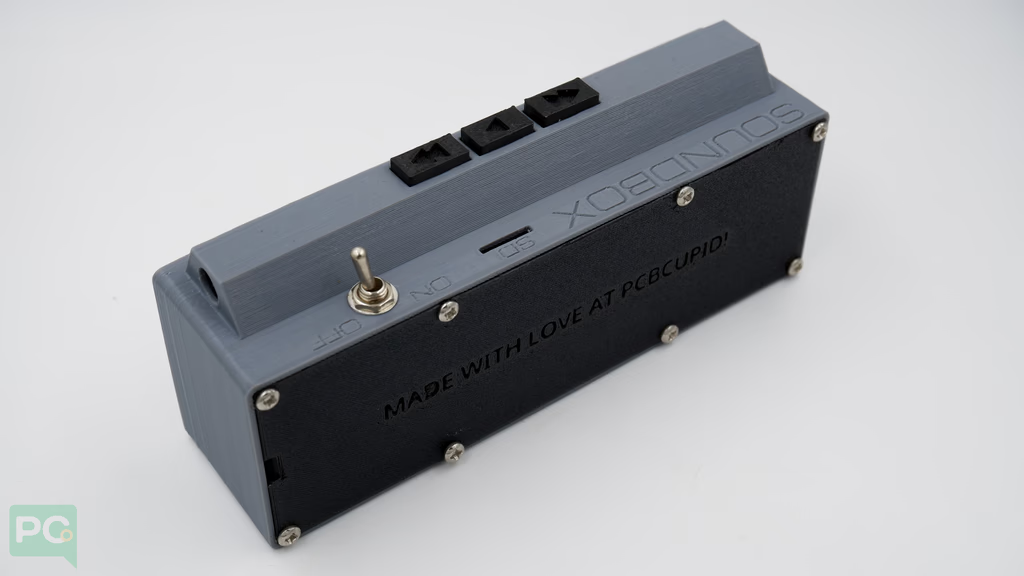 Toggle the switch to start!
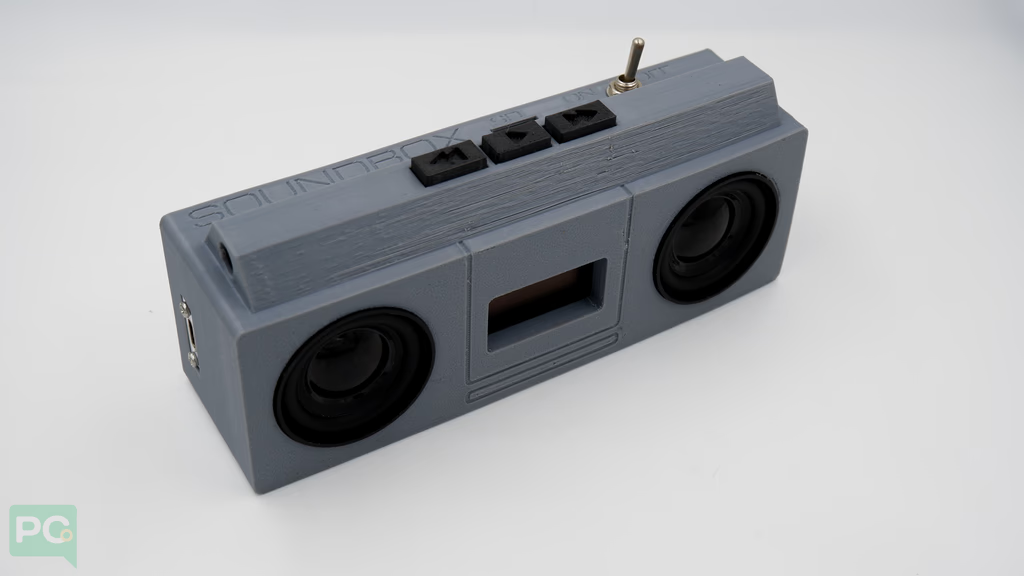 After a few seconds the SoundBox boots up.
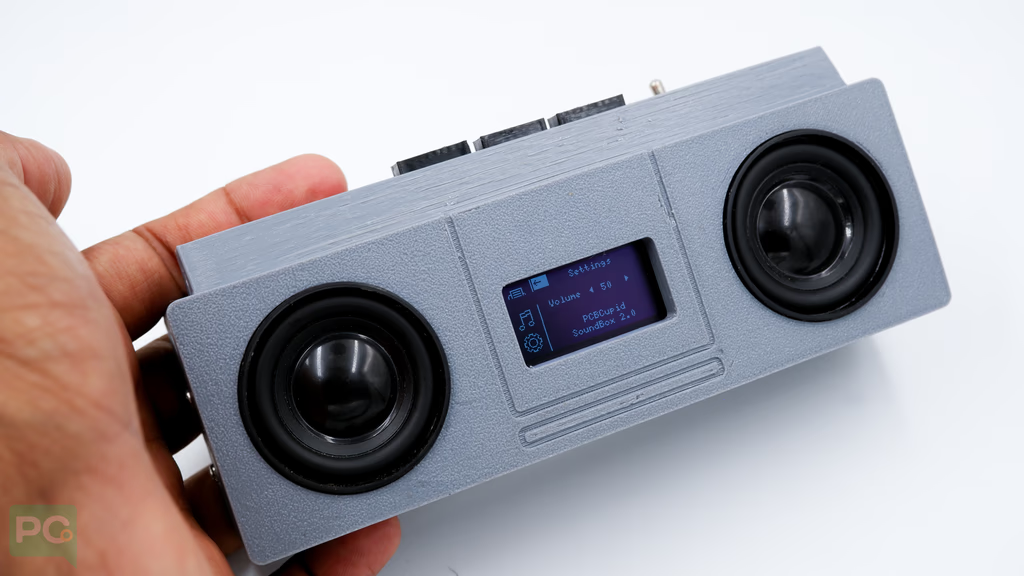 Navigate and select songs to play.