> ## Documentation Index
> Fetch the complete documentation index at: https://learn.pcbcupid.com/llms.txt
> Use this file to discover all available pages before exploring further.
> Step-by-step guide to placing a PCB manufacturing order on the LionCircuits website, including Gerber upload, stackup selection, and shipping options.
# Ordering PCBs from LionCircuits
# Ordering On LionCircuits
In this Guide we learn how to place an order from **LionCircuits** Website for the manufacture and assembly of your PCB boards, based on your Gerber & BOM Files that we learnt from [KiCad](https://learn.pcbcupid.com/pcb-design/kicad-tutorial/introduction-to-kicad) & [EasyEDA](https://learn.pcbcupid.com/pcb-design/easyeda-tutorial) tutorial.
📂
LionCircuit KiCad Template
You can download the template Lioncircuit KiCad Template here
Download Now
## 1. Go to **[LionCircuits.com](https://www.lioncircuits.com/)**
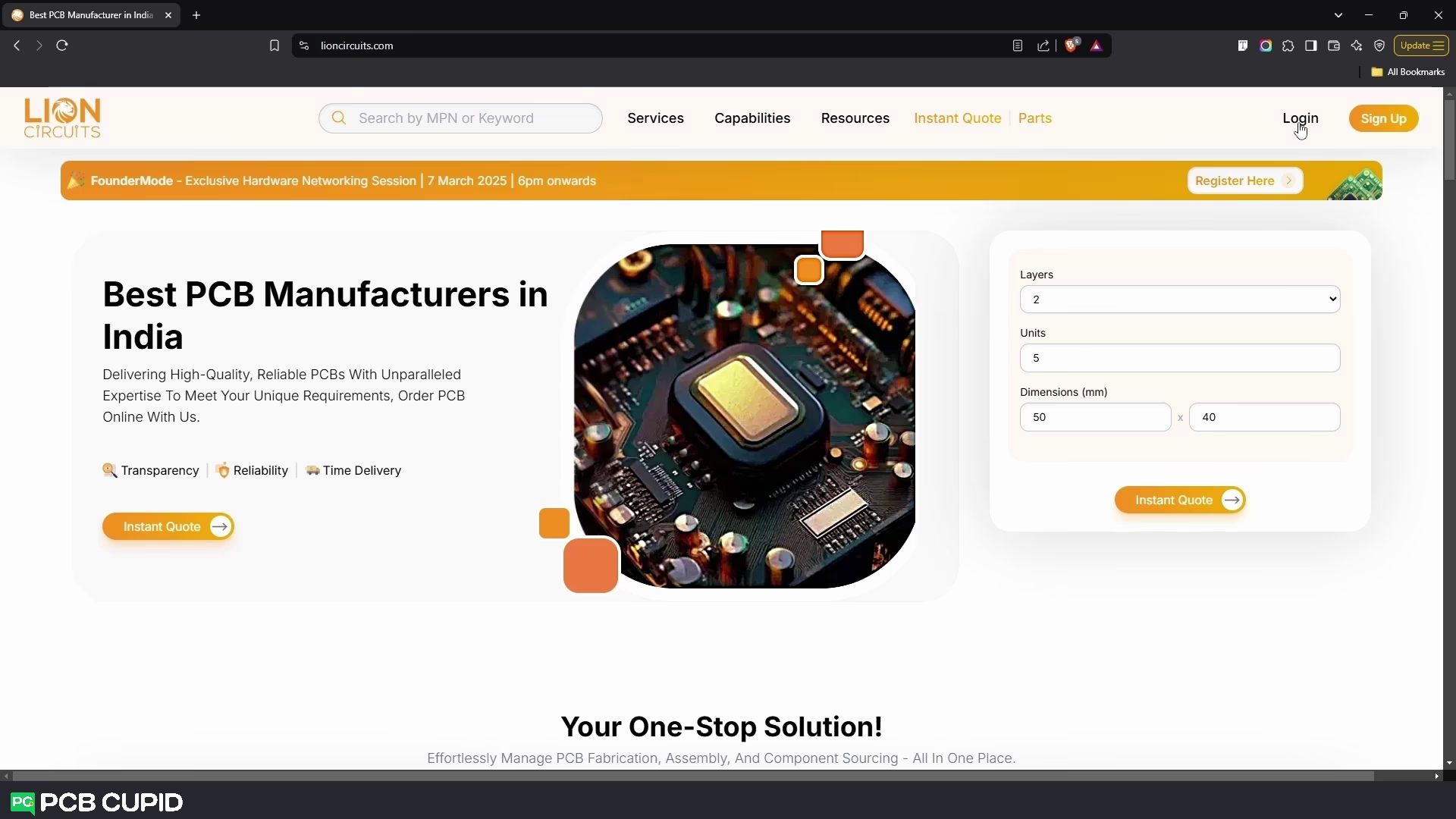
## 2. Create an Account
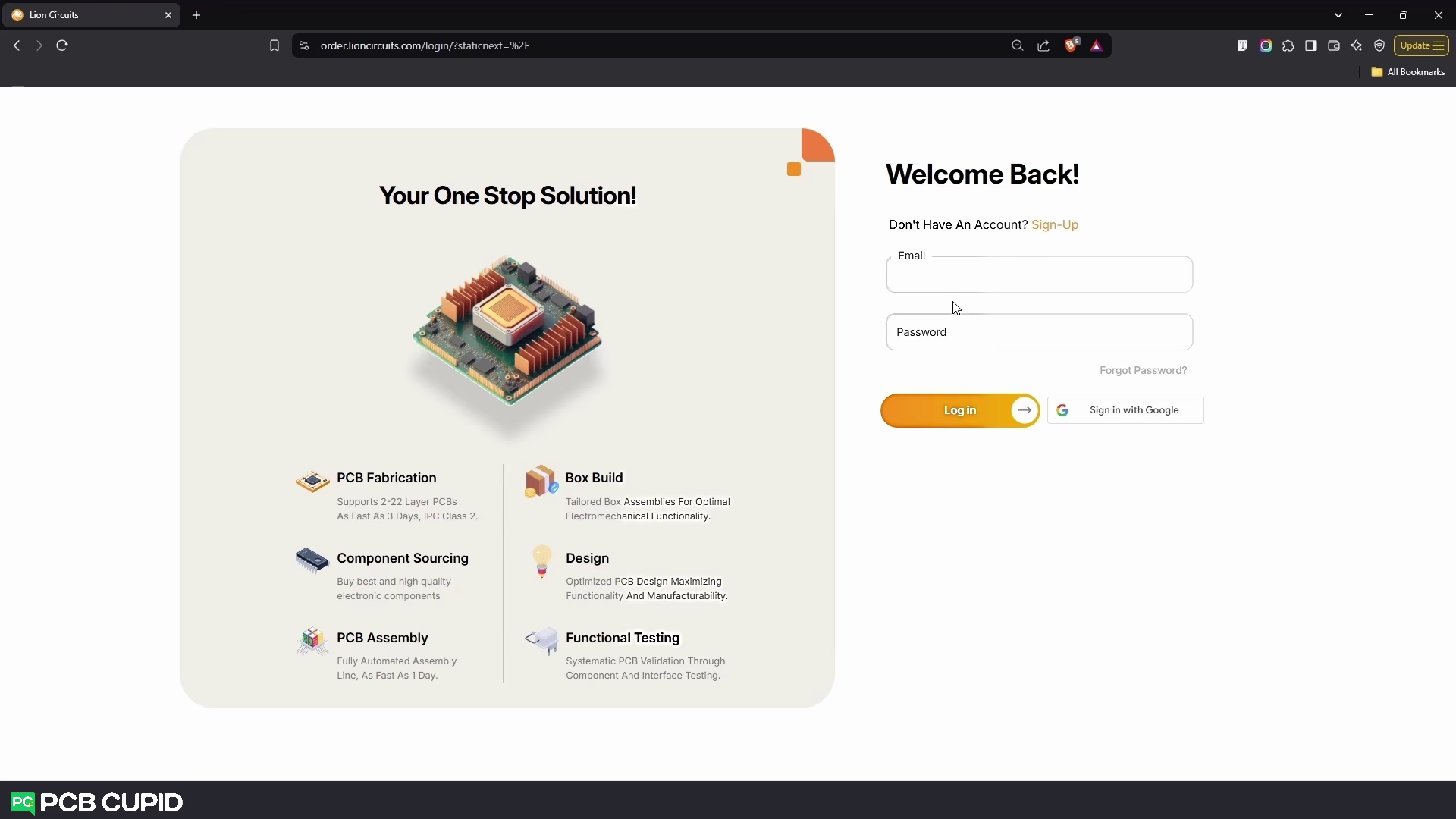
Click on **Sign Up** if you are a first-time user and enter your First Name, Last Name, Email and Password to sign up.If you have already signed-up, then click on **Login** and enter your Email id and Password to login. Or Alternatively you can directly sign in via your Google Account with the option **Sign in With Google**
## 3. Creating a Project
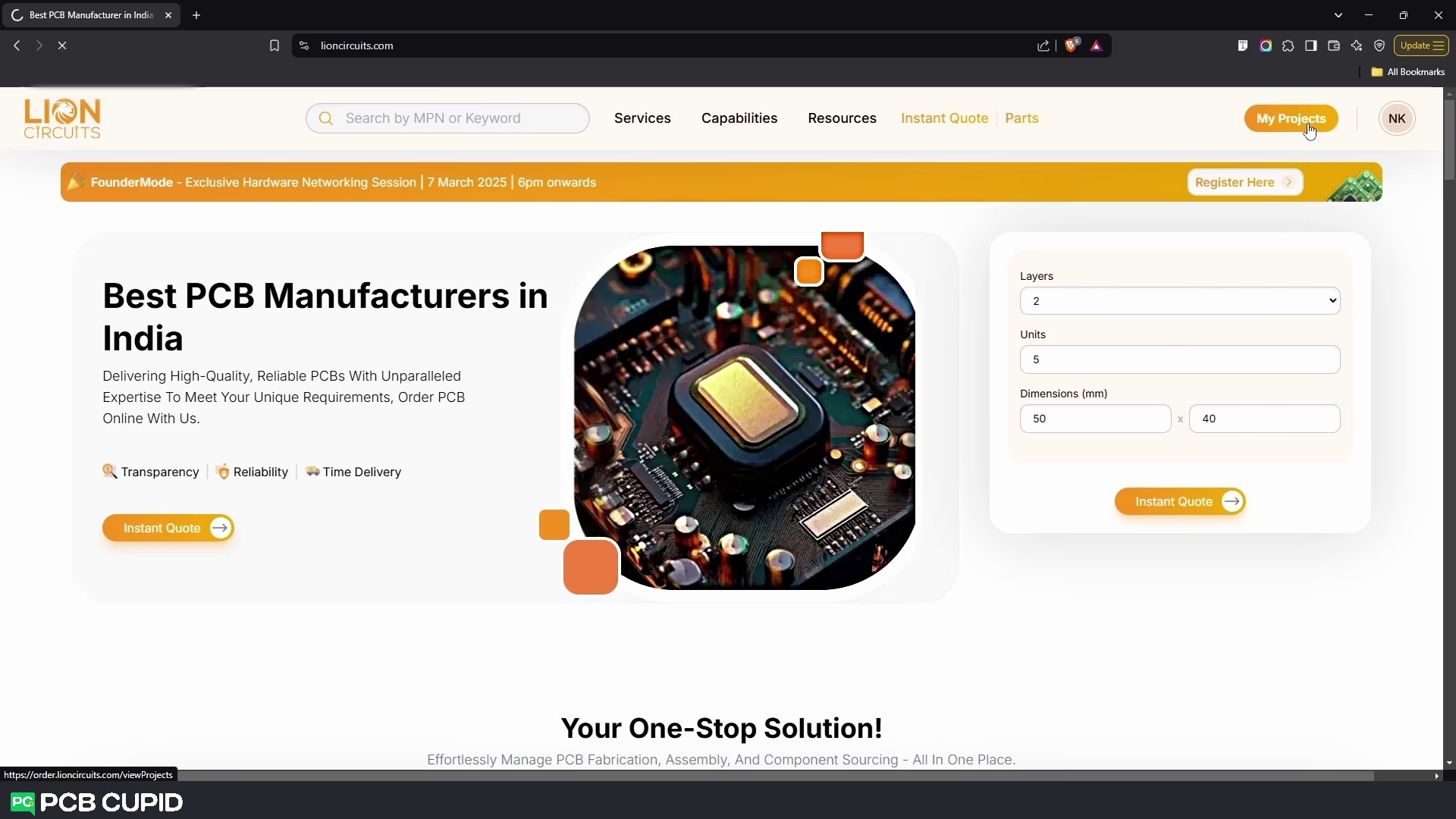\
Once logged in, click on **My Projects** as shown in the image above
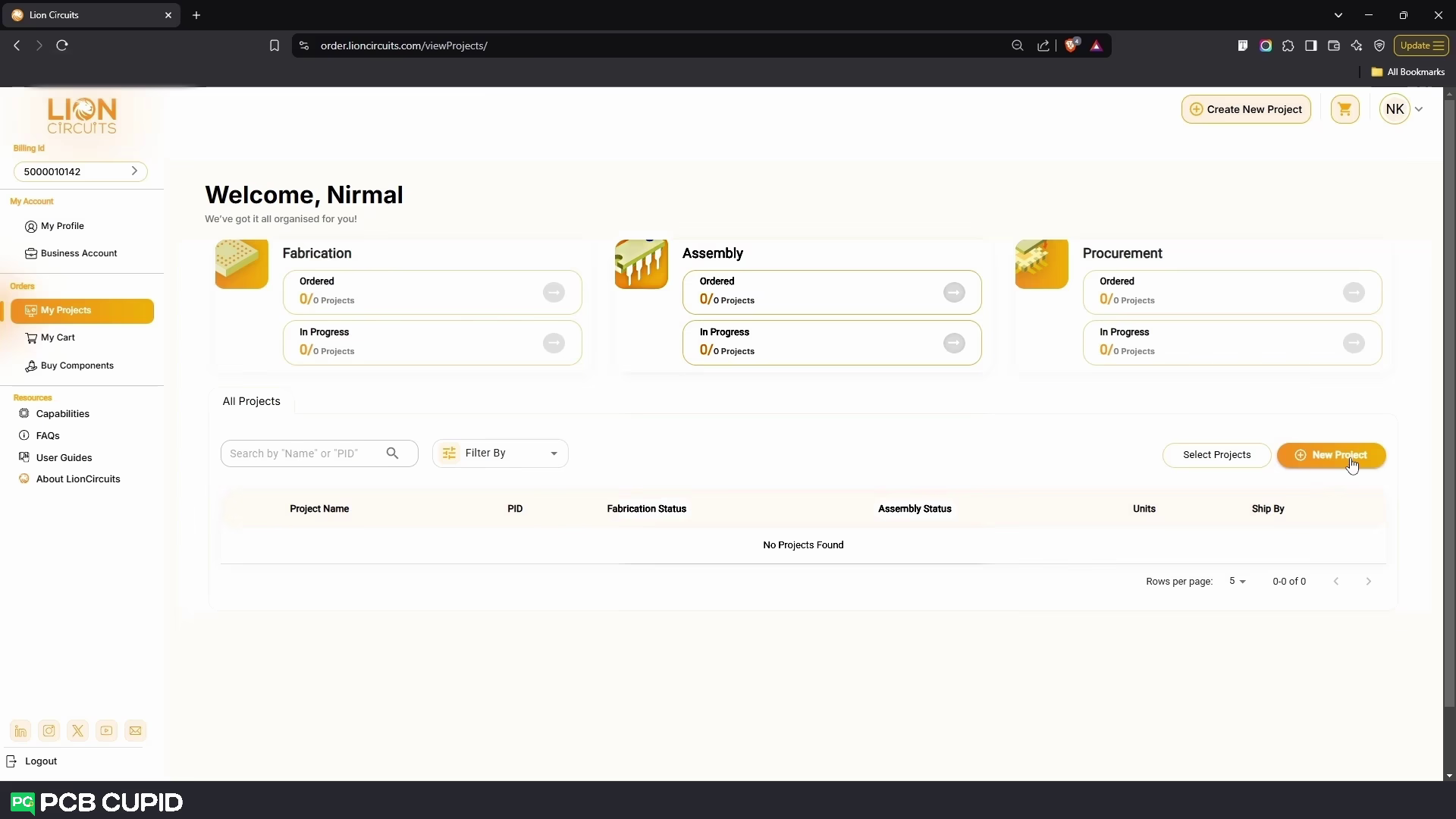
Next, Click on **New Project**
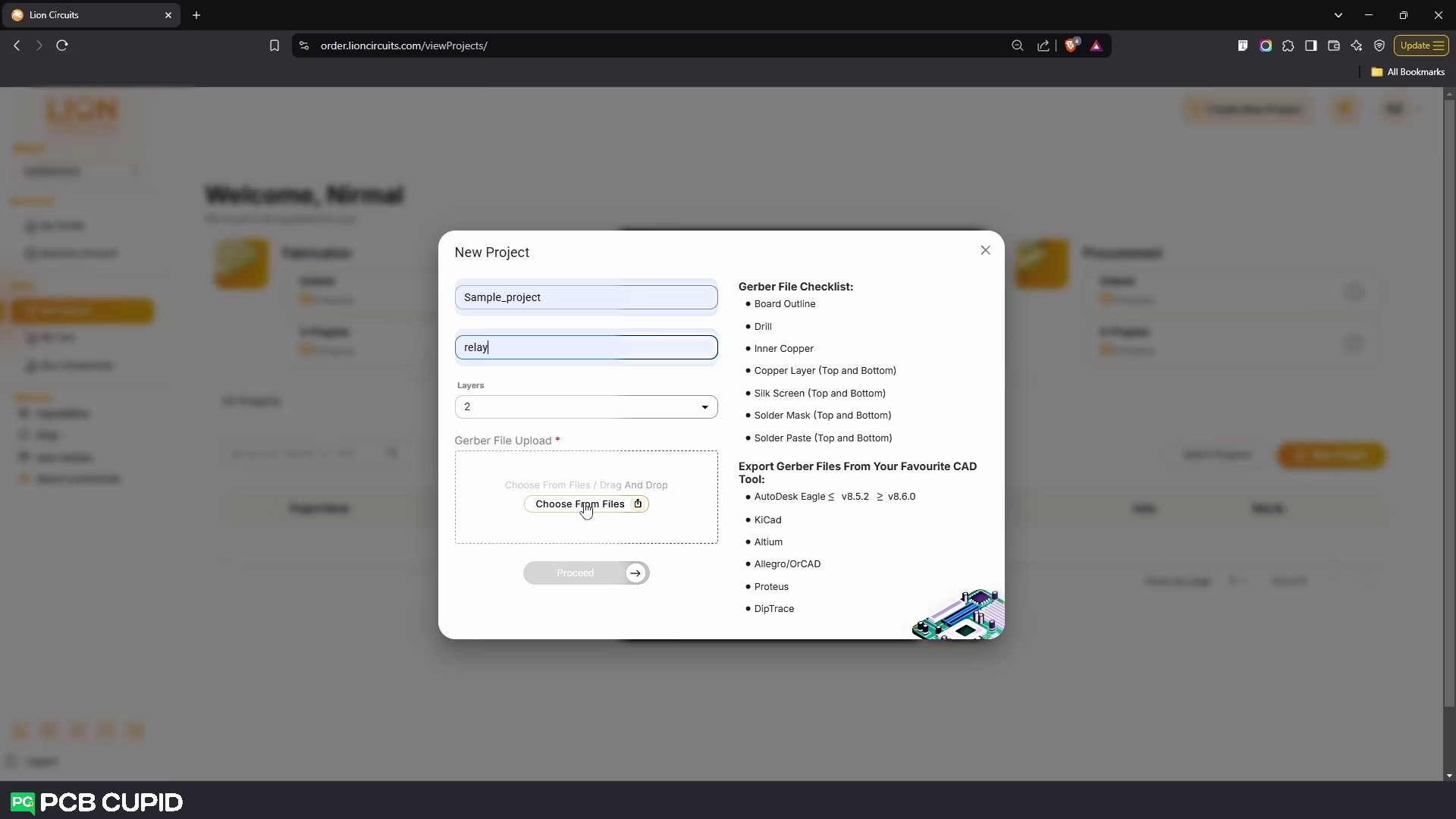
* In the **Project Name** field, enter the Name of your project
* In the **Description** field, give a description for your project(if any)
* In the **Layers** field, specify the number of layers your PCB has
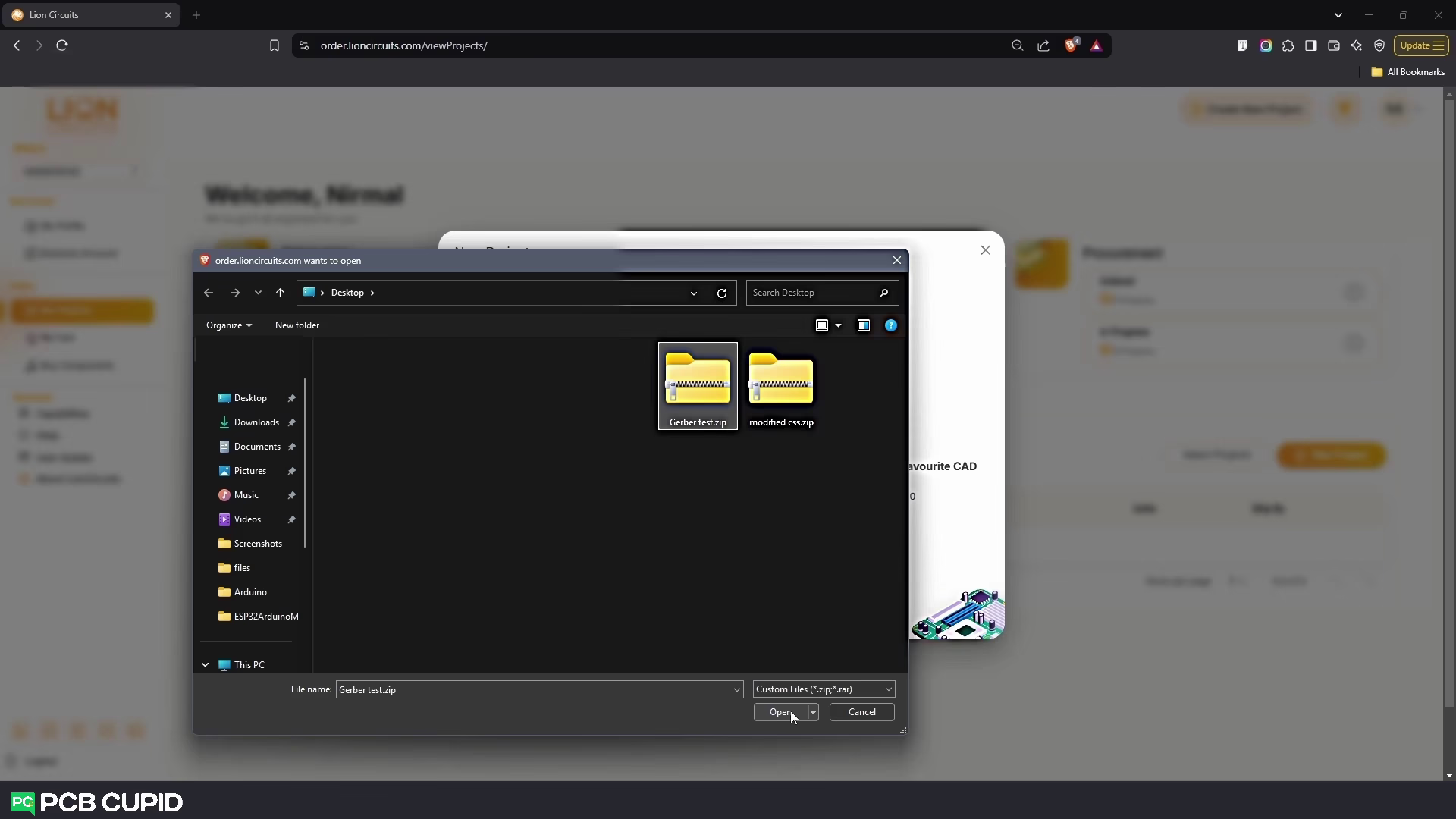
* In the **Gerber File Upload** field, click on **Choose From Files/Drag And Drop**
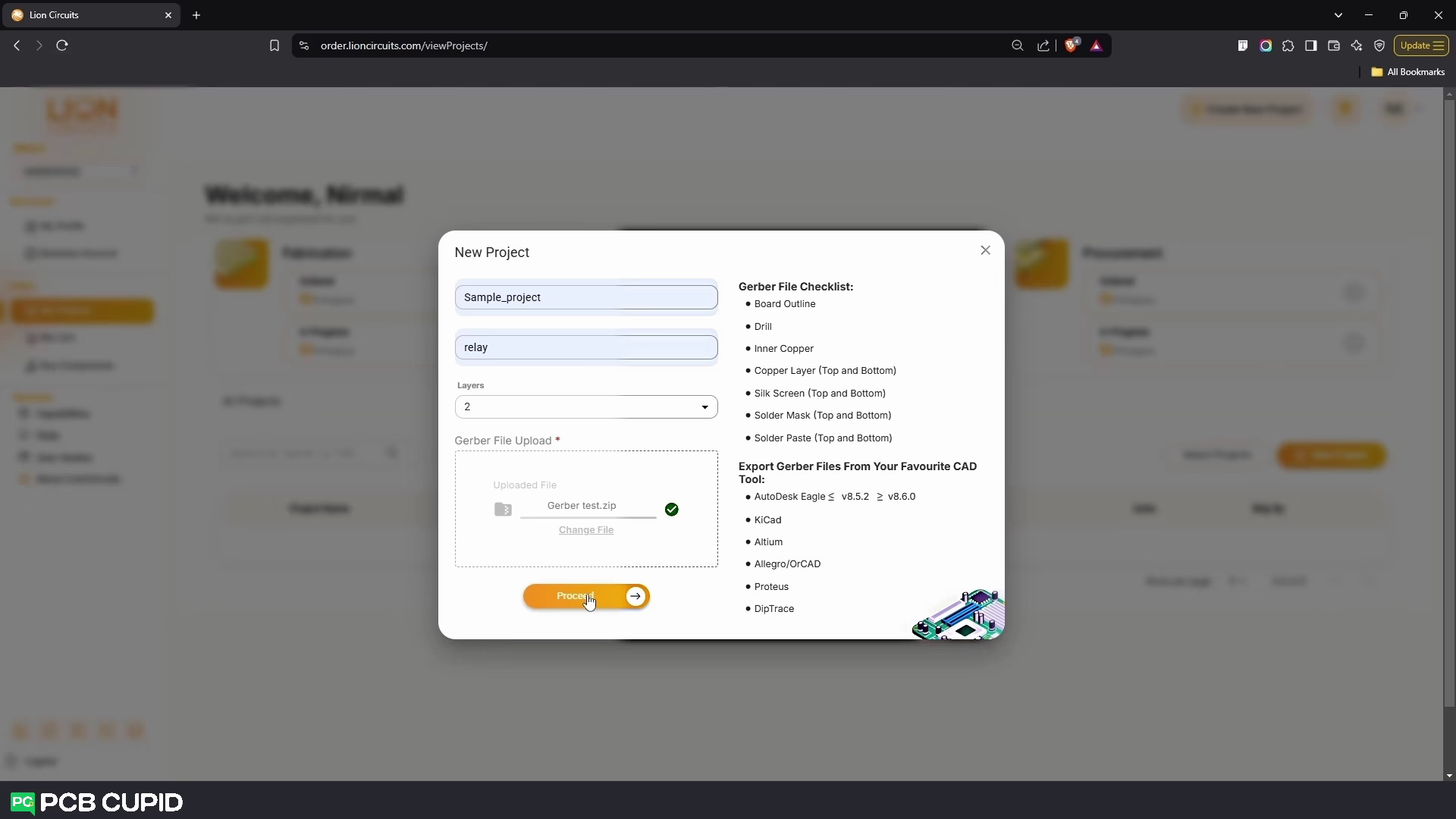
* Upload your Gerber zip file and Click on **Proceed**
This will create a New Project that displays the Project Name along with a unique Project ID (given as PID). You can use this PID to communicate your queries to the Lion circuits Sales & Support team.
## 4. Specifying What You Want
* Next, you will see 4 Steps that you must go through before Placing your Order :
1. **Fabrication**
2. **Assembly**
3. **Procurement**
4. **Summary**
### Step 1: **Fabrication**
In the **Fabrication** step , The Default settings should look like this:
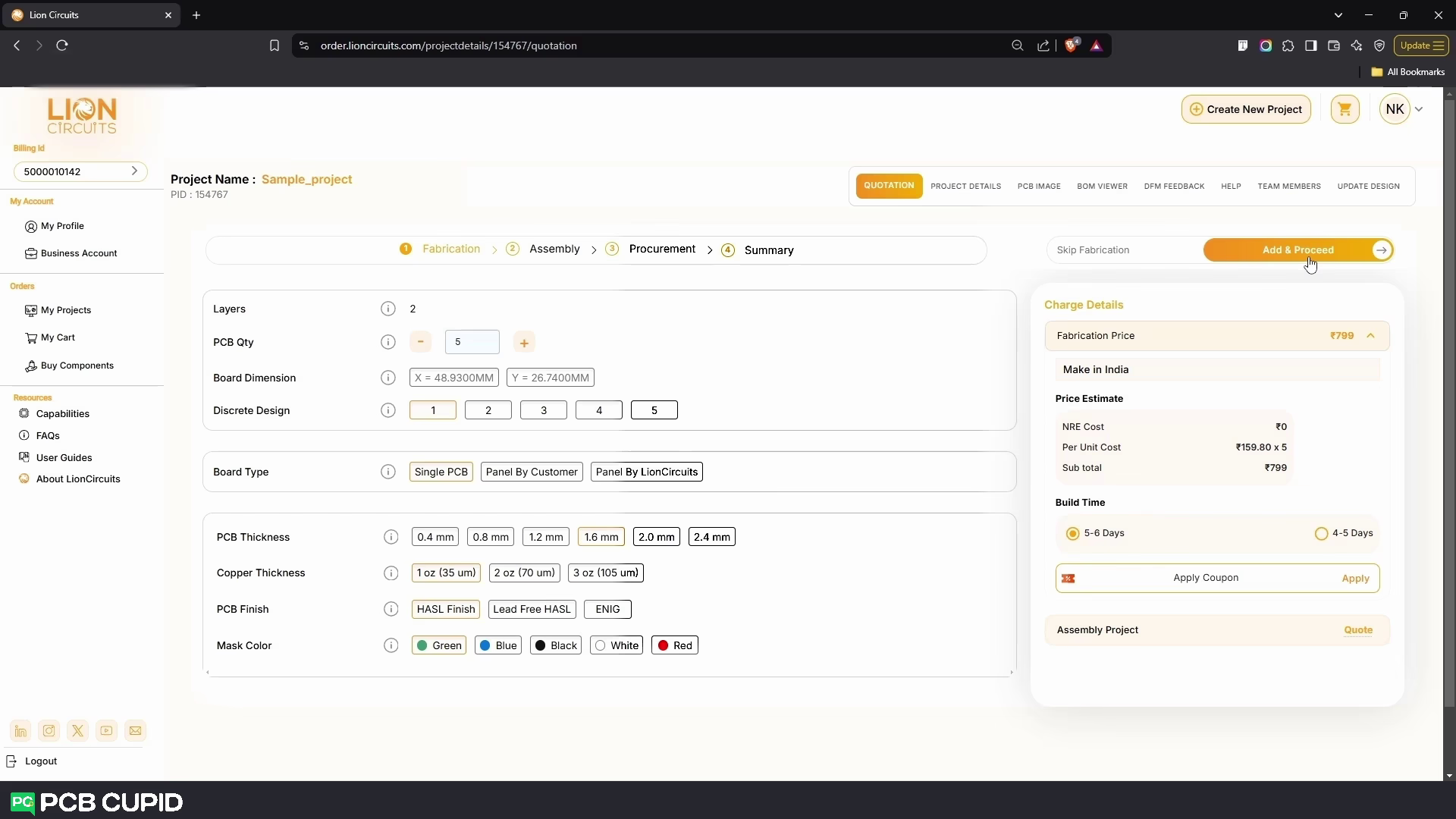
* **Layers** - set to **2**
* **PCB Qty** - set to **5**
* **Board Dimension** - Calculated from your Gerber
* **Discrete Design** - **1**
* **Board Type** - **Single PCB**
* **PCB Thickness - 1.6mm**
* **Copper Thickness - 1 oz(35 um)**
* **PCB Finish - HASL Finish**
* **Mask Color - Green**
You can vary these parameters based on your specific needs and you can see the price on the right update live!
Once you are done with your requirement you can click on **Add & Proceed** which will add the fabrication to the project and move on assembly. In case if you just need assembly without needing for fabrication you can just skip this process with **Skip Fabrication** button.
### Step 2: **Assembly**
Next for the assembly make sure you prepare your BOM file as per the [EXAMPLE BOM](https://order-lioncircuits.s3-us-west-1.amazonaws.com/resources/public/BOM/sample_bom.xlsx) given by Lion Circuits.
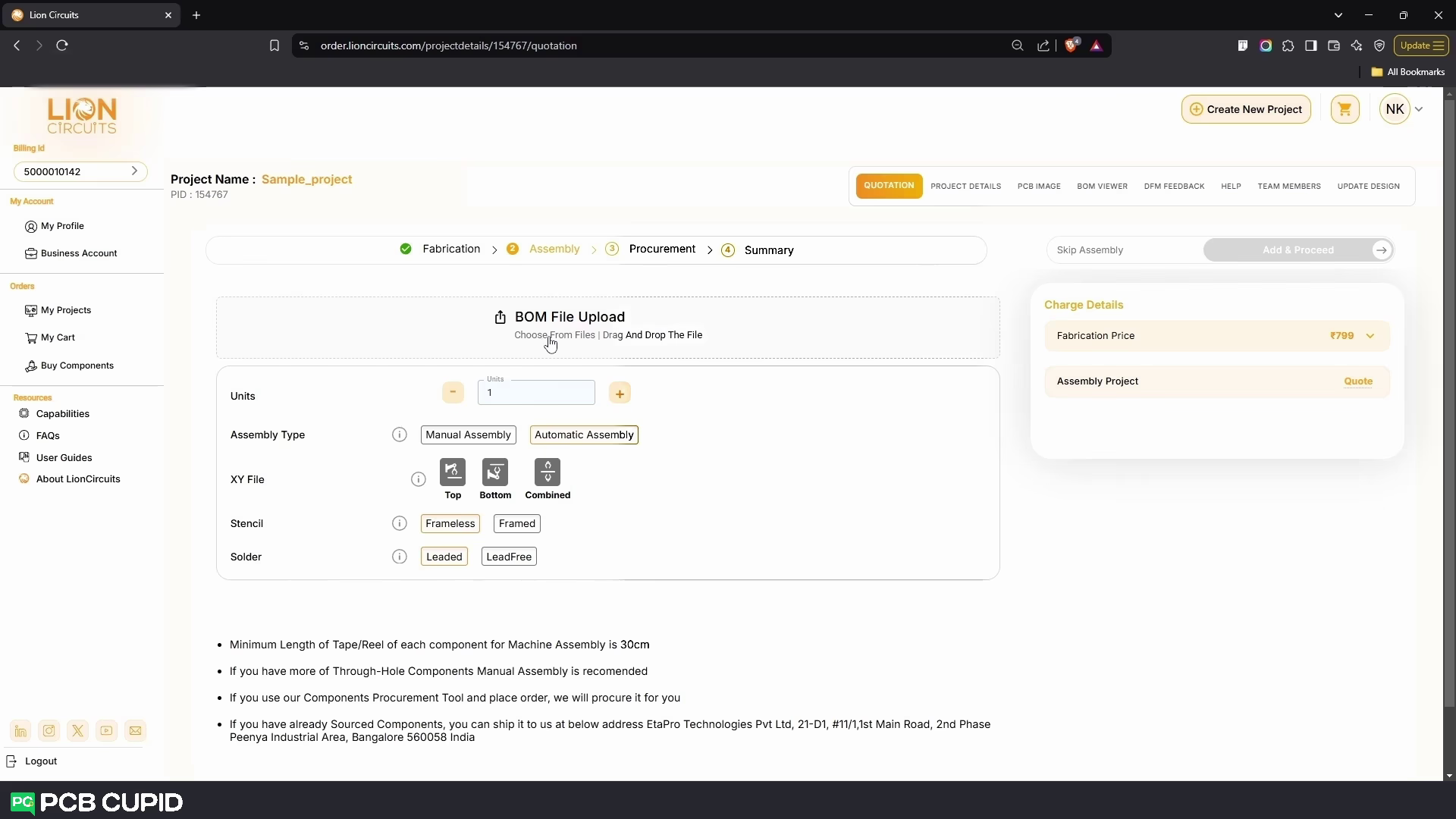
* To upload the bom file click on **BOM File Upload** and upload your BOM File
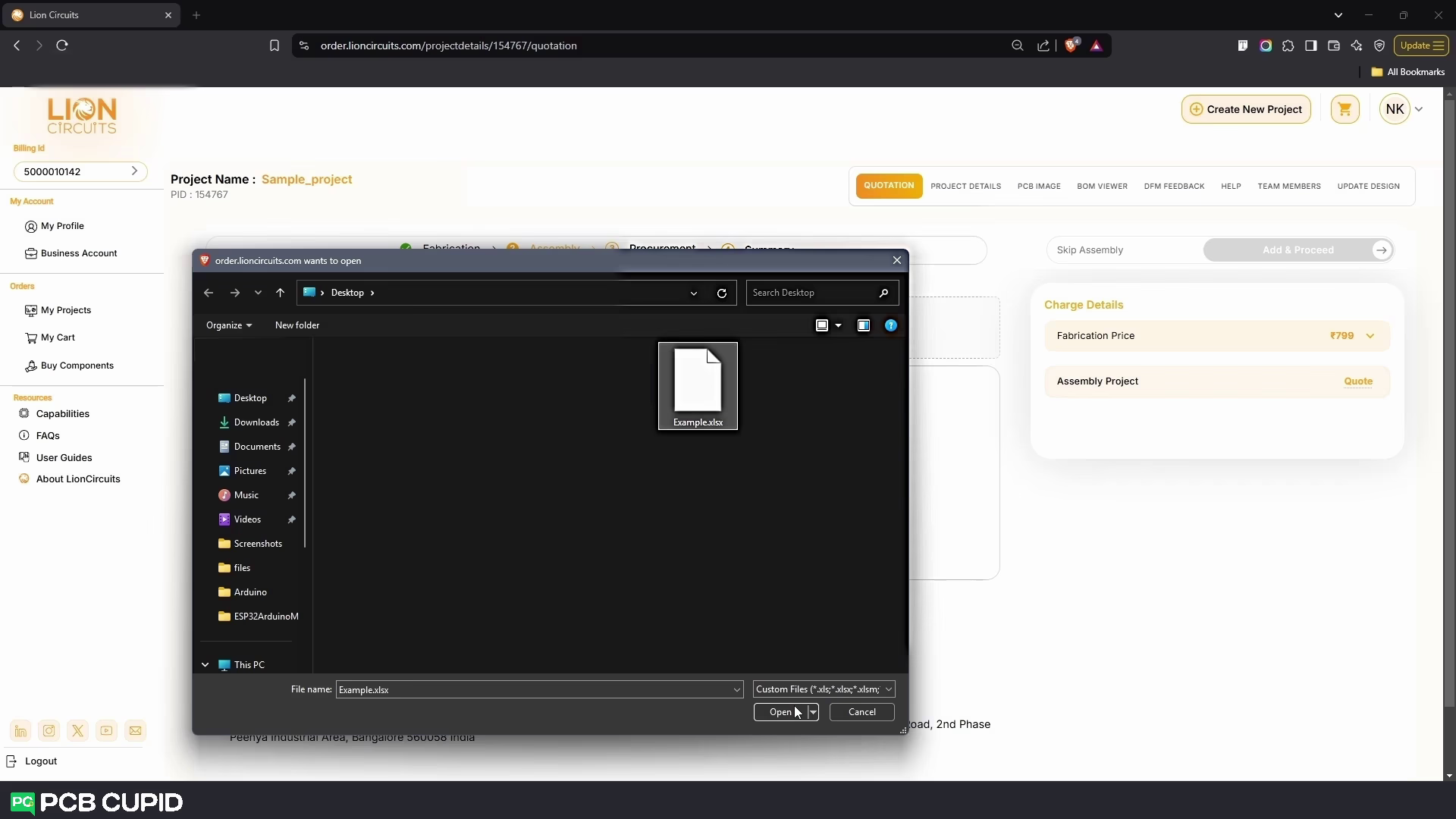
* Once the BOM file is uploaded, a drop-down menu called **Map your BOM Fields** will appear. Map your file's BOM Fields to the correct Assembly BOM Fields and click on **Next**
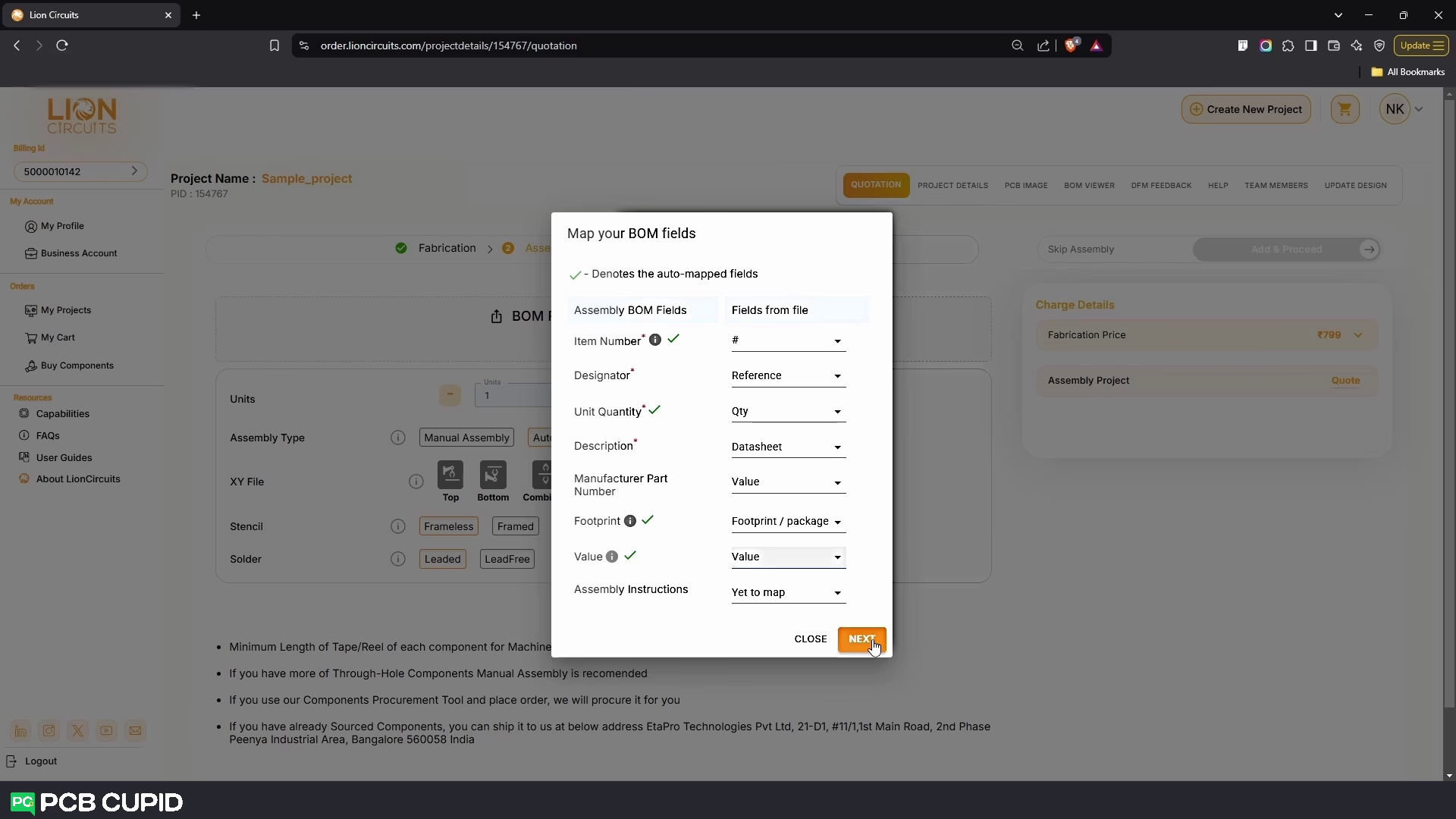
* In the **Units** Field, specify how much Units you need
* In the **Assembly Type** Field, specify what type of Assembly you want - **Manual or Automatic Assembly**
* If you want to do **Automatic Assembly**, Another field called **XY File** will appear
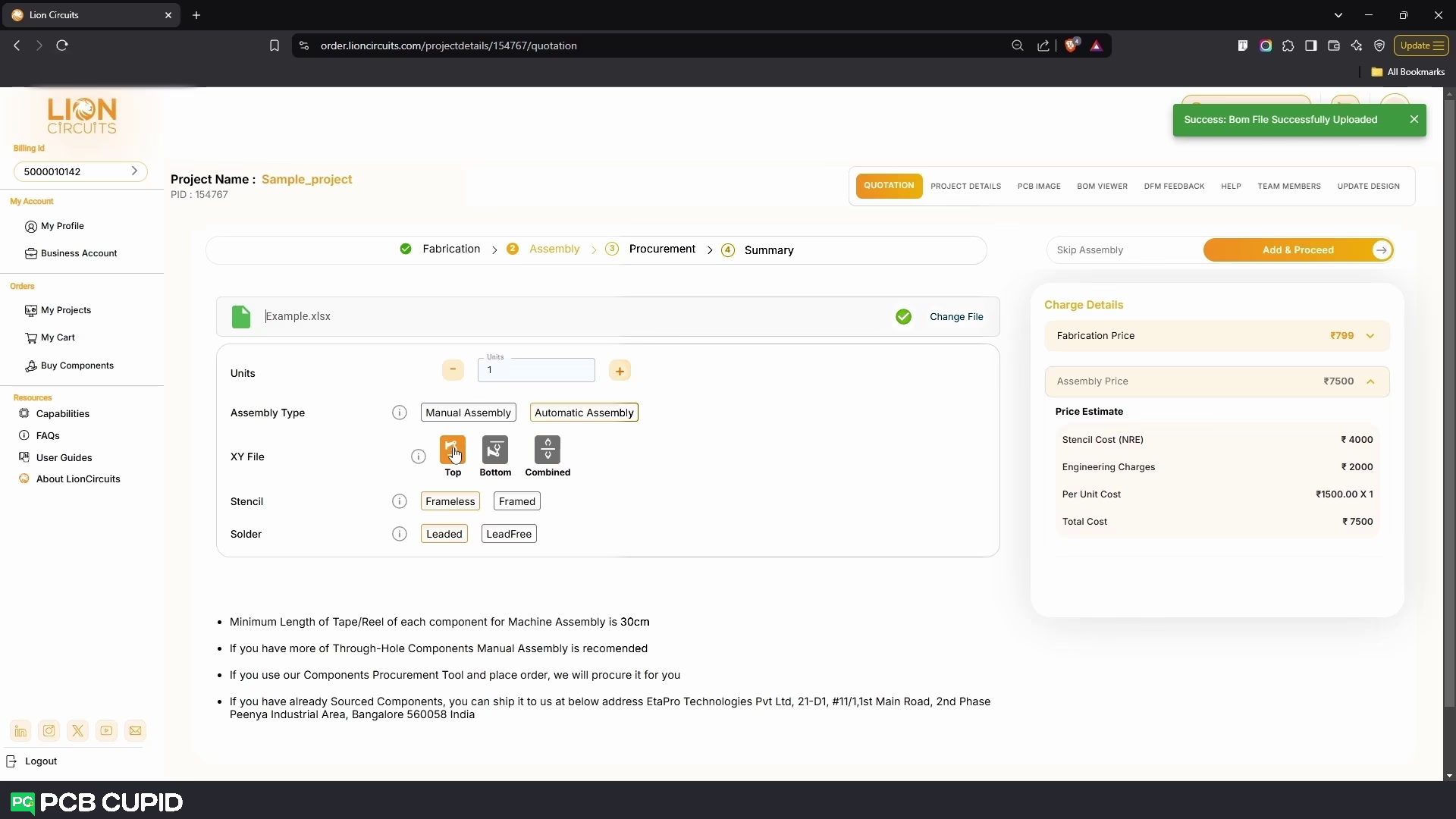
* In the **XY File** Field, Upload the respective XY File generated from your CAD program which can be **Top, Bottom or Combined**
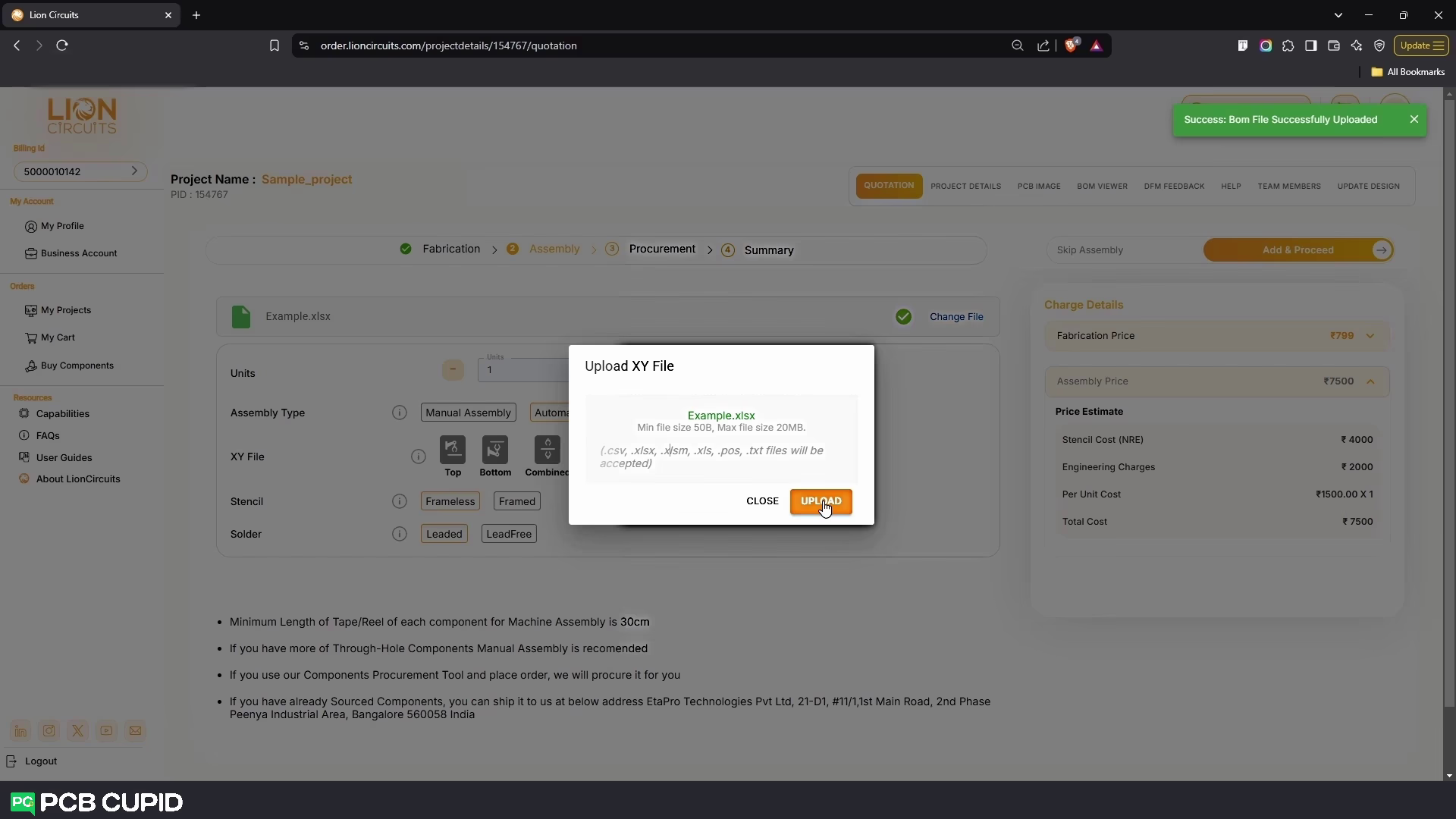
* In the **Stencil Field**, select either **Frameless** or **Framed** as per your requirements
* In the **Solder Field**, select either **Leaded** or **LeadFree** as per your requirements
With these setup you can see the cost and build time on the right pane. Just as the previous step you can skip this process by clicking on the **Skip Assembly** or clicking on **Add & Proceed** to include this process.
### Step 3: **Procurement**
Here in this step you can procure the parts that you need for your PCB project.
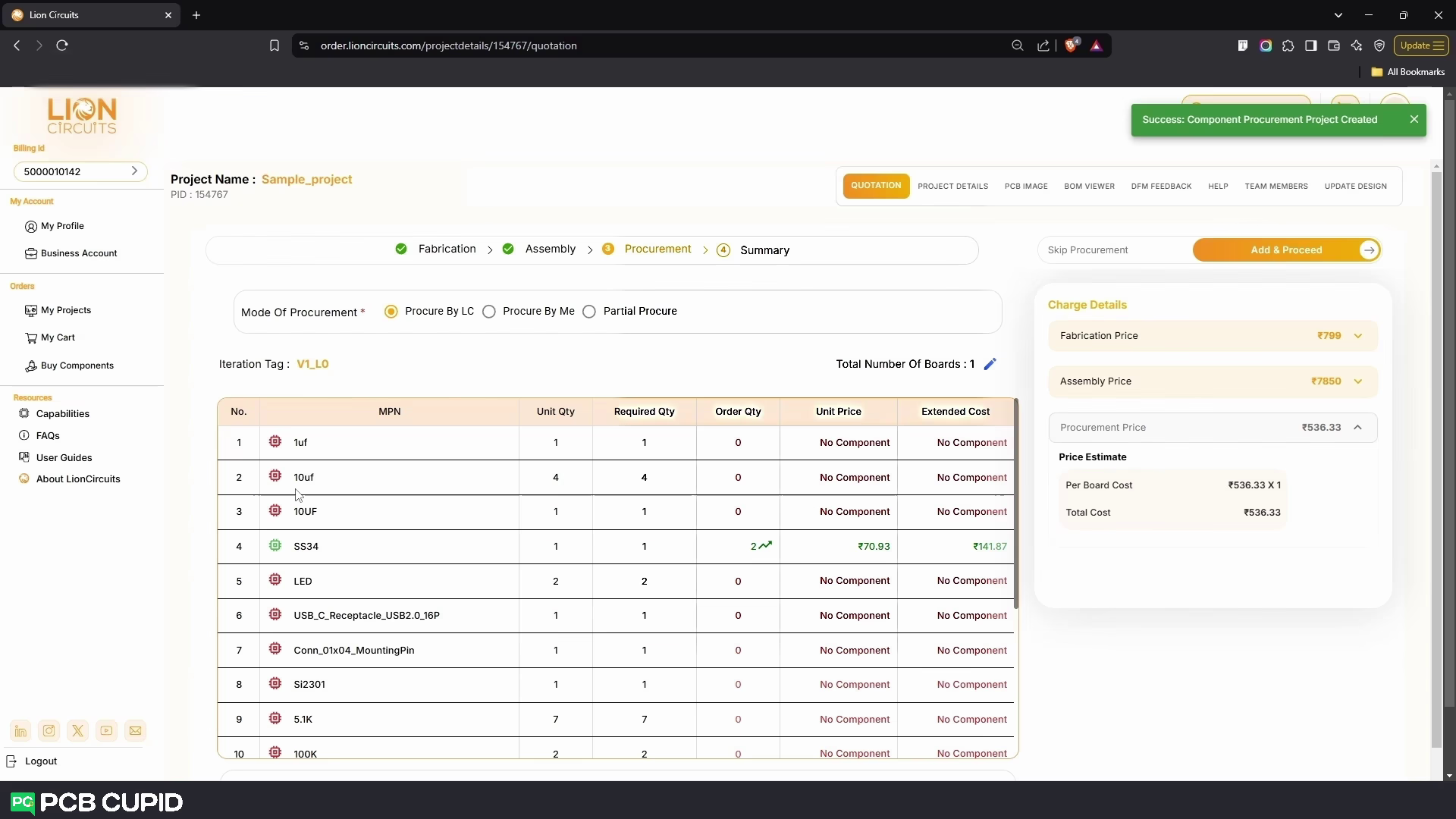
Here based on the requirement you can select the **Mode Of Procurement**
* **Procure by LC :** All the components are procured by LionCircuit with the price shown on the BOM Table.
* **Procure by Me :** Where you can purchase all the parts by yourself and ship it to LionCircuit warehouse.
* **Partial Procure :** With this method you can procure and send few parts by yourself and the rest can be purchased by LC.
Next select the **Total Number of Boards** that you want to assemble
* In the table, you can see the list of your BOM components that are available or in stock, along with their Quantity, Price per unit change as you change the total number of boards.
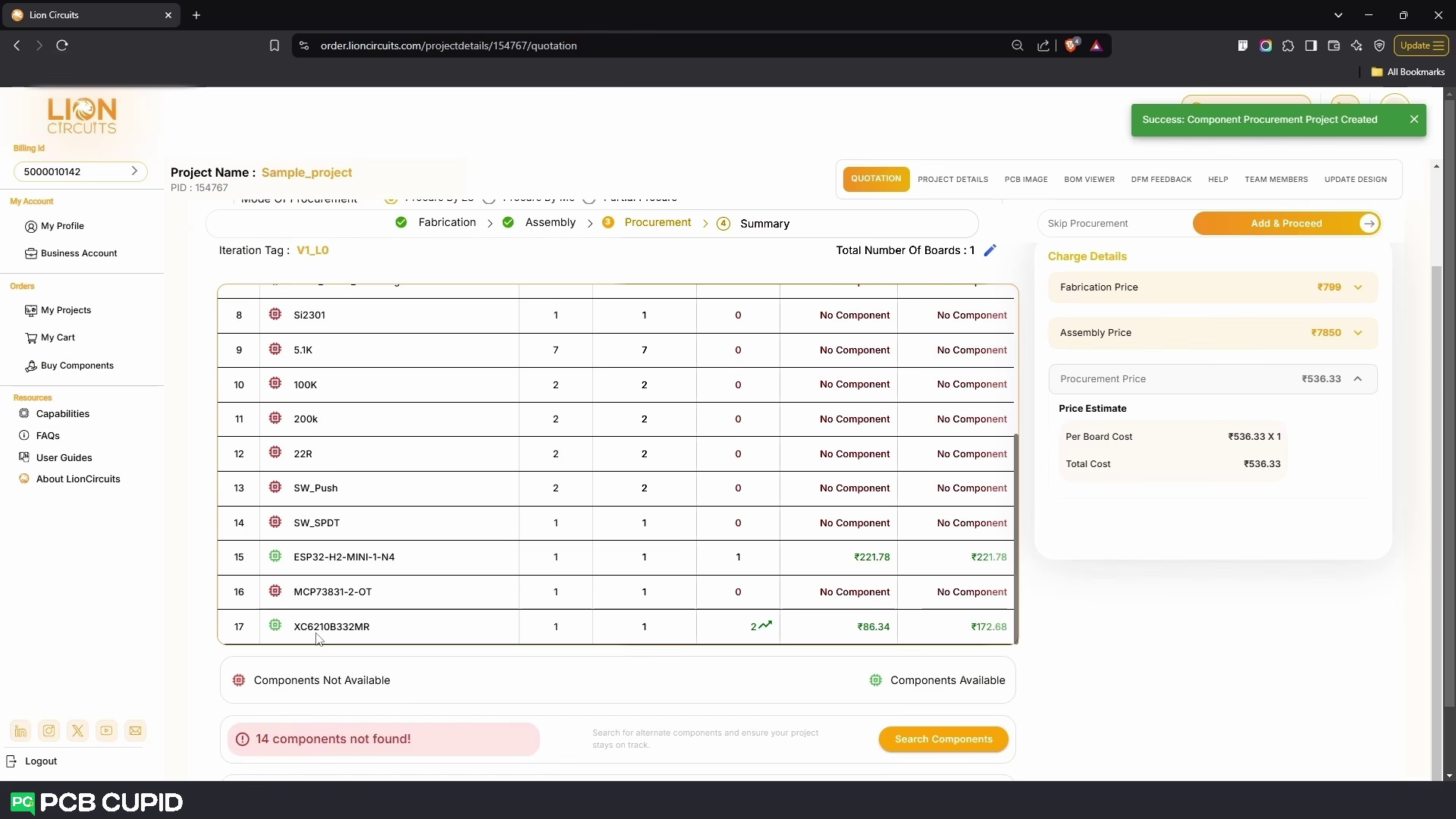
With these setup you can see the cost and procurement time on the right pane. Just as the previous step you can skip this process by clicking on the **Skip Procurement** or by clicking on **Add & Proceed** to include this process.
### Step 4: **Checkout**
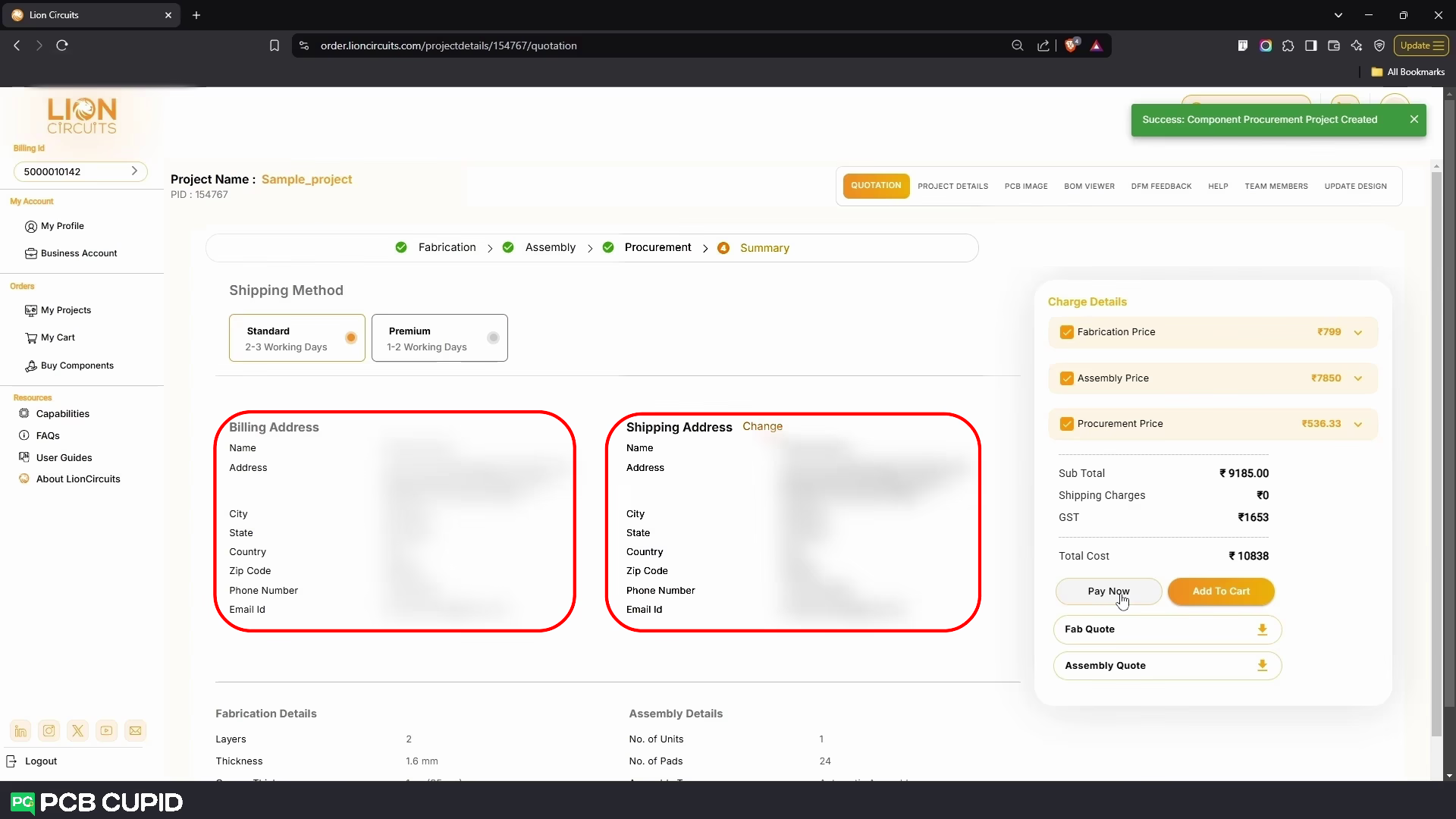
Under the **Shipping Method**, select your desired shipping mode- **Standard 2-3 Working Days** or **Premium 1-2 Working Days**
and finally, add your **Billing and Shipping Addresses** and click on **Pay Now** under **Charge Details**.
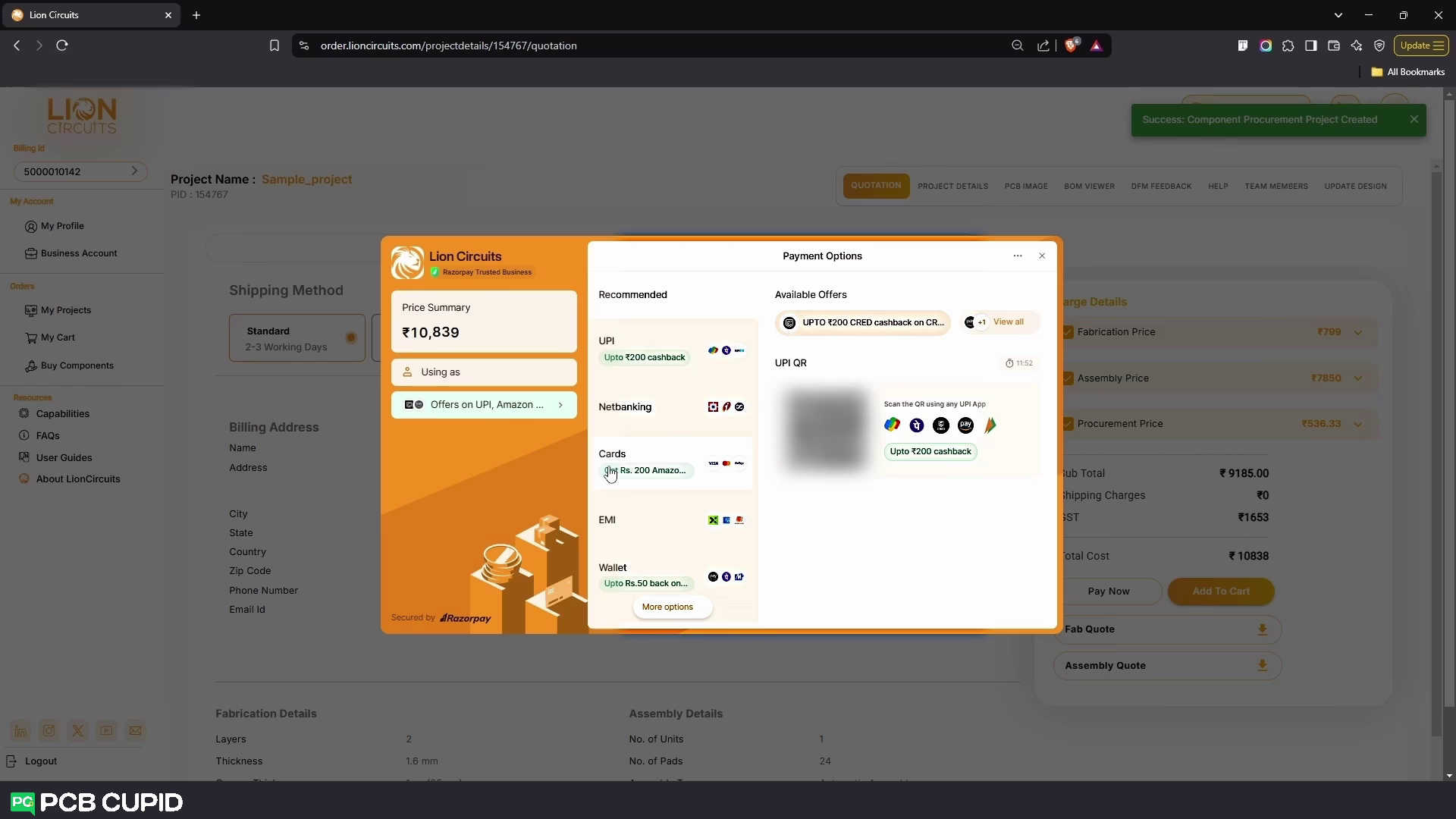
You will be redirected to the LionCircuits Razorpay Payment portal where you can select the mode of your payment. As simple as that you can finish complete electronic manufacturing from Fabrication to Final Product in a single project!
If you like to place order for your PCB check out this [link](https://www.lioncircuits.com/) and to learn more about product building you can check this [youtube playlist](https://www.youtube.com/watch?v=e1ifblb0CRQ\&list=PLn6004q9oeqH1Y86fvJ5knaRUbPwJEcSj).
.avif)