> ## Documentation Index
> Fetch the complete documentation index at: https://learn.pcbcupid.com/llms.txt
> Use this file to discover all available pages before exploring further.
# Capacitive Touch Slider
> CAP1203 3-Channel Capacitive Touch Controller with I²C interface and PWM output. Perfect for touch-sensitive controls and sliders.
[Shop now](https://shop.pcbcupid.com/product/gs004/)
3D VIEW
The **Capacitive Slider** is a touch-sensitive input module based on the [CAP1203](https://www.microchip.com/en-us/product/cap1203) IC. It provides high-precision touch detection for sliders and buttons, making it perfect for custom user interfaces, control panels, and interactive projects.\
This guide provides a step-by-step explanation to help you integrate the [Gsense-Touch Sensor](https://shop.pcbcupid.com/product/gs004/) for touch detection using the G-Sense module on the [GLYPH-H2 board](https://shop.pcbcupid.com/product/gd003/). The system detects left, middle, and right gestures and provides real-time feedback via the Serial Monitor.\
## Features
* 3-Channel Capacitive Touch – detects left, middle, and right touch/slide gestures
* Swipe Detection – recognizes directional swipes across the slider
* Digital Output – provides clear HIGH/LOW signals for each touch channel over I2C
* Low Power Consumption – suitable for battery-operated applications
* Integrated Signal Processing – built-in debounce and touch sensing algorithms
* Compact Module – easy integration with boards like GLYPH
## Applications
* Gesture-Control Interfaces – control devices or menus with simple swipes
* Consumer Electronics – touch sliders for volume, brightness, or selection
* Robotics & Automation – simple human-machine interface (HMI) for commands
* IoT Devices – intuitive touch-based input for compact devices
* Gaming & VR Controllers – gesture input for interactive experiences
* Wearable Devices – lightweight, low-power input sensor for compact systems
## Step 1: Hardware Required
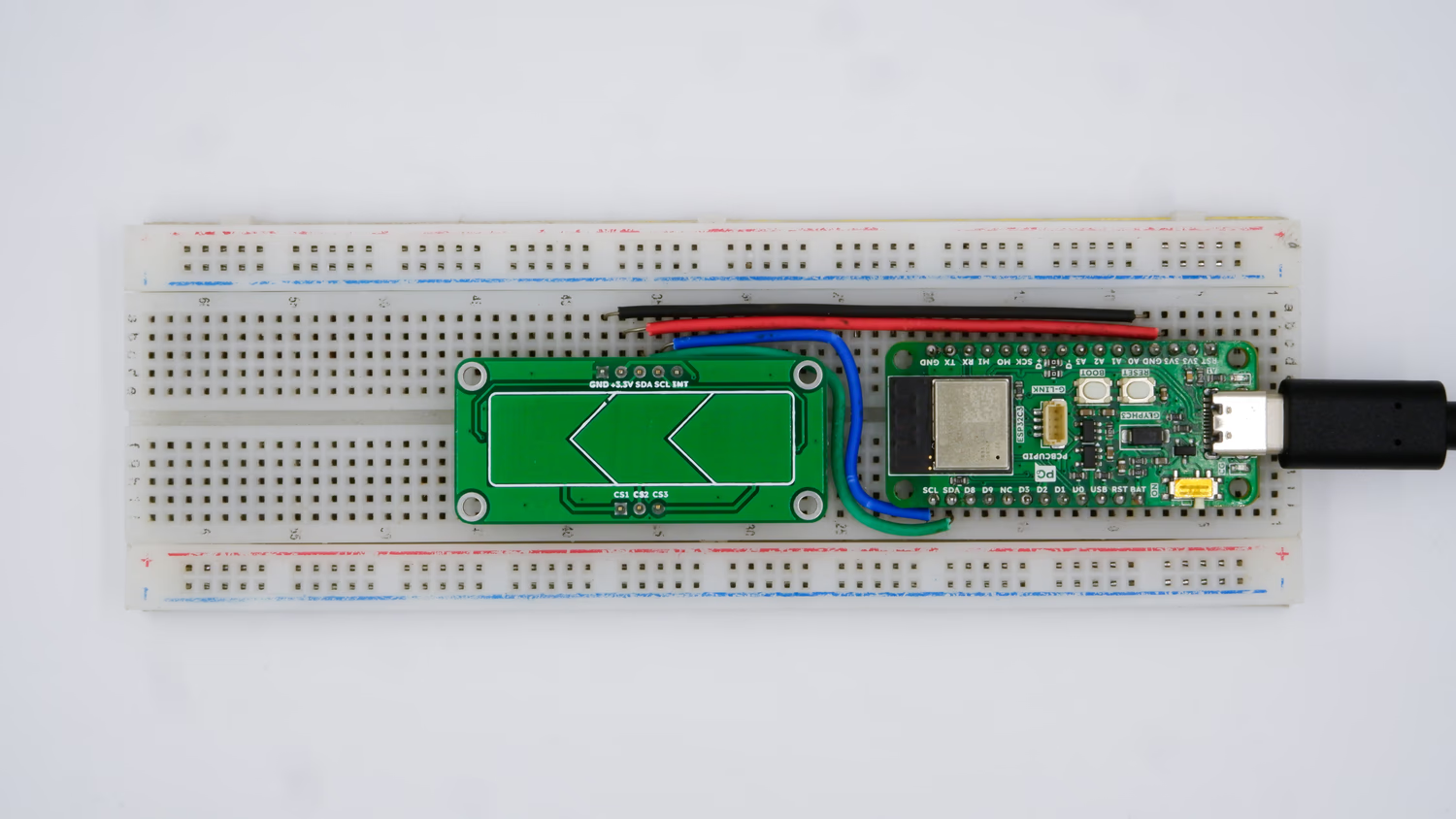
1. Glyph Board
2. Gsense Capacitive Touch Slider
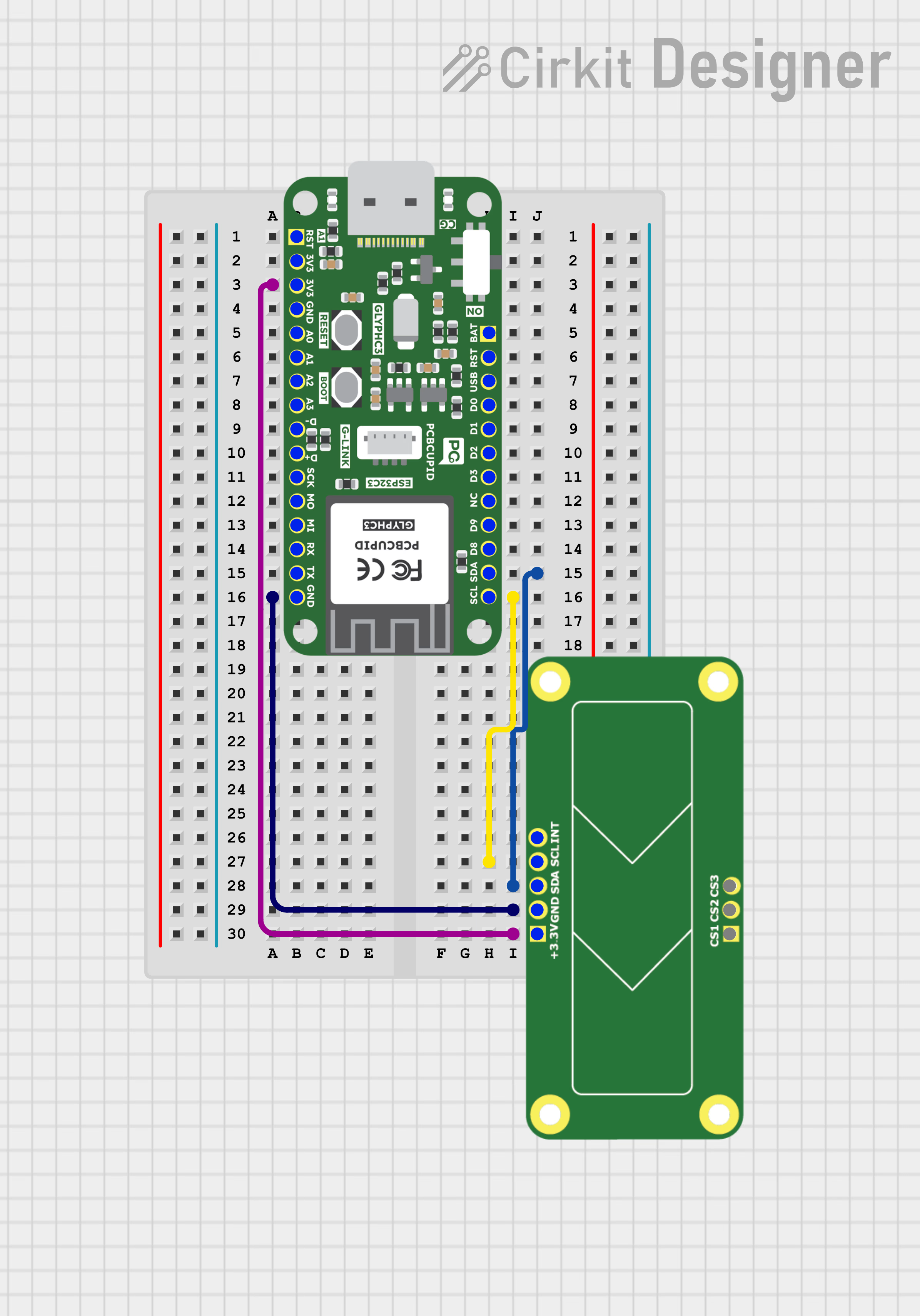
## Step 2: Circuit Diagram
## Step 3: Code Setup
```cpp theme={null}
#include
#include "SparkFun_CAP1203.h" // Click here to get the library: http://librarymanager/All#SparkFun_CAP1203
CAP1203 sensor; // Initialize sensor
void setup()
{
Wire.begin(); // Join I2C bus
Serial.begin(9600); // Start serial for output
// Setup sensor
if (sensor.begin() == false)
{
Serial.println("Not connected. Please check connections and read the hookup guide.");
while (1)
;
}
else
{
Serial.println("Connected!");
}
}
void loop()
{
if (sensor.isLeftTouched() == true)
{
Serial.println("Left");
}
if (sensor.isMiddleTouched() == true)
{
Serial.println("Middle");
}
if (sensor.isRightTouched() == true)
{
Serial.println("Right");
}
}
```
## Step 4: Upload the Code
1. **Connect the Board**
* Connect your GLYPH board to your computer
2. **Select the Board and Port**
Do the following settings in your Arduino IDE,
* `Tools > Board > esp32 > Pcbcupid GLYPH C3`
> [!WARNING]
>
> For the `Pcbcupid GLYPH C3 ` to appear under `Tools > Board > esp32`, the esp32 board version installed in the Arduino IDE should be greater than or equal to 3.1.0.
* `Tools > Port` and select the port connected to your GLYPH.
* `Tools > USB CDC on Boot >` ***Enabled***
> [!WARNING]
>
> If `USB CDC on BOOT` not enabled, you won't be seeing any serial data on Arduino IDE.
3. **Upload the Code**
* Click the upload button (➡️ icon) or use the shortcut `CTRL + U` in Arduino IDE to upload the code to the board.
## Step 5: Observe the Output
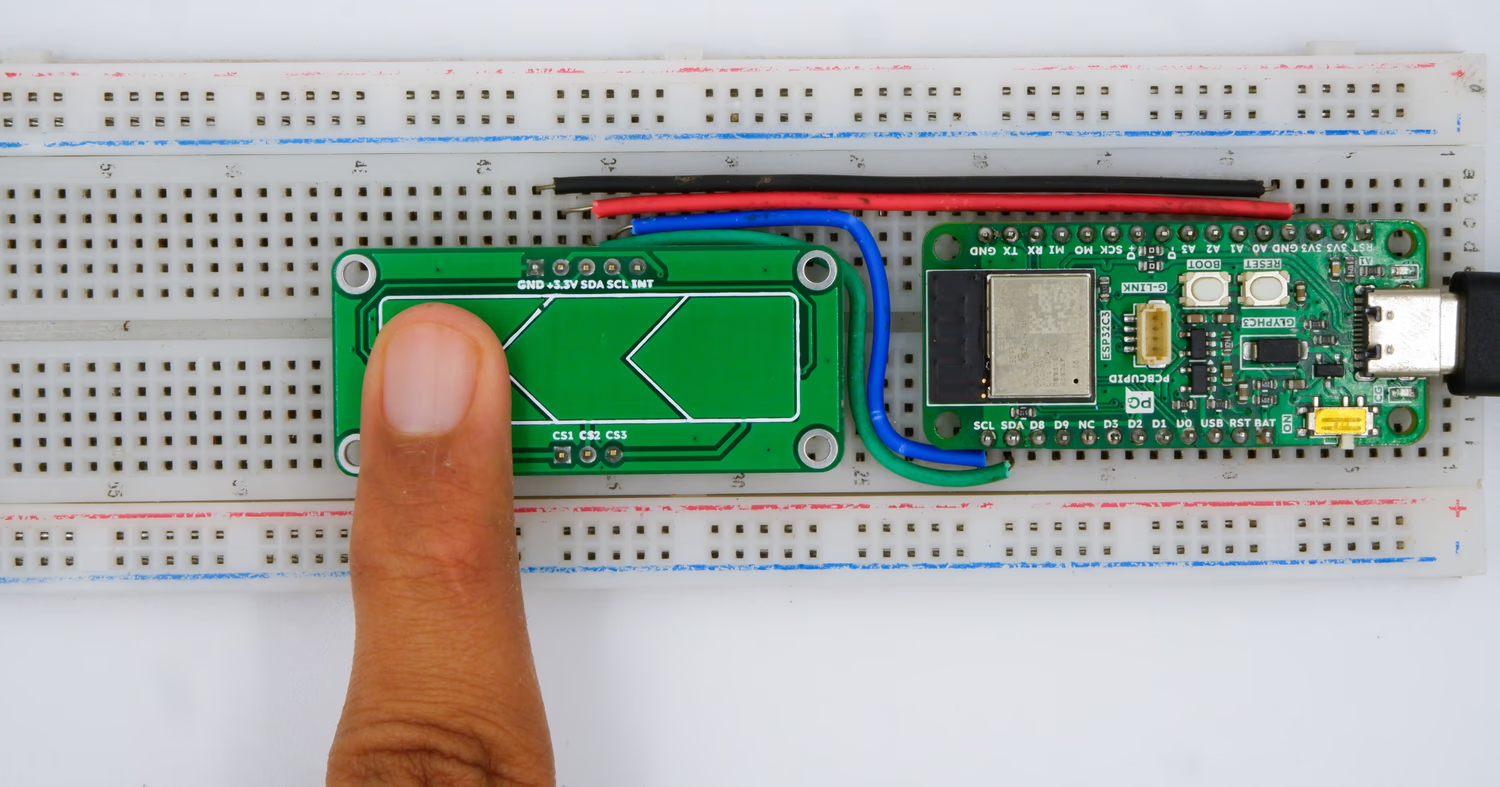
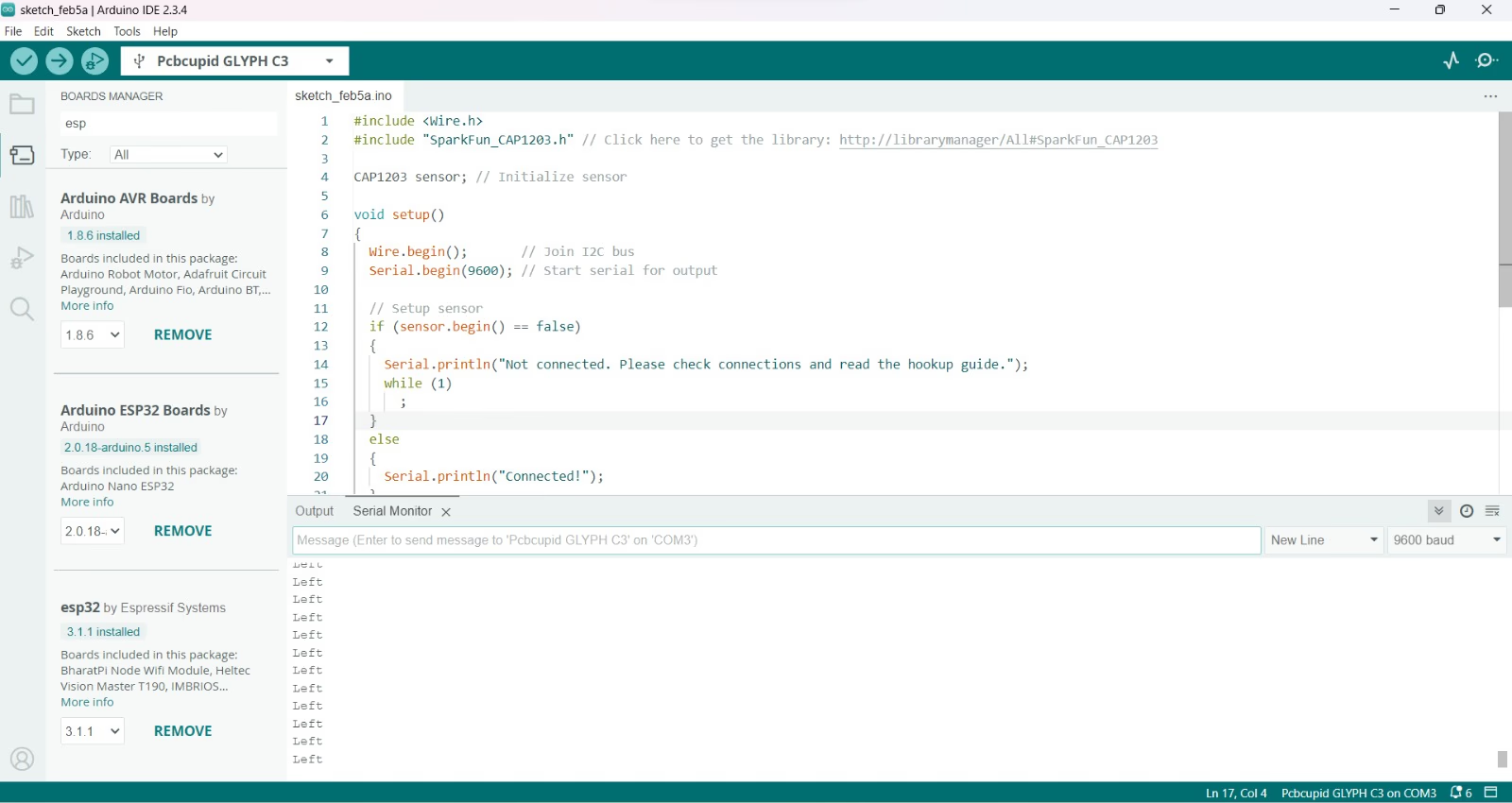
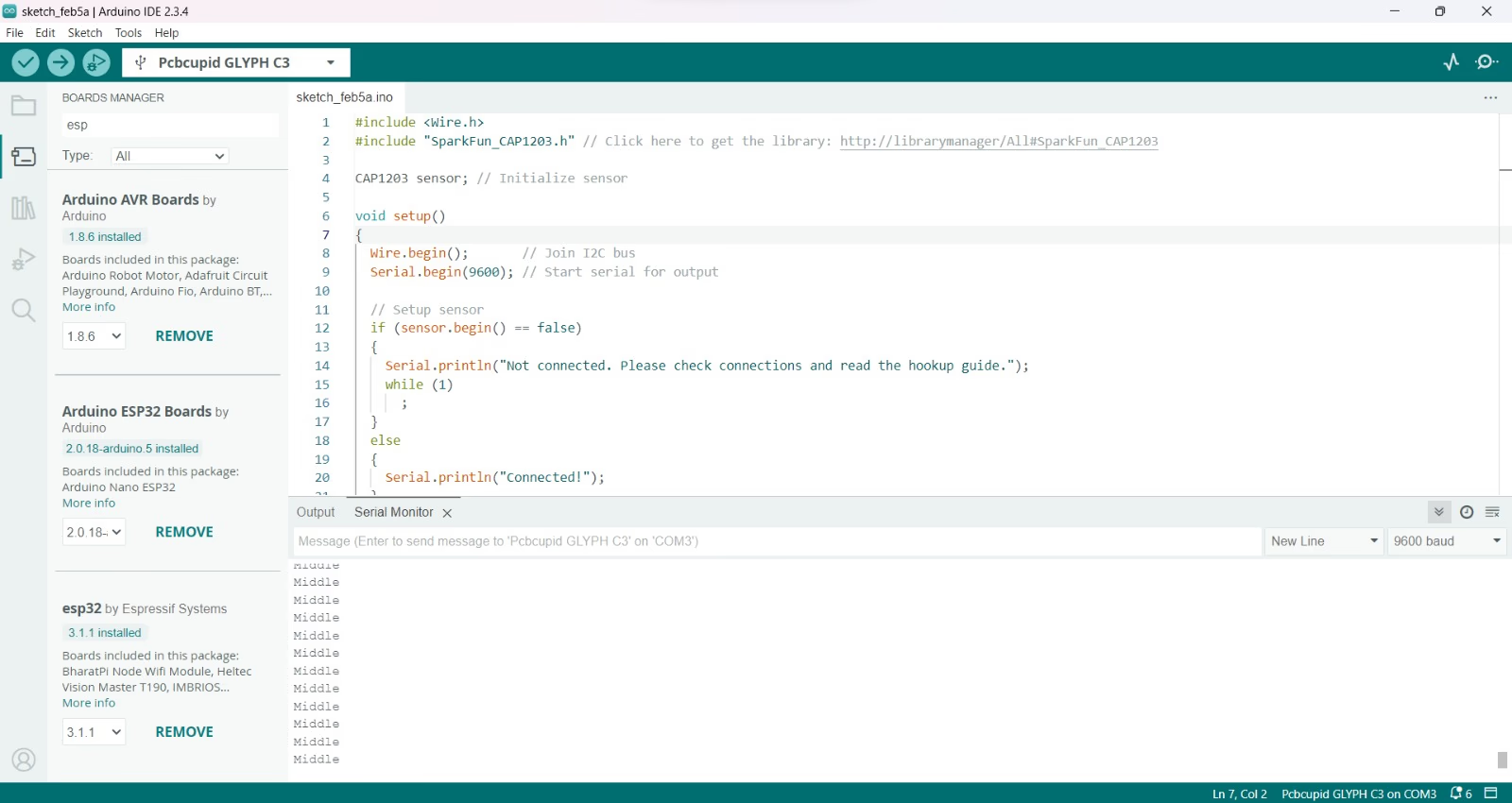
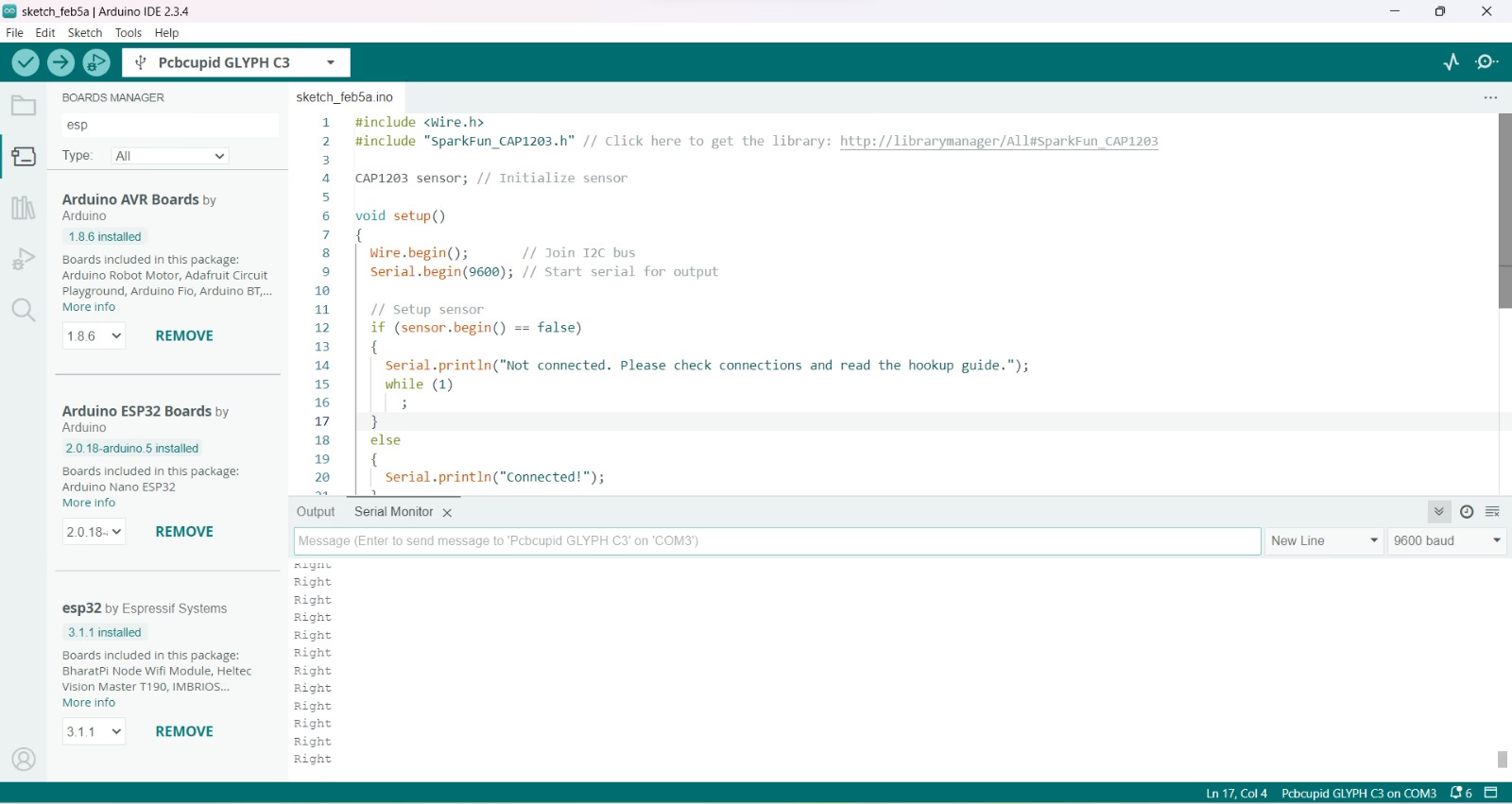
When you touch different sides of the Sensor, you can see the Serial Monitor Output as follows:
This documentation is built and hosted on [Mintlify](https://mintlify.com), a developer documentation platform.