> ## Documentation Index
> Fetch the complete documentation index at: https://learn.pcbcupid.com/llms.txt
> Use this file to discover all available pages before exploring further.

> Wire a single-channel relay module to a Glyph ESP32 development board and toggle a high-voltage load on and off using an Arduino digital pin.

# 1-Channel Relay

export const ShopHeader = ({title, url}) => <div style={{
  display: 'flex',
  justifyContent: 'flex-end',
  alignItems: 'center',
  width: '100%',
  marginBottom: '1rem',
  gap: '20px'
}}>
    <a href={url} target="_blank" rel="noopener noreferrer" style={{
  display: 'inline-flex',
  alignItems: 'center',
  backgroundColor: '#00b894',
  color: '#fff',
  padding: '8px 18px',
  borderRadius: '8px',
  textDecoration: 'none',
  fontSize: '0.95rem',
  fontWeight: 600,
  whiteSpace: 'nowrap',
  flexShrink: 0
}}>
      Shop now
    </a>
  </div>;

export const ImgGallery = ({images, modelUrl}) => {
  var [active, setActive] = useState(0);
  var [show3D, setShow3D] = useState(false);
  useEffect(function () {
    if (show3D || images.length <= 1) return;
    var t = setTimeout(function () {
      setActive(function (p) {
        return (p + 1) % images.length;
      });
    }, 3500);
    return function () {
      clearTimeout(t);
    };
  });
  var img = images[active];
  return <div style={{
    position: 'relative',
    background: 'linear-gradient(to bottom, #fff 0%, #fff 80%, #f8f8f8 100%)',
    borderRadius: '32px',
    border: '1px solid rgba(0,0,0,0.08)',
    overflow: 'hidden',
    marginTop: '0.75rem',
    marginBottom: '1.5rem'
  }}>
      <div style={{
    position: 'relative',
    height: '450px',
    display: 'flex',
    alignItems: 'center',
    justifyContent: 'center',
    background: '#fff',
    padding: '1rem'
  }}>
        {show3D && modelUrl ? <div ref={function (el) {
    if (!el || el._mv) return;
    el._mv = true;
    var s = document.createElement('script');
    s.src = "https://ajax.googleapis.com/ajax/libs/model-viewer/4.2.0/model-viewer.min.js";
    s.type = "module";
    s.onload = function () {
      var mv = document.createElement('model-viewer');
      mv.setAttribute('src', modelUrl);
      mv.setAttribute('camera-controls', '');
      mv.setAttribute('auto-rotate', '');
      mv.style.width = "100%";
      mv.style.height = "100%";
      mv.style.backgroundColor = "#f8f8f8";
      el.innerHTML = "";
      el.appendChild(mv);
    };
    document.head.appendChild(s);
  }} style={{
    width: "100%",
    height: "100%"
  }} /> : <img src={img && img.url} alt={img && img.label} loading="lazy" style={{
    maxWidth: '100%',
    maxHeight: '100%',
    objectFit: 'contain',
    borderRadius: '8px'
  }} />}
      </div>
      <div style={{
    display: 'flex',
    justifyContent: 'center',
    gap: '12px',
    padding: '1rem',
    background: '#eee',
    borderTop: '1px solid rgba(0,0,0,0.08)'
  }}>
        {images.map(function (img, idx) {
    return <button key={img.id || idx} onClick={function () {
      setActive(idx);
      setShow3D(false);
    }} style={{
      padding: '0.6rem 1.5rem',
      borderRadius: '12px',
      border: !show3D && idx === active ? '1px solid #00b894' : '1px solid rgba(0,184,148,0.4)',
      background: !show3D && idx === active ? '#00b894' : '#fff',
      color: !show3D && idx === active ? '#fff' : '#000',
      cursor: 'pointer',
      fontSize: '0.75rem',
      fontWeight: 700,
      textTransform: 'uppercase',
      fontFamily: 'inherit'
    }}>
              {img.label}
            </button>;
  })}
        {modelUrl ? <button onClick={function () {
    setShow3D(true);
  }} style={{
    padding: '0.6rem 1.5rem',
    borderRadius: '12px',
    border: show3D ? '1px solid #00b894' : '1px solid rgba(0,184,148,0.4)',
    background: show3D ? '#00b894' : '#fff',
    color: show3D ? '#fff' : '#000',
    cursor: 'pointer',
    fontSize: '0.75rem',
    fontWeight: 700,
    textTransform: 'uppercase',
    fontFamily: 'inherit'
  }}>
            3D VIEW
          </button> : null}
      </div>
    </div>;
};

<ShopHeader title="1-Channel Relay Module" url="https://shop.pcbcupid.com/product/gm001/" />

<ImgGallery modelUrl="https://raw.githubusercontent.com/pcbcupid/pcbcupid-hardware-libraries/main/pcbcupid_3dmodels/glb/gmod-relay-1ch.glb" images={[{url: "https://files.pcbcupid.com/Documentation/Boards/g-mod/1-ch-relay/gmod-pcbcupid-relay-1-ch_result.avif", label: "ILLUSTRATION VIEW", id: "illustration"}, {url: "https://files.pcbcupid.com/Documentation/Boards/g-mod/1-ch-relay/pcbcupid-relay1ch-topview.avif", label: "BOARD VIEW", id: "board"}]} />

A **1-channel relay** module provides control for a single independent relay. This makes it ideal for controlling high-power loads using low-power control signals from microcontrollers like Arduino, [GLYPH](https://shop.pcbcupid.com/product-category/development-boards/), or even Raspberry Pi. Here's how it works:

### Components

* Relays: Relay can independently control a high-power (Both AC / DC) device.
* Control Pins: There is one input pin (IN) for controlling the relay.
* Power Supply: A single power source is used for the relays **5V**
* Protection: Has an optocoupler for electrical isolation between the control and relay circuits.

### Pin Configuration

* VCC: Power supply for the module (5V).
* GND: Ground connection.
* IN: Control signal for Relay 1.
* COM, NO, NC: Relay 1 switching terminals.

### Relay Contacts

* COM (Common): The input terminal.
* NO (Normally Open): Open by default, closes when the relay is activated.
* NC (Normally Closed): Closed by default, opens when the relay is activated.

### Working

* Each relay channel works independently, following the same principles as a single-channel relay:
  * When Control Signal is LOW (0V):

    The associated transistor remains off.
    The corresponding relay coil is de-energized.
    The relay's Normally Open (NO) contact stays open

  * When Control Signal is HIGH (3.3V/5V):

    The associated transistor turns on, allowing current to flow through the relay coil.
    The coil energizes, creating a magnetic field that pulls the armature.
    The relay's NO contact closes, completing the circuit for the connected load.

  * Operation Sequence

    * IN HIGH: Activates Relay to control the Load.
    * IN LOW: Deactivates the relay, disconnecting the load.

### Applications

* Home Automation: Controlling lights and fans independently.
* Industrial Automation: Managing two separate devices or motors.
* DIY Projects: Operating appliances remotely with microcontroller-based projects.

This guide will help you interface a 1 Channel Relay assuming you are using [GLYPH-C3](https://learn.pcbcupid.com/boards/glyph-c3/overview)(but any [GLYPH development board](https://shop.pcbcupid.com/product-category/development-boards/) from the ESP32 Series should work)

## Step 1: Hardware Required

1. GLYPH-C3
2. GMOD-Single Channel Relay Module
3. Jumper Wires
4. Power Supply
5. AC Bulb

## Step 2: Circuit Diagram

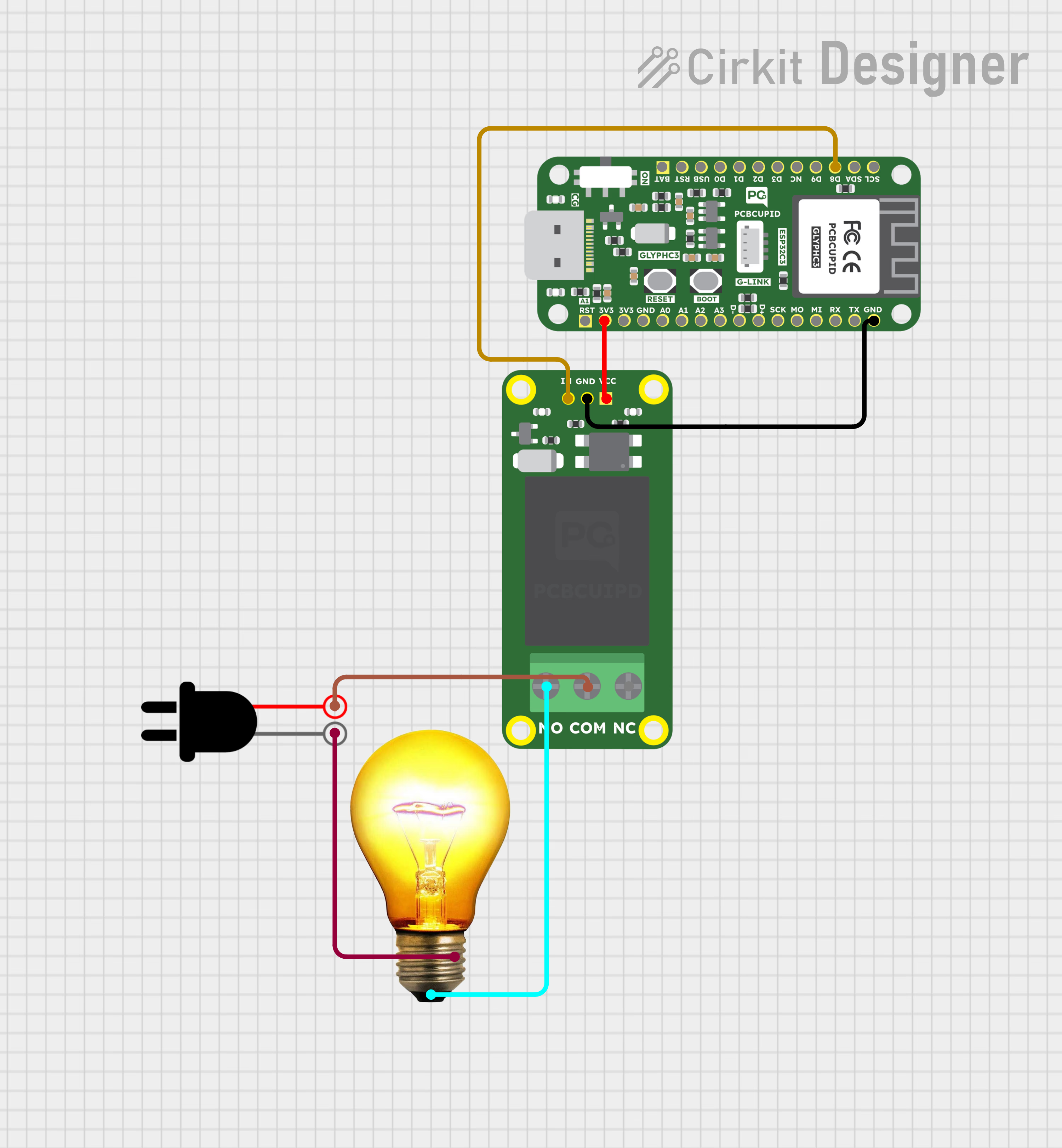
Connect the relay module as follows:

Relay IN → GPIO8 (Control Pin)
Relay VCC → 3.3V or 5V (Check relay voltage requirement)
Relay GND → GND
![pcbcupid\_1chanrelay](https://files.pcbcupid.com/Documentation/Boards/modules/1_channel_relay/1chanrelay_circuit.avif)

## Step 3: Code Setup

```cpp theme={null}
#define RELAY_PIN 8 // GPIO pin connected to the relay's IN pin

void setup() {
pinMode(RELAY_PIN, OUTPUT);  // Set the relay pin as an output
digitalWrite(RELAY_PIN, LOW);  // Ensure relay is off initially
}
void loop() {
digitalWrite(RELAY_PIN, HIGH);  // Turn relay ON (activate)
delay(2500);  // Wait for 2.5 seconds
digitalWrite(RELAY_PIN, LOW);  // Turn relay OFF (deactivate)
delay(2500);  // Wait for 2.5 seconds
}
```

## Step 4: Upload the Code

1. **Connect the Board**

* Connect your GLYPH board to your computer

2. **Select the Board and Port**

   Do the following settings in your Arduino IDE,

   * `Tools > Board > esp32 > Pcbcupid GLYPH C3`

<Warning>
  For the `Pcbcupid GLYPH C3 ` to appear under `Tools > Board > esp32`, the esp32 board version installed in the Arduino IDE should be greater than or equal to 3.1.0.
</Warning>

* `Tools > Port` and select the port connected to your GLYPH.
* `Tools > USB CDC on Boot >` ***Enabled***

<Warning>
  If `USB CDC on BOOT` is not enabled, you won't be seeing any serial data on Arduino IDE.
</Warning>

3. **Upload the Code**

* Click the upload button (➡️ icon) or use the shortcut `CTRL + U` in Arduino IDE to upload the code to the board.

## Step 5: Observe the Output
![Single\_channel Relay](https://files.pcbcupid.com/Documentation/Boards/modules/1_channel_relay/PCBCUPID_singlechannelrelay_bulboff.avif)

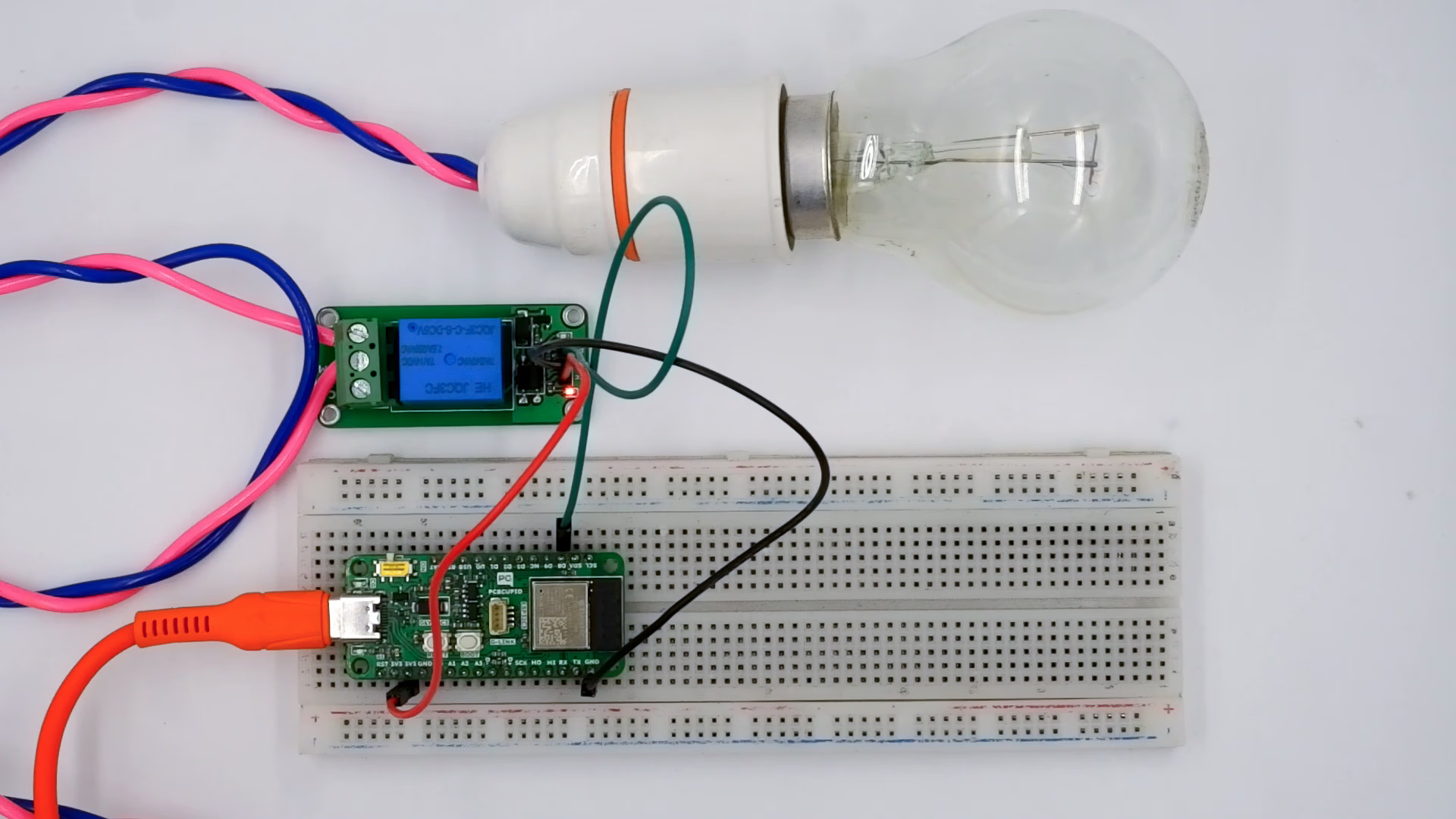
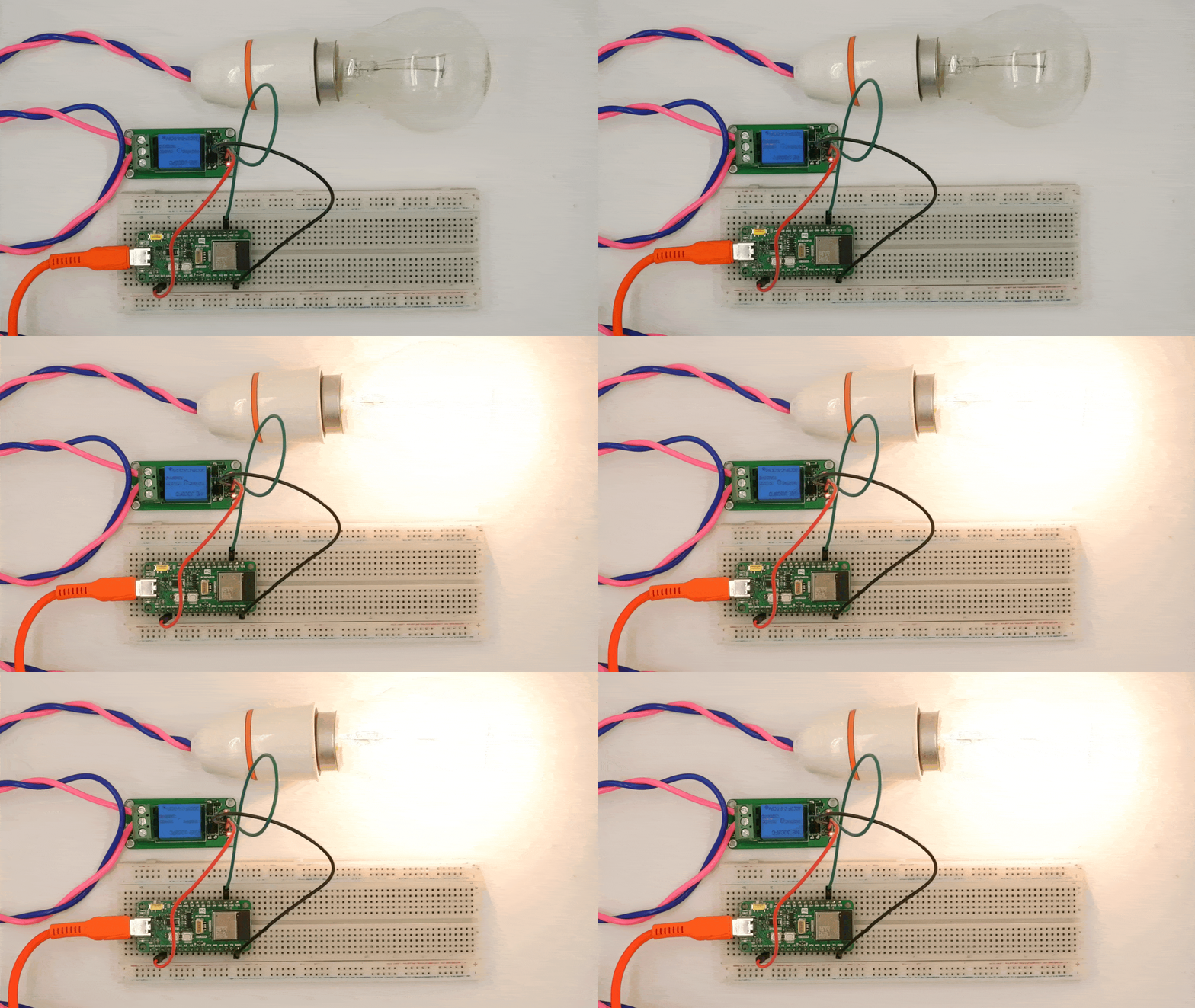
The relay will turn ON for 2.5 seconds, then OFF for 2.5 seconds, and this cycle will repeat.

<Info>
  * Some relay modules are active LOW, meaning they turn ON when LOW and OFF when HIGH. If your relay behaves unexpectedly, try inverting the digitalWrite() logic.

  * Ensure the relay's power rating matches the device you want to control.

  * You may hear a clicking sound as the relay switches states.
</Info>

![Single\_channel Relay\_Bulb\_On\_Off](https://files.pcbcupid.com/Documentation/Boards/modules/1_channel_relay/PCBCUPID_singlechannelrelay_bulbonoff.gif)
